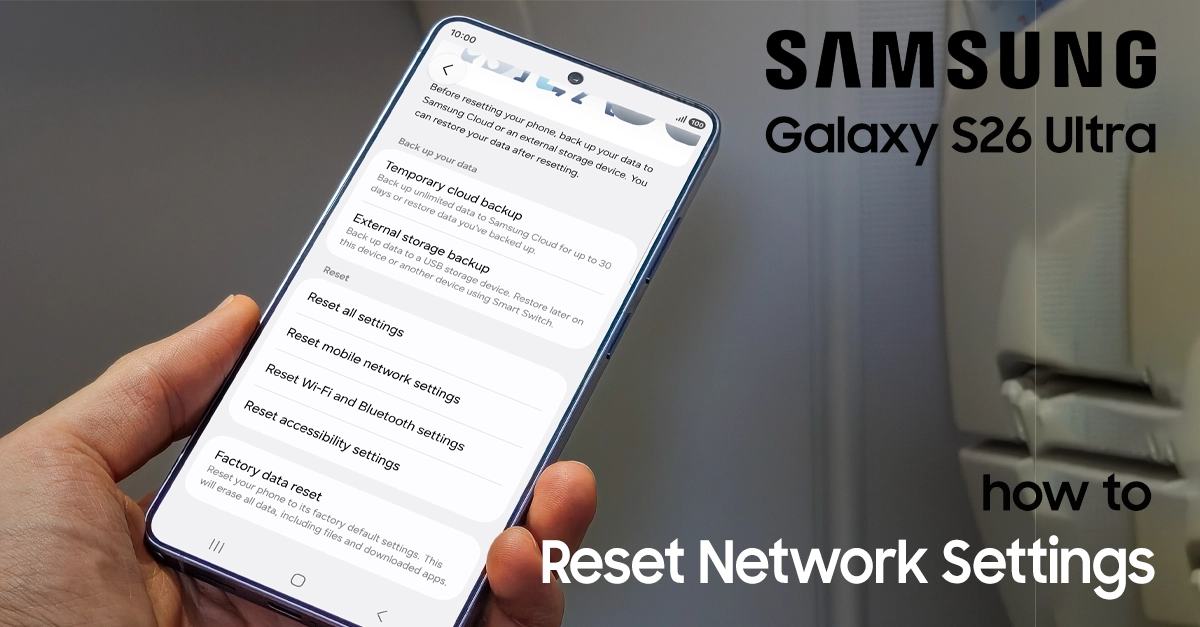
Struggling with Wi-Fi disconnections, Bluetooth pairing issues, or mobile data not working on your Samsung Galaxy S26 Ultra? Resetting your network settings is one of the most effective troubleshooting steps. In this guide, we’ll walk you through exactly how to reset network settings on the Galaxy S26 Ultra, explain what gets erased, and show you what to do next.
What Does Resetting Network Settings Do?
When you reset network settings on your Galaxy S26 Ultra, the phone restores all connectivity configurations back to factory defaults. This includes:
- Wi-Fi networks and passwords — All saved Wi-Fi connections are removed.
- Bluetooth pairings — Connected devices (headphones, smartwatches, car systems) are forgotten.
- Mobile network settings — APN configurations, VPN profiles, and cellular preferences are cleared.
- Call settings — Wi-Fi calling and call forwarding settings reset.
Important: Resetting network settings does NOT delete your photos, apps, contacts, or personal files. It only affects connectivity settings.
When Should You Reset Network Settings?
Consider resetting your network settings if you’re experiencing any of these issues:
- Wi-Fi problems: Wi-Fi frequent disconnections, networks not showing up, or inability to connect
- Bluetooth failures: Pairing issues, devices not being detected, or unstable connections
- Mobile data issues: Slow or no mobile data connection despite having signal
- Post-update glitches: Connectivity problems that started after a system software update
- Slow or unstable connections: General poor network performance across the board
How to Reset Network Settings on Galaxy S26 Ultra
Follow these step-by-step instructions to reset your network settings on the Samsung Galaxy S26 Ultra.
Step 1: Open Settings
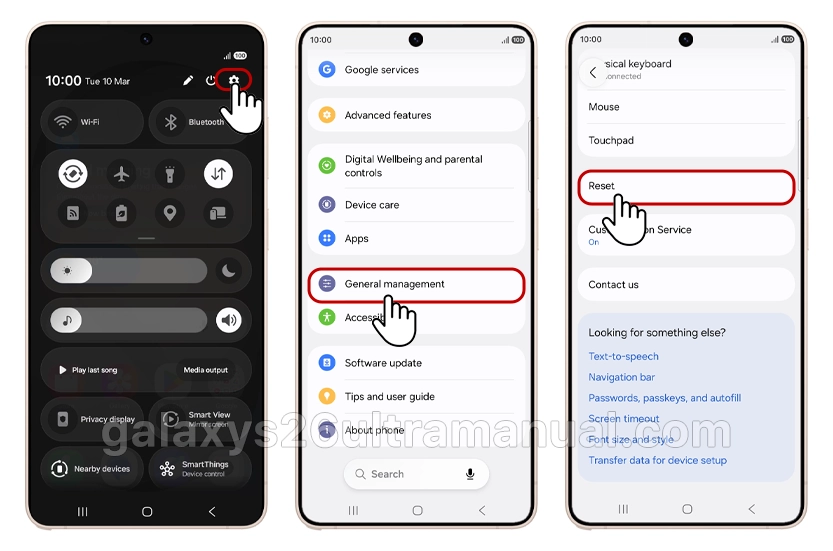
Swipe down from the top-right corner of your screen to open the Quick Settings panel, then tap the Settings icon. Alternatively, find the Settings app on your home screen.
Step 2: Navigate to General Management
Scroll down and tap General management. This is where Samsung houses all device reset and management options.
Step 3: Tap Reset
Inside General management, scroll down and tap Reset. You’ll see several reset options here.
Step 4: Choose Your Reset Type
Samsung offers two types of network resets on the Galaxy S26 Ultra:
| Reset Type | What It Clears | Best For |
|---|---|---|
| Reset mobile network settings | Cellular data, APN, VPN, mobile network preferences | Mobile data issues, “No Service,” call problems |
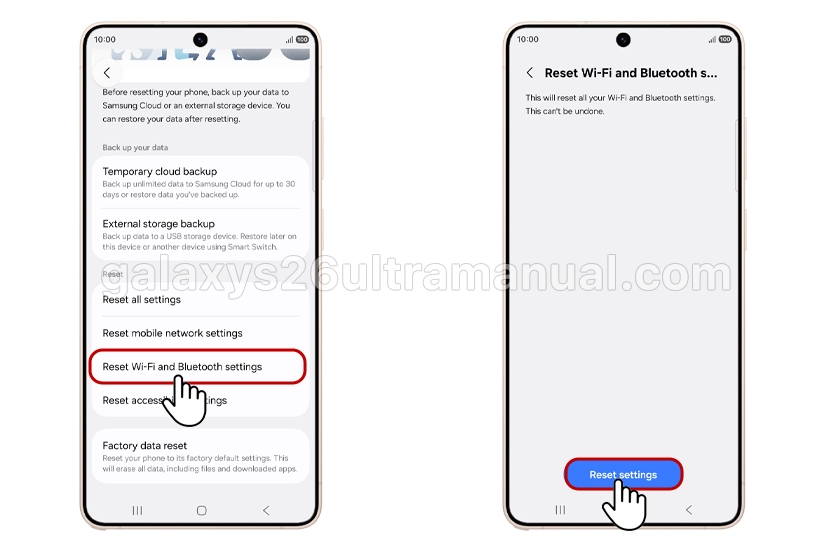
| Reset Wi-Fi and Bluetooth settings | Saved Wi-Fi networks, passwords, Bluetooth pairings | Wi-Fi won’t connect, Bluetooth pairing failures |
Tip: If you’re unsure which to pick, start with the one matching your specific problem. You can always reset the other later.
Step 5: Confirm the Reset
Tap Reset settings, then tap Reset on the confirmation screen. You may be prompted to enter your PIN, pattern, or password for security.
Step 6: Wait for the Reset to Complete
The process takes just a few seconds. Your Galaxy S26 Ultra will briefly process the reset, and then you’re done.
What to Do After Resetting Network Settings
Once the reset is complete, you’ll need to reconfigure your connections:
- Reconnect to Wi-Fi — Go to Settings > Connections > Wi-Fi and re-enter your network passwords.
- Re-pair Bluetooth devices — Open Settings > Connections > Bluetooth and pair your headphones, smartwatch, or car system again.
- Check mobile data — Your carrier’s default APN settings should restore automatically. If mobile data still doesn’t work, contact your carrier.
- Re-enable VPN profiles — If you use a VPN, you’ll need to reconfigure it in Settings > Connections > More connection settings > VPN.
Pro Tips for a Smooth Reset
- Write down your Wi-Fi passwords before resetting—you’ll need them afterward.
- Note any custom APN settings your carrier may have provided.
- The reset won’t affect your eSIM or physical SIM—your cellular plan remains intact.
- If you’re still having issues after the reset, try restarting your phone.
Troubleshooting: Network Reset Didn’t Fix the Problem?
If resetting network settings didn’t resolve your issue, try these additional steps:
1. Restart Your Galaxy S26 Ultra
A simple reboot can refresh network hardware and resolve lingering software glitches.
2. Toggle Airplane Mode
Swipe down from the top of the screen and tap the Airplane mode icon. Wait 10 seconds, then tap it again to reconnect.
3. Check for Software Updates
Go to Settings > Software update > Download and install. Samsung frequently releases patches that fix connectivity bugs on Android 16.
4. Reset All Settings (Not Factory Reset)
If network reset alone didn’t work, go to Settings > General management > Reset > Reset all settings. This restores all system settings (not just network) without deleting your data.
5. Contact Your Carrier or Samsung Support
If you still see “No Service” or can’t connect to mobile data, the issue may be on your carrier’s end or a hardware fault. Reach out to Samsung Support or your carrier for further diagnostics.
Final Thoughts
Resetting network settings on the Samsung Galaxy S26 Ultra is a quick, safe, and highly effective way to fix Wi-Fi, Bluetooth, and mobile data issues. With just a few taps through Settings > General management > Reset, you can clear corrupted network configurations and start fresh. Remember to reconnect your Wi-Fi and Bluetooth devices afterward, and always keep your phone updated to the latest Android software for the best connectivity experience.
If you found this guide helpful, consider bookmarking it for future reference or sharing it with someone troubleshooting their Galaxy S26 Ultra!
1 thought on “How to Reset Network Settings on Galaxy S26 Ultra (Step-by-Step Guide)”