If your Samsung Galaxy S26 Ultra is experiencing slow browser performance, login issues, or privacy concerns, clearing cookies can resolve these problems quickly. Cookies are small data files that websites store on your device to remember your preferences and login status. Over time, these files accumulate and can cause browsing issues or consume unnecessary storage space. This guide walks you through how to clear cookies on Galaxy S26 Ultra using both Samsung Internet and Google Chrome browsers.
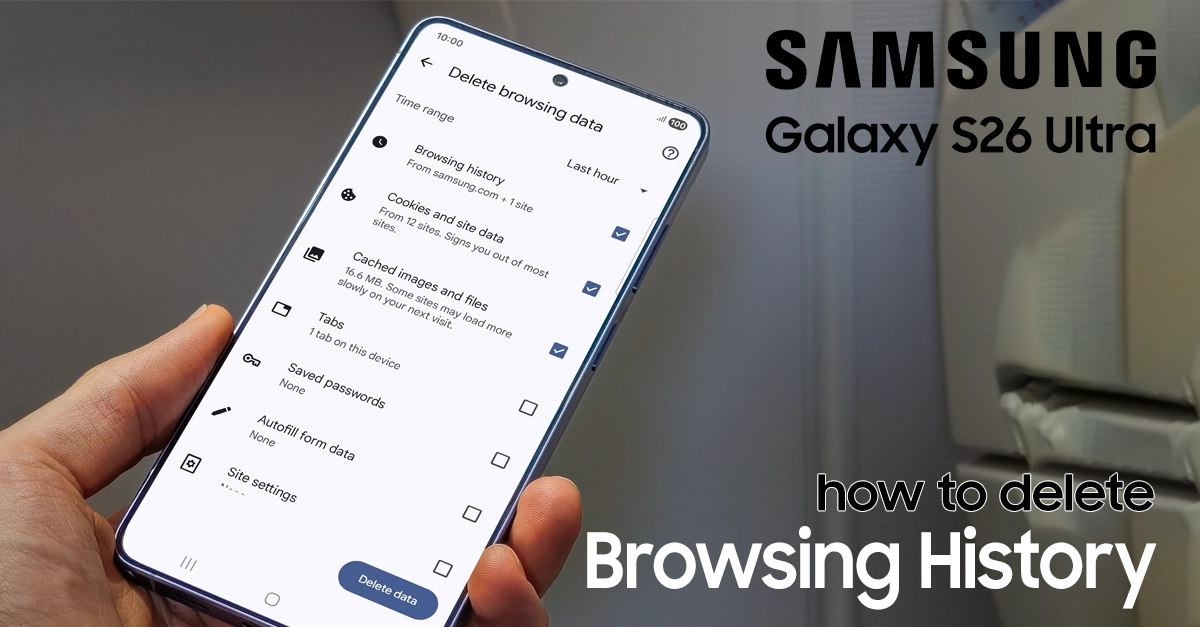
Methods to Clear Cookies on your Galaxy S26 Ultra
Below are simple steps to clear cookies on the Galaxy S26 Ultra using the most common browsers.
How to Clear Cookies in Google Chrome
If you use Google Chrome as your primary browser, follow these steps:
- Open Chrome and tap the three dots (More button) in the top right corner.
- Choose Settings.
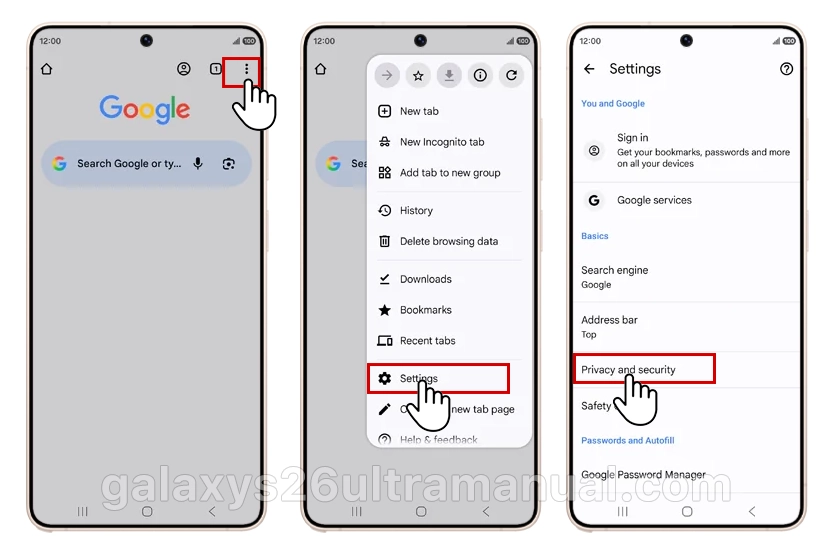
- Choose Privacy and security.
- Choose Delete browsing data.
- To delete the browser history, check Browsing history. To delete the cookies, check Cookies and site data. To delete the cache, check Cached images and files.
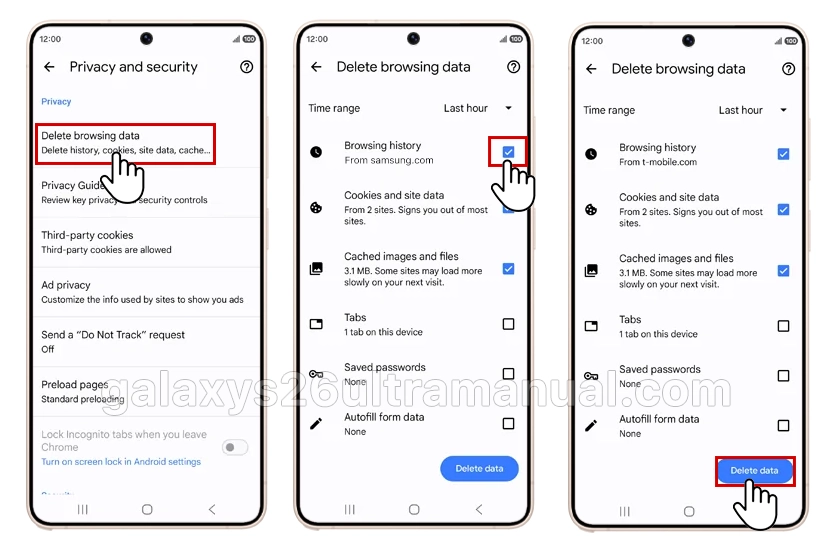
- Optional: Under Time range, choose an option. Choose Delete data.
The browser history, cache and cookies have been deleted. Return to the Home screen.
How to Clear Cookies in Samsung Internet Browser
Samsung Internet is the default browser on your Galaxy S26 Ultra. Follow these steps to clear cookies and site data:
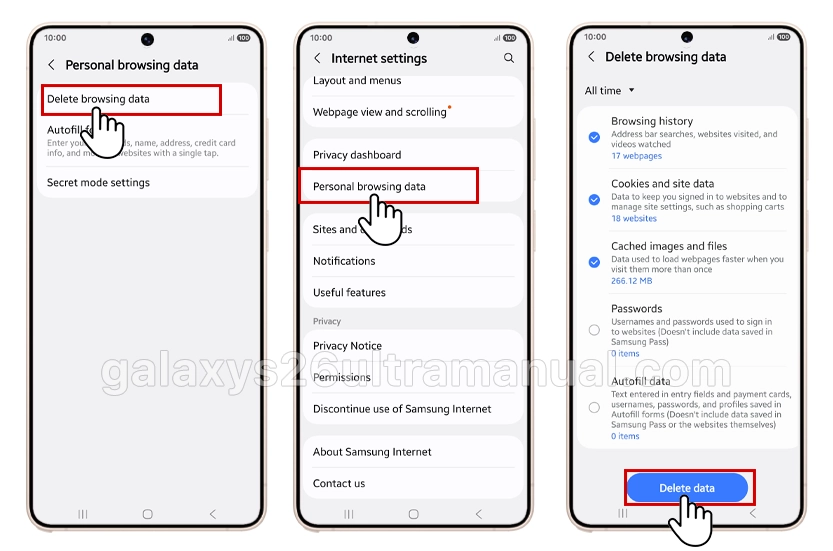
- Open Samsung Internet and tap the three horizontal lines (Menu button) in the bottom right corner.
- Tap Settings from the menu.
- Scroll down and select Personal browsing data.
- Tap Delete browsing data.
- Ensure the checkbox for Cookies and site data is selected. You can also select Cached images and files if needed.
- Choose your preferred Time range (e.g., Last hour, Last 24 hours, or All time).
- Tap Delete data and confirm your selection.
Your cookies are now cleared. The browser may take a few moments to complete the deletion depending on the amount of data stored.
Alternative Method: Clear Data Through Phone Settings
You can also clear browser data through your Galaxy S26 Ultra’s system settings:
- Open Settings and tap Apps.
- Find and select Samsung Internet (or Chrome).
- Tap Storage and cache.
- Tap Clear cache to remove temporary files, or tap Clear storage to delete all app data including cookies.
Warning: Using Clear storage will reset the browser completely, removing all settings, bookmarks, and saved passwords. Use this option only as a last resort.
What to Expect After Clearing Cookies on Galaxy S26 ultra
After clearing cookies, you will notice several changes. Websites will load fresh content rather than cached versions, which may initially slow down browsing speed until new cache files are created.
You will be signed out of all accounts, including email, social media, and shopping sites. Website preferences such as language settings or dark mode selections may reset to defaults. These effects are temporary and normal parts of the cookie clearing process.
When Should You Clear Cookies?
Consider clearing cookies when you experience specific browser problems. Clear cookies if websites fail to load properly, display outdated content, or reject your login credentials despite entering correct passwords.
You should also clear cookies if you notice unusual browser behavior, excessive storage usage, or privacy concerns regarding tracking. For regular maintenance, clearing cookies every few months helps maintain optimal browser performance.
Conclusion
Knowing how to clear cookies on Galaxy S26 Ultra empowers you to troubleshoot common browser issues while protecting your privacy. Whether you use Samsung Internet or Google Chrome, the process is straightforward and takes only minutes to complete.
Remember that clearing cookies signs you out of accounts, so have your passwords ready. By following this guide, you can resolve loading problems, free up storage space, and ensure a smoother, more private browsing experience on your Samsung Galaxy S26 Ultra.