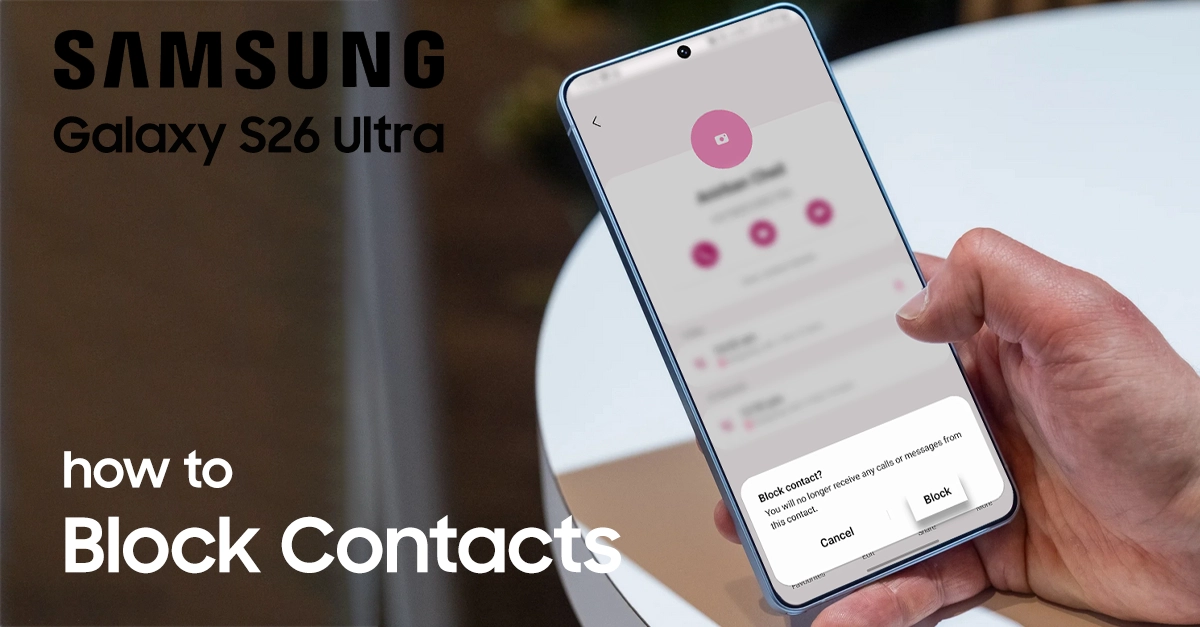
Spam calls and unwanted contacts disrupt your day on the Samsung Galaxy S26 Ultra. This guide shows you exactly how to block contact on Galaxy S26 Ultra, from basic number blocks to advanced AI features like Smart Call and Call Screening. Built for users tired of spam, these steps use One UI 8.5’s latest tools to reclaim your peace.
Why Block Contact on Galaxy S26 Ultra?
Blocking stops calls, texts, and voicemails from harassers or telemarketers. The S26 Ultra enhances this with Galaxy AI features like auto-screening suspicious callers before they ring.
Samsung’s Smart Call identifies spam in real-time, while Auto Blocker silences unknown numbers. Users report up to 90% fewer interruptions after setup.
These tools outperform basic Android blocks, integrating with your carrier for broader protection.
Prerequisites Before Blocking
Update your Galaxy S26 Ultra to the latest One UI via Settings > Software update. Ensure Caller ID and spam protection is enabled in the Phone app.
No third-party apps needed—Samsung’s built-in features handle most spam effectively.
Steps to Block Contact on your Samsung S26 Ultra
Below is a complete step-by-step guide to help you block contacts on your Galaxy S26 Ultra. You can also merge the contact or backing up your contact.
Method 1: Block a Contact from the Phone App
- Open the Phone app.
- Choose the options symbol.
- Choose Settings.
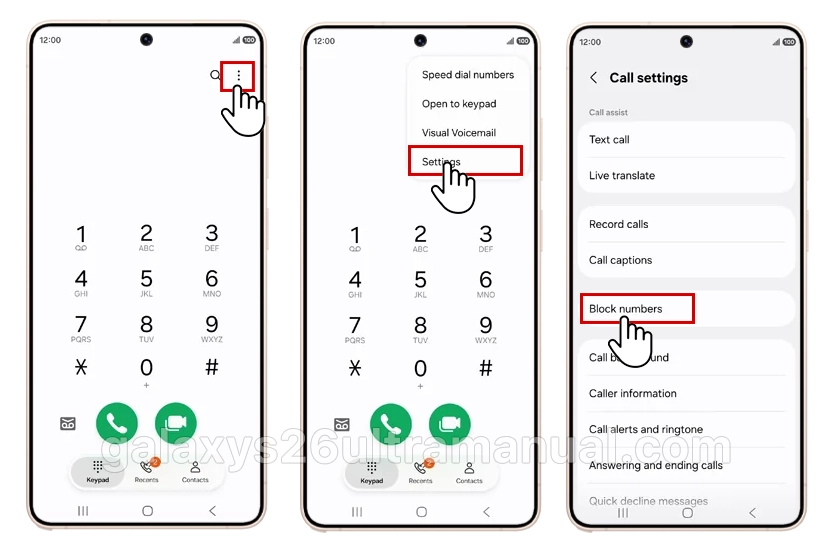
- Choose Block numbers.
- Choose Add phone number and enter a phone number or, in this case, choose Recents.
- Check a contact.
- Choose Done.
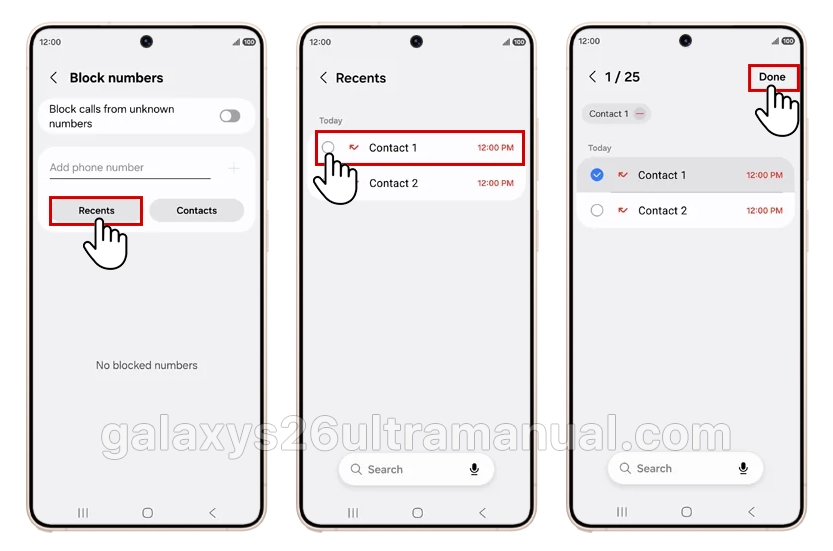
The contact has been added to the list of blocked callers. Return to the Home screen.
Method 2: Block a Contact from the Contacts App
If the person is saved in your contacts, you can block them directly.
- Open the Contacts app.
- Search for and select the contact you want to block.
- Tap the three-dot menu (⋮) in the top-right corner.
- Tap Block contact.
- Confirm by selecting Block.
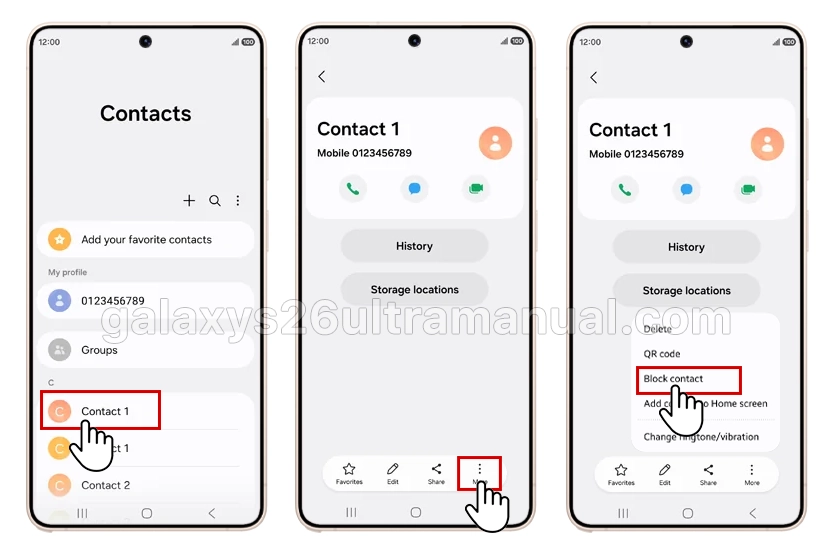
After blocking, the contact will no longer be able to reach you through calls or text messages.
Method 3: Block Unknown or Private Numbers (Spam Shield)
Auto-block all unsaved callers—a game-changer for spam.
- Open Phone app > More options (three dots) > Settings.
- Tap Block numbers.
- Toggle Block unknown callers or Block private numbers ON.
Add custom numbers manually: Tap Add phone number, enter digits, and save.
Advanced: Enable Smart Call and Call Screening
Samsung’s AI flags spam before ringing.
- Open Phone > More options > Settings > Caller ID and spam protection.
- Toggle it ON, agree to terms.
- Enable Block spam and scam calls (high-risk only or all).
For Call Screening (S26 Ultra exclusive):
- Go to Settings > Galaxy AI > Call Assist > Call Screening.
- Toggle Auto screen calls ON for suspected spam.
Your phone answers, transcribes, and blocks automatically.
Block in Messages App (For SMS Spam)
- Open Messages app.
- Long-press the conversation.
- Tap Block > Block.
Syncs with Phone blocks for full coverage.
How to Unblock a Number
If you accidentally blocked someone:
- Open Phone app.
- Tap ⋮ > Settings.
- Tap Block numbers.
- Find the number in the list.
- Tap the – (Remove) icon next to it.
The contact will now be able to call and message you again.
Test blocks with a secondary phone—calls should silence.
| Feature | Best For | Steps Location | AI-Enhanced? |
|---|---|---|---|
| Phone Recents | Recent spam | Recents > Info > Block | Yes (Smart Call) |
| Contacts App | Saved numbers | Contact > More > Block | No |
| Unknown Block | All unsaved | Settings > Block numbers | Yes (Auto) |
| Call Screening | Scams | Galaxy AI > Call Assist | Yes |
Troubleshooting Common Issues
Block not working? Restart Phone app or toggle Airplane mode. Check Do Not Disturb isn’t overriding.
Carrier spam persists? Contact your provider for network-level blocks.
S26 Ultra S Pen users: Quick-tap blocks from call screen for faster action.
Mastering how to block contact on Galaxy S26 Ultra keeps spam at bay with simple, powerful tools like Smart Call and Auto Blocker. Follow these steps for a quieter phone—your inbox and sanity will thank you.
2 thoughts on “How to Block Contact on Samsung Galaxy S26 Ultra to Stop Spam Calls”