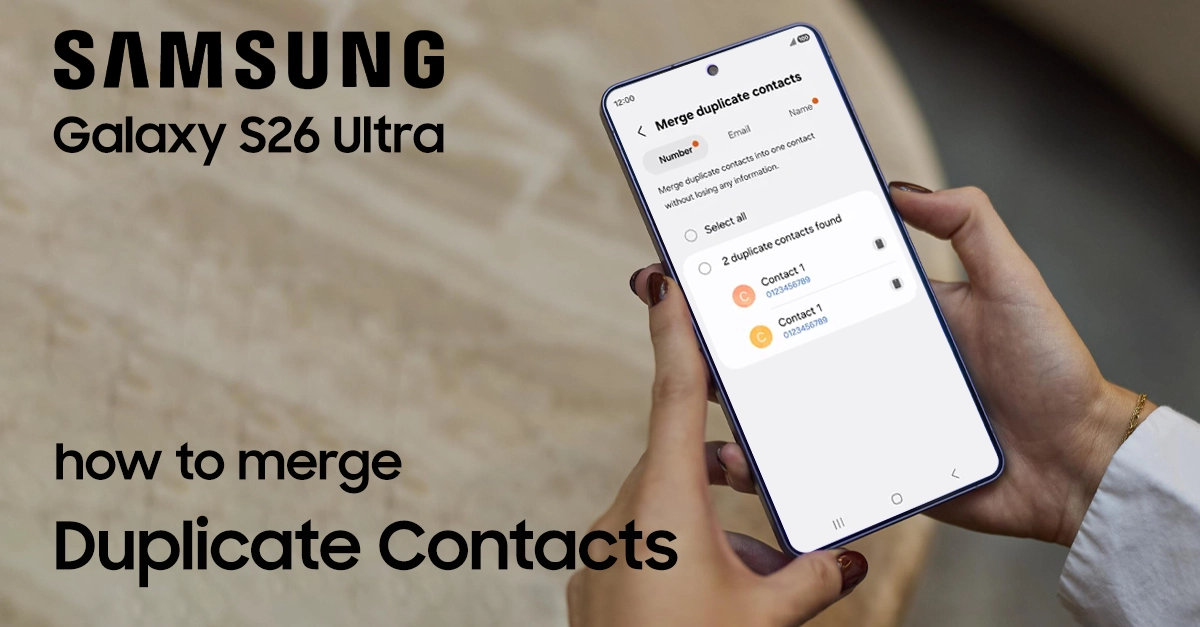
Setting up your new Galaxy S26 Ultra should be exciting, but duplicate contacts can quickly clutter your address book. Whether you’re migrating from an old phone, syncing multiple accounts, or importing SIM contacts, seeing the same name appear multiple times is frustrating. This guide shows you exactly how to merge duplicate contact on Galaxy S26 Ultra using Samsung’s built-in Contacts app.
Why Do Duplicate Contacts Appear on Galaxy S26 Ultra?
Before merging, it helps to understand why duplicates happen. Some common causes include:
- Syncing contacts from multiple accounts (Google, Outlook, SIM, etc.).
- Importing contacts more than once.
- Saving the same person with different numbers or emails.
- Restoring contacts from backups.
Merging combines these entries into a single contact card while keeping all saved numbers, emails, and details.
Step-by-Step to Merge Duplicate Contact on Samsung S26 Ultra
Just in case, back up your contact first. Follow these exact steps to clean up your contact list:
Step 1: Open the Contacts App
Locate and tap the Contacts app on your home screen or app drawer. This is Samsung’s default contact manager that comes preinstalled on the Galaxy S26 Ultra.
Step 2: Access the Settings
Tap the Settings button (three horizontal lines). This opens the main navigation menu with contact management options.
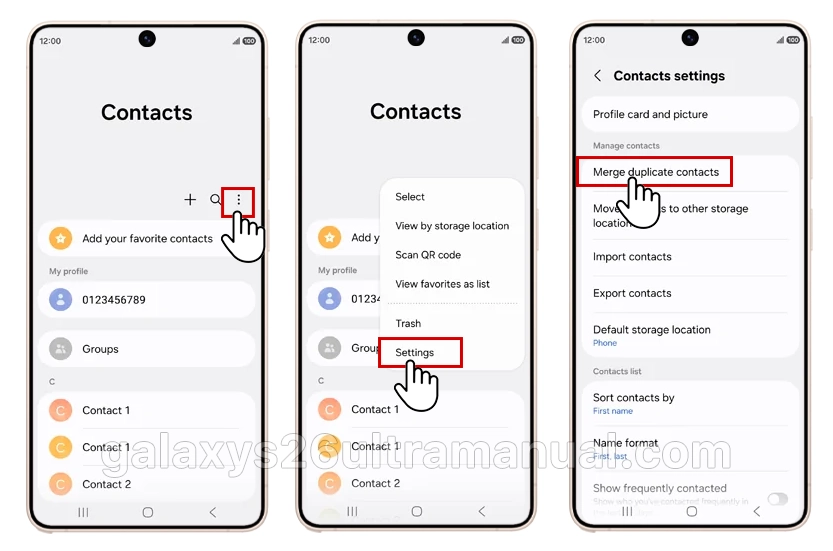
Step 3: Tap Merge Duplicate Contacts
Select Merge duplicate contacts from the options. The Galaxy S26 Ultra will scan your entire contact list for potential duplicates across three categories: phone numbers, email addresses, and names.
Step 4: Choose Your Merge Category
The screen displays three tabs:
- Number – finds contacts with identical or similar phone number.
- Email – finds contacts sharing the same email address.
- Name – finds contacts sharing the same name.
Tap the category you want to clean up. Most users start with Phone since duplicate numbers are the most common issue.
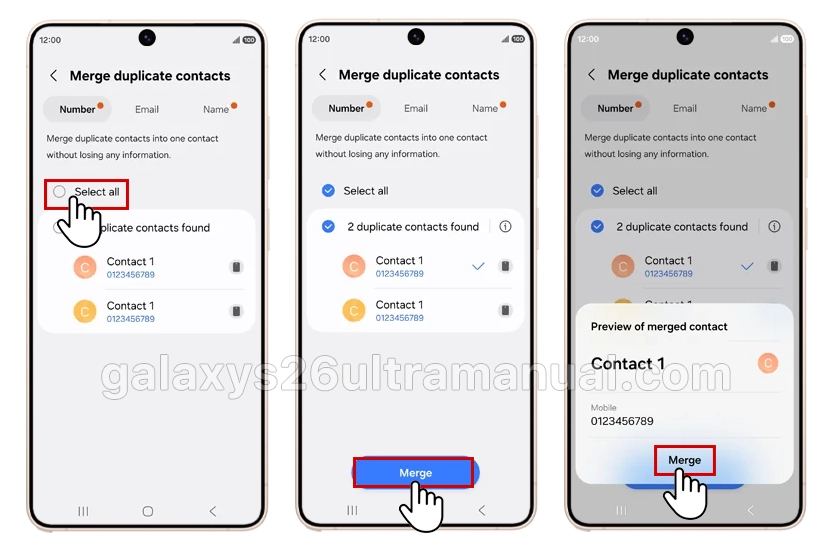
Step 5: Confirm the Merge
After selecting, tap the Merge button at the bottom of the screen. Samsung will combine the selected entries into a single contact card, preserving all unique information (different phone numbers, emails, or addresses) while eliminating the duplicate entry.
Step 6: Repeat for Other Categories
Return to the Merge contacts screen and switch between Phone, Email, and Name tabs to ensure your entire contact list is fully organized. You can also blocking your contact to avoid calls from them.
What Information Gets Merged?
When you merge duplicate contact on Galaxy S26 Ultra, Samsung intelligently combines data:
- Phone numbers from both entries are preserved.
- Email addresses are consolidated.
- Physical addresses are kept.
- Notes and birthday information are merged.
- One unified contact photo can be selected.
Nothing gets deleted unless it’s an exact duplicate of existing data.
Tips for Keeping Contacts Clean on Galaxy S26 Ultra
- Merge immediately after setup: Run the merge tool right after transferring data to your new Galaxy S26 Ultra.
- Check before adding: Search existing contacts before saving new numbers.
- Limit sync sources: Only sync necessary accounts to reduce overlap.
- Regular maintenance: Run the merge tool monthly to catch duplicates early.
Knowing how to merge duplicate contact on Galaxy S26 Ultra keeps your address book organized and makes finding people faster. Samsung’s built-in merge tool eliminates duplicates by phone number, email, or name in just a few taps—no extra apps needed. Run this tool after setting up your new device and periodically thereafter to maintain a clean, professional contact list.
2 thoughts on “How to Merge Duplicate Contact on Samsung Galaxy S26 Ultra”