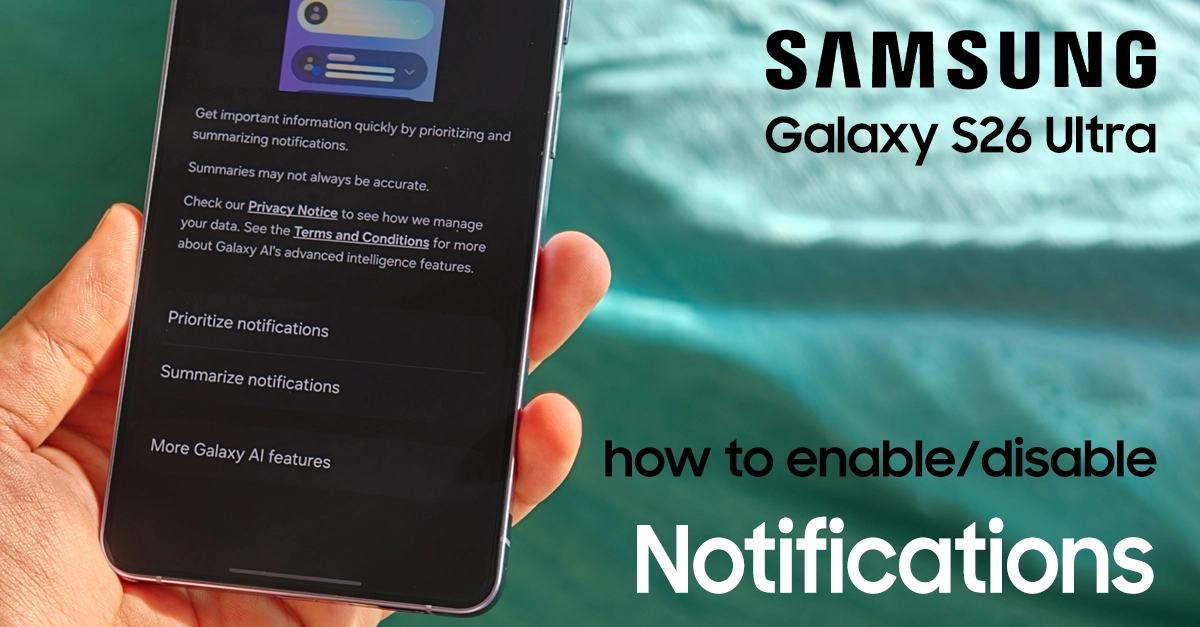
Your Galaxy S26 Ultra is a powerhouse of productivity, but constant pings from apps can shatter your focus and drain your battery. If you’re tired of irrelevant alerts disturbing your work or sleep, learning how to block unwanted app notifications on Galaxy S26 Ultra will transform your smartphone experience. This beginner-friendly guide walks you through every method to silence the noise while keeping what matters.
Why This Matters for New Users
When you first set up your S26 Ultra, most apps automatically request permission to send notifications. If you tap “Allow” without thinking, your notification panel fills up fast. Blocking the ones you don’t need helps you stay focused, saves battery life, and keeps your phone experience clean and distraction-free.
Methods to Block Unwanted App Notifications on Galaxy S26 Ultra
Samsung Galaxy S26 Ultra offers several easy ways to control, mute, or completely block notifications so you can enjoy a cleaner, distraction-free experience.
Method 1: Block All Notifications from One App
This is the fastest way to silence a specific app completely.
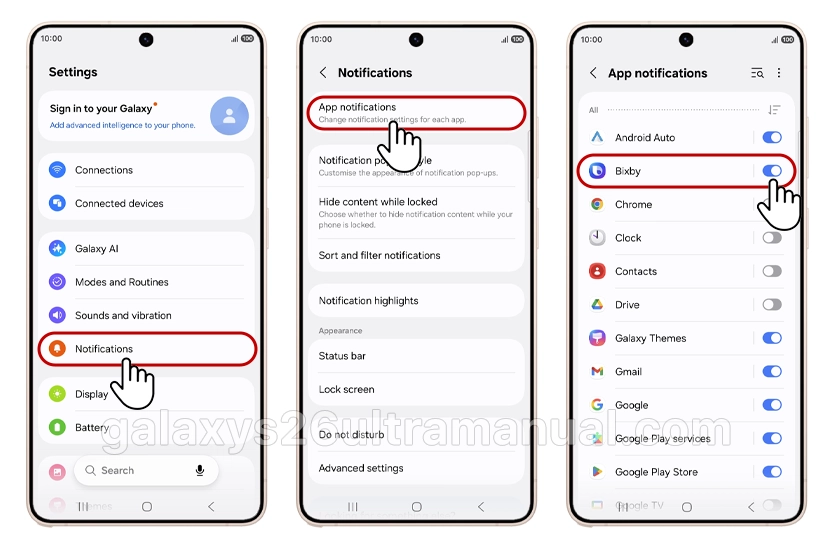
- Open Settings on your Galaxy S26 Ultra.
- Tap Notifications, then tap App notifications.
- Scroll through the list and find the app you want to silence.
- Tap the toggle switch next to the app name to turn it off.
That’s it. The app will no longer send you any alerts.
Method 2: Block Specific Notification Categories
Don’t want to block an app entirely? You can block only certain types of notifications — like promotional alerts — while keeping the important ones.
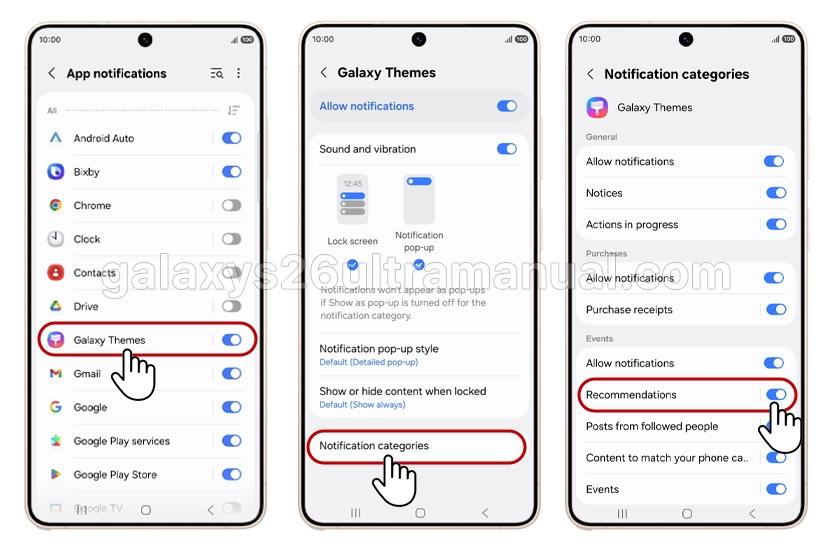
- Go to Settings > Notifications > App notifications.
- Tap the app you want to customize.
- Tap Notification categories.
- You will see a list of notification types that app sends — for example, “General,” “Purchases,” or “Events.”
- Toggle off any category you don’t want.
Method 3: Enable Per-App Notification Categories
The Galaxy S26 Ultra ships with a useful setting that gives you even finer control over each app’s notifications — but it’s turned off by default. Here’s how to enable it:
- Open Settings and tap Notifications.
- Tap Advanced settings.
- Scroll to the bottom and enable Manage notification categories for each app.
Once this is on, you’ll be able to drill down into granular notification types for every app on your phone — giving you maximum control.
Method 4: Use Do Not Disturb Mode
If you want to block all notifications temporarily — during work hours, meetings, or sleep — Do Not Disturb is your best tool.
- Swipe down from the top of your screen to open the Quick Settings panel.
- Tap the Do Not Disturb icon to enable it.
- To customize it, go to Settings > Notifications > Do Not Disturb.
- Set a schedule, allow calls from favorites, or create exceptions for important alerts.
This method won’t permanently block notifications, but it silences everything until you turn it off.
Method 5: Block Browser Push Notifications
Spam notifications often come from websites, not apps. If your Samsung or Chrome browser is flooding you with alerts, here’s how to stop them:
- Open the Samsung Internet browser.
- Tap the menu icon (three lines at the bottom).
- Go to Settings > Privacy and security.
- Tap Notifications and block any websites sending unwanted alerts.
For Google Chrome, go to Settings > Site Settings > Notifications and revoke permission for any sites you don’t trust.
How to Review All Blocked Apps
Want to check which apps you’ve already silenced? Here’s how:
- Go to Settings > Notifications > App notifications.
- Tap the drop-down menu at the top.
- Select Notifications turned off.
This shows you a full list of all apps that are currently blocked, so you can re-enable any you may have silenced by mistake.
How to Change Notification Pop-Up Style
Even when notifications are on, you can control how they appear on your screen.
- Go to Settings > Notifications.
- Tap Notification pop-up style.
- Choose between Brief (a small banner) or Detailed (a larger, more informative pop-up).
Brief is ideal for beginners who want less screen clutter.
Conclusion
Blocking unwanted app notifications on your Samsung Galaxy S26 Ultra is simple once you know where to look. Whether you want to silence one noisy app, manage notification categories, or use Do Not Disturb for full peace and quiet, your S26 Ultra gives you all the tools you need. Start with Method 1 for a quick fix, then explore Method 2 and 3 for deeper control. A cleaner notification panel means a better, more focused smartphone experience.