A flagship device like the Samsung Galaxy S26 Ultra keeps restarting disrupts productivity, risks data loss, and signals underlying system instability. If your Samsung Galaxy S26 Ultra keeps randomly restarting, it can be frustrating—but the good news is that most causes are fixable.
Random restarts typically stem from three categories: software conflicts (80% of cases), thermal or power management issues, and hardware degradation. Understanding the root cause enables targeted fixes without unnecessary troubleshooting steps.
Quick Diagnostic: Identify Your Restart Pattern
Before attempting fixes, observe your device’s behavior to narrow down the cause:
| Symptom Pattern | Likely Cause | Priority Fix |
|---|---|---|
| Restarts at specific times (e.g., 3 AM) | Auto restart feature enabled | Disable in Device Care settings |
| Restarts during gaming/heavy use | Overheating or thermal protection | Cooling measures + case removal |
| Restarts after app installation | Third-party app conflict | Safe mode testing |
| Restarts at 20-30% battery | Battery degradation | Battery health check |
| Restarts with screen lines/noise | Hardware/CPU solder issues | Professional service required |
| Continuous boot loop | Critical system corruption | Recovery mode or factory reset |
8 Proven Fixes for Galaxy S26 Ultra Keeps Random Restarts
If your Samsung Galaxy S26 Ultra keeps restarting randomly, you’re not alone. Many users have reported this frustrating issue—especially on newer devices running Android 16 with One UI 8.5, where early software bugs and app conflicts are common.
The good news? In most cases, the problem is fixable without visiting a service center. Below are 8 proven fixes to stop random restarts and get your phone running smoothly again.
Fix 1: Disable Auto Restart in Device Care
Samsung devices include an Auto restart feature designed to optimize performance by scheduled reboots. However, this often causes confusion when enabled unintentionally.
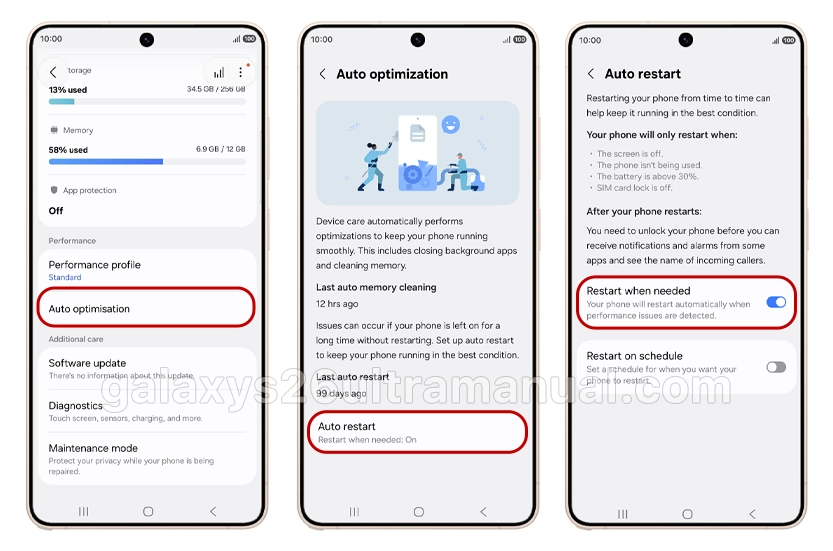
Steps to disable:
- Navigate to Settings → Device care.
- Select Auto optimisation.
- Tap Auto restart.
- Turn off both Restart when needed and Restart on schedule.
Note: Auto restart only activates when screen is off, battery exceeds 30%, and device is unused—making it appear “random” to active users.
Fix 2: Perform a Force Restart
A force restart clears temporary system glitches without data loss. This should be your first response to any software-related instability.
Procedure:
- Press and hold Power button + Volume Down button simultaneously.
- Maintain hold for 10-15 seconds until device vibrates and Samsung logo appears.
- Release buttons and allow normal boot sequence.
This differs from standard restart by clearing active memory states and terminating frozen processes.
Fix 3: Boot into Safe Mode to Isolate App Conflicts
Safe mode disables all third-party apps, loading only system defaults. If restarts cease in Safe mode, a downloaded application is the culprit.

Entering Safe mode:
- Press and hold Power button until Power menu displays.
- Touch and hold Power off icon until Safe mode prompt appears.
- Tap Safe mode to confirm.
- Safe mode text appears at screen bottom-left when successful.
Diagnostic protocol:
- Use device normally for 4-6 hours in Safe mode
- If stable: uninstall recently added apps individually, testing normal mode after each removal
- If unstable: proceed to system-level fixes (Fix 4-6)
Fix 4: Install System and Security Updates
Samsung regularly releases patches addressing stability issues. An outdated OS may contain unresolved bugs causing random reboots.
Update check:
- Settings → Software update → Download and install.
- Ensure stable Wi-Fi connection and 50%+ battery before updating.
- Allow automatic restart after installation.
Post-update note: Critical security patches may trigger automatic reboots even with auto-download disabled—this is normal protective behavior. Please leave a comment if you are unable to update the system.
Fix 5: Run Samsung Members Diagnostics
The built-in Phone diagnostics tool identifies hardware components contributing to instability.
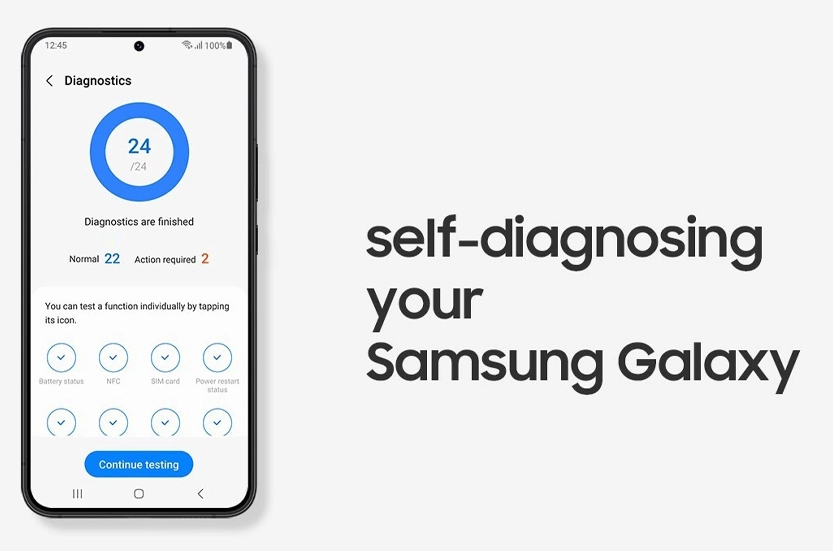
Access method:
- Open pre-installed Samsung Members app.
- Navigate to Support → Phone diagnostics.
- Select Start for full diagnostic or choose specific tests:
- Battery status.
- Storage health.
- Sensor functionality.
- Thermal monitoring.
Review generated reports for flagged components requiring attention.
Fix 6: Address Overheating and Thermal Shutdowns
Processors automatically trigger reboots when temperatures exceed 90°C to prevent permanent damage. The Galaxy S26 Ultra’s advanced chipset generates significant heat during intensive tasks.
Immediate cooling steps:
- Remove protective case to improve heat dissipation.
- Power off device for 30 minutes.
- Relocate to cool, dry environment (avoid direct air conditioning).
- Cease gaming, 4K video recording, or navigation apps temporarily.
Long-term thermal management:
- Close background apps via Settings → Battery → Background usage limits.
- Reduce screen brightness and refresh rate.
- Disable unused location services and Bluetooth.
- Avoid charging during heavy usage.
Fix 7: Check Battery Health and Power Delivery
Degraded batteries cause voltage fluctuations that trigger protective reboots, particularly when charge drops below 30%.
Warning signs:
- Rapid battery drain (under 4 hours moderate use).
- Device heat during charging.
- Unexpected shutdowns at 20-50% reported charge.
- Visible battery swelling (immediate service required).
Diagnostic options:
- Dial *#*#4636#*#* (limited carrier compatibility) for battery information.
- Install AccuBattery or Samsung Members for detailed health metrics.
- Replace battery if health falls below 80% capacity.
Safety critical: Swollen batteries pose fire and explosion risks—discontinue use immediately if detected.
Fix 8: Factory Data Reset (Last Resort)
When software corruption persists through all previous fixes, a factory reset eliminates system-level conflicts.
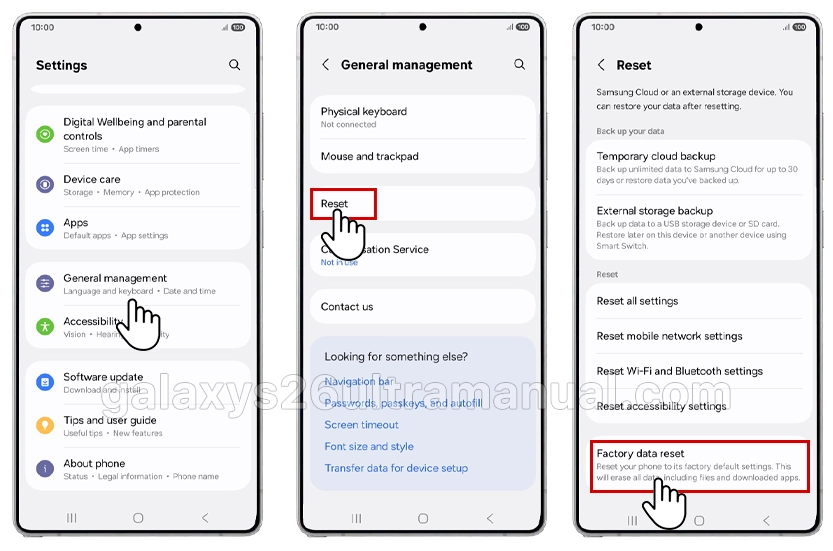
Pre-reset requirements:
- Backup all data via Settings → Accounts and backup → Back up data
- Record Samsung account credentials
- Decrypt SD card if encrypted (Settings → search “SD” → Decrypt SD card)
- Connect to wall charger (process may exceed 60 minutes)
Reset procedure:
- Settings → search Factory data reset → select
- Review data erasure warnings
- Tap Reset → confirm with Samsung account or lock screen password
- Allow automatic restart and setup wizard completion
Success rate: Factory resets resolve approximately 90% of software-related S26 Ultra keeps restart issues. If problems persist post-reset, hardware failure is likely.
When to Seek Professional Repair Services
Persistent random restarts after factory reset indicate hardware-level failures requiring certified technician intervention.
Immediate service indicators:
- Device emits burning smell or excessive heat.
- Visible smoke or sparking.
- Screen displays pixel lines before rebooting.
- Strange speaker noises preceding restart.
- Physical damage from drops or liquid exposure.
Common hardware causes:
- CPU solder joint degradation: Thermal cycling cracks microscopic solder connections between processor and motherboard, causing intermittent contact loss.
- Power Management IC failure: Voltage regulation components damaged by power spikes or counterfeit chargers.
- Loose internal connectors: Physical trauma disconnects battery or display flex cables.
Authorized service options:
- Samsung Service Centers: Warranty repairs, motherboard replacement, component-level diagnostics.
- Samsung CEO Office Escalation: For post-update hardware damage suspected to originate from official software releases.
- Independent repair shops: Micro-soldering specialists for out-of-warranty CPU reballing procedures.
Conclusion
Random restarts on the Galaxy S26 Ultra range from simple configuration issues to complex hardware failures. Start with non-destructive fixes—disabling auto restart, force restarting, and Safe mode diagnostics—before progressing to cache clearing and factory resets.
If software solutions fail, professional hardware assessment is essential, particularly when thermal damage or CPU solder degradation is suspected. Document all troubleshooting steps before contacting Samsung support to expedite service resolution.
Systematic diagnosis prevents unnecessary data loss and ensures appropriate resource allocation toward permanent fixes rather than temporary workarounds.