Turning off your Samsung Galaxy S26 Ultra isn’t always as simple as holding the side key, especially if you’ve remapped it to launch the digital assistant or the button is unresponsive.
This guide walks you through several safe methods to power off, restart, or force reboot your Galaxy S26 Ultra, including options that work even when the power button doesn’t.
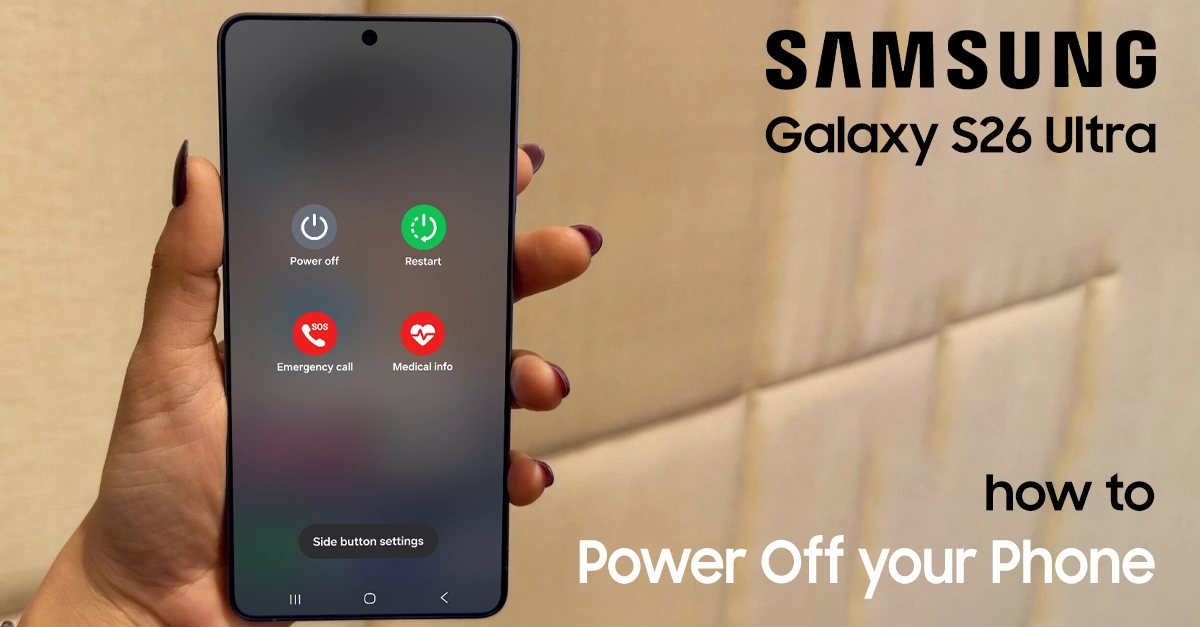
Step-by-step to Turn Off your Samsung Galaxy S26 Ultra
If you’re coming from an older Samsung device, you might notice that turning off the S26 Ultra works a bit differently. In recent Android updates, the power button no longer shuts down the phone by default—it now activates Bixby or the virtual assistant instead.
Don’t worry, though. Here are four reliable methods to turn off your Samsung Galaxy S26 Ultra.
Method 1: The Hardware Button Combination (Fastest Way)
This is the quickest and most straightforward method to power down your S26 Ultra.
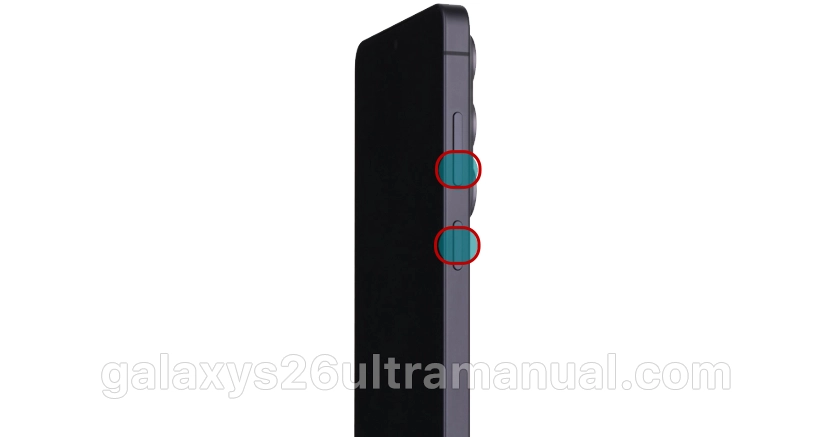
Step-by-step:
- Simultaneously press and hold the Side button (power button) and the Volume Down button.
- Hold both buttons for just a few seconds until the power options menu appears on the screen.
- Tap “Power off” on the screen.
- A confirmation prompt will appear—tap “Power off” again to confirm.
- Your phone will shut down completely.
Pro Tip: The same menu also gives you access to “Restart” (to reboot the phone) and “Emergency mode” (which limits functions to save battery in urgent situations).
Method 2: Using the Quick Settings Panel (No Buttons Needed)
If one of your hardware buttons isn’t working properly, or you simply prefer using the touchscreen, this method is for you.
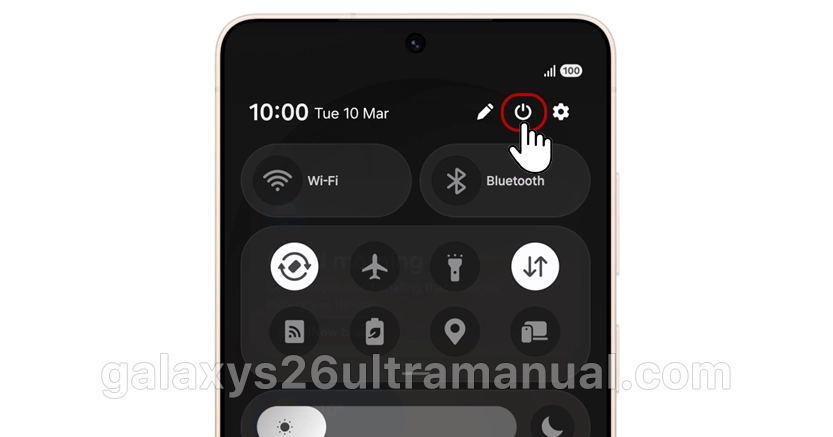
Step-by-step:
- Swipe down from the top of the screen to open the notification panel.
- Swipe down a second time to expand the full Quick Settings panel.
- Look for the Power icon (⏻) in the top-right corner, next to the settings gear icon.
- Tap the Power icon.
- Select “Power off” from the menu that appears.
- Confirm by tapping “Power off” again.
This method is also available on the user manual, which confirms you can access the power-off option through the quick settings panel.
Method 3: Customize the Side Button as a “Function Key”
If you find yourself turning off your phone frequently, you can customize the Side button to open the power menu directly—bypassing the need for a button combination.
Step-by-step:
- Open Settings on your phone.
- Navigate to “Advanced features”.
- Select “Side button” (sometimes called “Function key“).
- Configure what happens when you press and hold the Side button.
- Choose the option that opens the power off menu.
Once set up, simply press and hold the Side button to instantly bring up the Power off, Restart, and Emergency mode options.
Method 4: Force Restart (For Frozen or Unresponsive Phones)
If your Samsung S26 Ultra becomes completely frozen and unresponsive to touch, you’ll need to force a restart.
Step-by-step:
- Press and hold the Side button and the Volume Down button simultaneously.
- Keep holding both buttons for at least 7–8 seconds.
- The phone will force-restart—release the buttons when the Samsung or Android logo appears on the screen.
Important Note: A force restart is different from a normal shutdown. While it won’t delete your data, it’s designed for emergency situations when the phone is unresponsive. If your phone is working normally, use Method 1 or 2 instead.
Troubleshooting: What If Nothing Works?
If your phone still won’t turn off using any of the methods above:
- Try draining the battery: Keep the screen on and use heavy apps to drain the battery faster. The phone will turn off automatically when the battery is depleted.
- Check for hardware issues: If the phone remains unresponsive or stuck in a loop, it may indicate a hardware problem with the motherboard, memory, or power button. In this case, you may need to have it repaired.
When your S26 Ultra is frozen or won’t turn off
Sometimes the device may freeze or become unresponsive, making the regular power menu unavailable. In that case, use a forced restart by holding Side key + Volume down together for several seconds until the screen turns off and the Samsung logo appears.
If your phone repeatedly freezes, consider:
- Checking for software updates in Settings → Software update.
- Removing recently installed apps that might cause conflicts.
- Resetting settings (not data) if system glitches persist.
Conclusion: Best way to power off your Galaxy S26 Ultra
For most users, the fastest way to turn off a Samsung Galaxy S26 Ultra is using the Side key + Volume down shortcut or the Quick Panel power icon, both of which open the power menu in seconds.
If your power button is broken or your phone is stuck, the Assistant menu and forced restart options ensure you can still safely shut down or reboot without losing data.
3 thoughts on “How to Turn Off Samsung Galaxy S26 Ultra (4 Easy Methods + Troubleshooting)”