If you’ve been noticing blurry photos on your Samsung Galaxy S26 Ultra, especially when using the 3x zoom, you’re not alone—and more importantly, you’re not imagining it. Over the past few weeks, numerous Galaxy S26 Ultra owners have reported this exact issue across Samsung’s community forums and social media. The good news? Samsung has officially acknowledged the problem and already rolled out a fix.
In this guide, we’ll walk you through everything you need to know about the blurry camera issue on the Galaxy S26 Ultra, how to fix it, and what to do if the problem persists.
What’s Causing the Blurry Camera on Galaxy S26 Ultra?
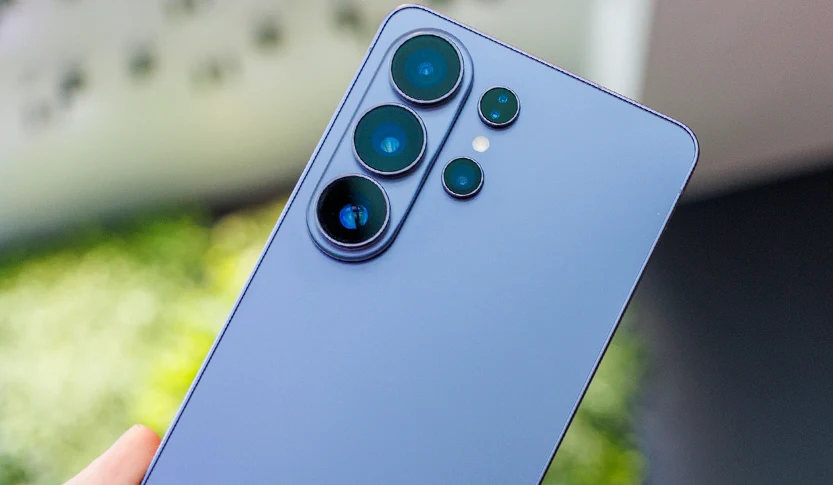
The blurry camera reports center specifically on the 3x telephoto zoom. Users have noticed that photos taken at 3x zoom come out noticeably blurry or lacking sharpness. This happens even in bright environments, but the problem gets significantly worse in low light with the flash on.
Here’s the critical thing to know: Samsung has confirmed this is a software bug, not a hardware defect. The issue stems from an error in the image processing algorithm and lens-switching logic when the camera transitions between different lenses. According to Samsung’s official response, the problem occurs in the multi-lens transition algorithm rather than the lens or sensor hardware.
How to Fix Blurry Camera on Galaxy S26 Ultra
Your phone’s camera hardware is fine. The issue is software-based and has already been addressed.
Method 1: Install the Latest Software Update (The Official Fix)
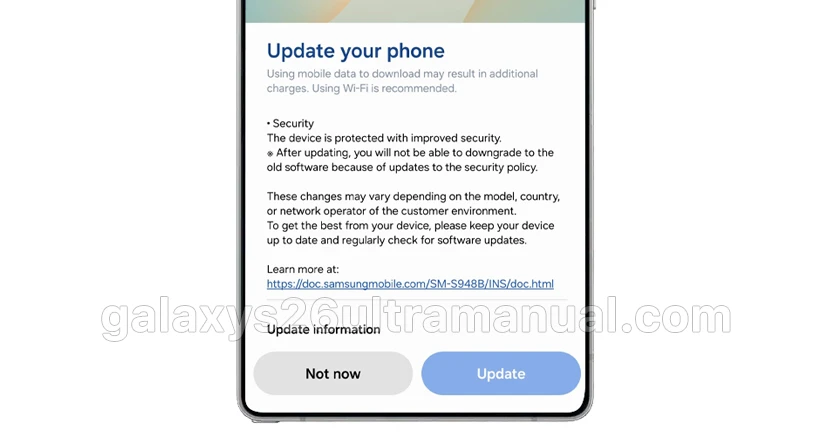
Samsung has released a fix for this issue as part of the April 2026 security patch. If you haven’t updated your device yet, follow these steps:
- Open Settings on your Galaxy S26 Ultra.
- Scroll down and tap Software update.
- Tap Download and install.
- If an update is available, follow the on-screen instructions to download and install it.
After the installation is complete, Samsung recommends restarting your device to ensure all camera modules are properly calibrated.
This update includes optimizations for lens switching, improvements to the image processing algorithm, and enhanced image stabilization during zoom.
Method 2: Clean the Camera Lens
It might sound obvious, but fingerprints and smudges are the number one cause of blurry photos on any smartphone.
- Use a soft, lint-free microfiber cloth to gently wipe the camera lens.
- Avoid using water, cleaning solutions, or rough materials that could damage the lens.
- Also check if your phone case is partially blocking the camera lens.
Method 3: Tap to Focus Manually
Sometimes the auto-focus system can struggle, especially in complex scenes.
- Open the Camera app.
- Tap on your subject on the screen to manually set the focus point.
- Wait for the camera to stabilize before capturing the image.
For even more control, tap and hold on the subject to lock AE/AF (Auto Exposure/Auto Focus).
Method 4: Clear the Camera App Cache
Corrupted cache data can sometimes interfere with camera performance.
- Go to Settings → Apps.
- Find and tap on Camera.
- Tap Storage.
- Tap Clear Cache.
Note: Clearing the cache won’t delete your photos or personal data.
Method 5: Reset Camera Settings
If the issue persists, resetting the camera app to its default settings can help.
- Open the Camera app.
- Tap the Settings gear icon (usually in the top-left corner).
- Scroll down and tap Reset settings.
Method 6: Test in Safe Mode
A third-party app could be interfering with your camera.
- Press and hold the Power button.
- Tap and hold Power off until the Safe Mode prompt appears.
- Tap Safe Mode.
- Test the camera. If the blurriness disappears in Safe Mode, a third-party app is likely the culprit.
- Restart your phone to exit Safe Mode.
Method 7: Check Different Camera Modes
Test whether the blurriness occurs in all modes or just specific ones—try Photo mode, Video mode, and Selfie mode. If only one mode is affected, that specific module may need recalibration.
What NOT to Do
Several sources have confirmed that the following actions will not fix the 3x zoom blur issue on the S26 Ultra, as it’s a software-level problem:
- Wiping the lens (though it’s always good practice).
- Resetting camera settings.
- Performing a factory reset.
As one report noted, “resetting the camera, factory resetting, or wiping the lens will not improve the 3x zoom blur issue”. If you’re experiencing this specific bug, skip these time-consuming steps and go straight to installing the software update.
Pro Tips for Sharper Photos on Galaxy S26 Ultra
Once you’ve installed the update, here are some best practices to keep your photos crisp:
- Shoot in good lighting – Low light naturally reduces sharpness.
- Use a tripod or steady surface when shooting at night or at high zoom levels.
- Enable Photo Remaster (AI scene optimization) in camera settings.
- Avoid tilting the camera at extreme angles – shooting at a perpendicular angle helps reduce blur around the subject.
If you’re still having issues, try adjusting the Intelligent optimization setting to “Medium” or “Minimum” in the Camera settings as a temporary workaround.
When to Contact Samsung Support
If you’ve installed the April 2026 update, tried all the troubleshooting steps above, and your camera is still producing blurry photos, there may be a hardware issue with your specific device.
The Optical Image Stabilization (OIS) mechanism or the camera module itself could be damaged. In this case:
- Visit a Samsung Service Center for a diagnostic check.
- You can also reach out through Samsung Members app → Get Help → Quick Help or Send Feedback.
Final Thoughts
The Galaxy S26 Ultra is a flagship device with an impressive camera system, and while the 3x zoom blur issue was frustrating for early adopters, Samsung moved quickly to address it. The April 2026 security patch provides the official fix, and most users should see immediate improvement after updating.
If you’re still waiting for the update to arrive in your region, be patient—it’s rolling out gradually. In the meantime, you can use 2x crop or 5x zoom as temporary alternatives for capturing distant subjects.
2 thoughts on “How to Fix a Blurry Camera on the Samsung Galaxy S26 Ultra”