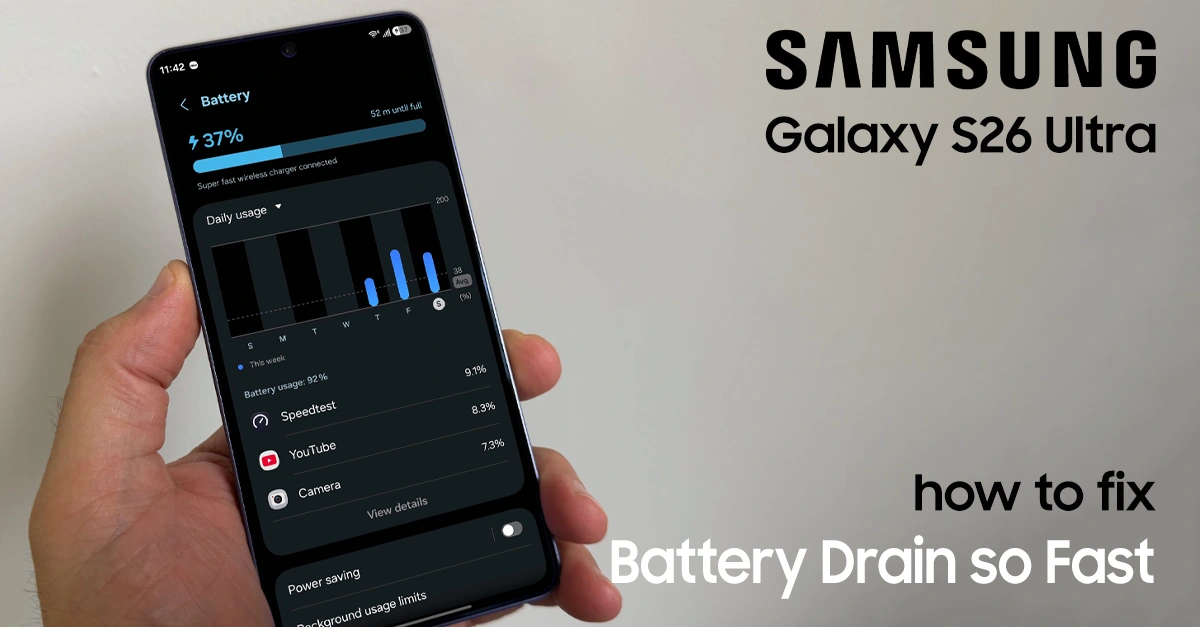
Is your Galaxy S26 Ultra battery draining fast and leaving you guessing what went wrong? You’re not alone — Across Reddit, Samsung Community forums, and developer threads, thousands of users report the same symptoms: a fully charged device collapsing to 15% within two hours of standby, screen-on time (SOT) swinging unpredictably between 4 and 8 hours, and localized heat near the camera module even when no demanding apps are running.
Why Is Your Galaxy S26 Ultra Draining So Fast? The Real Causes
Understanding the root cause helps you pick the right fix instead of toggling random settings. Based on user reports from r/samsunggalaxy, Samsung’s own developer forums, and official support documentation, the drain usually stems from one of four overlapping layers.
Cause 1: Agentic Galaxy AI Subsystem Overhead
The S26 Ultra introduces “Agentic AI”—a proactive intelligence layer that anticipates needs rather than waiting to be invoked. In practice, Now Nudge continuously runs an OCR pipeline analyzing your screen buffer for actionable suggestions.
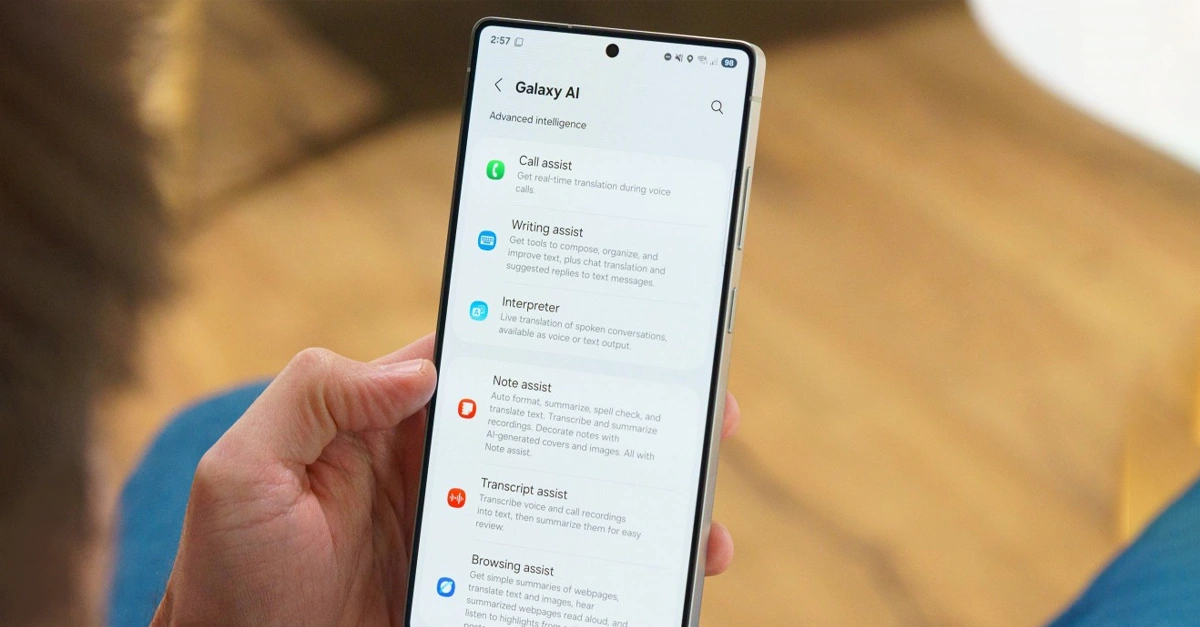
Now Brief aggregates background data from weather, calendar, and health sources. Circle to Search maintains a persistent gesture listener. Live Translate keeps translation modules active in memory.
The result: the NPU and memory controller stay awake, preventing the SoC from entering deep sleep. In low-signal areas, the modem simultaneously burns energy maintaining an uplink to Samsung and Google cloud servers for AI processing, compounding the drain.
Cause 2: Background Apps Bypassing Doze
Android’s Doze mechanism is designed to suspend background processes and batch network requests. On the S26 Ultra, specific apps are bypassing these restrictions.
Samsung Health is a frequent offender—it continuously polls the pedometer, gyroscope, and accelerometer, and maintains a persistent Bluetooth Low Energy connection with Galaxy Watch devices, interrupting the CPU sleep cycle hundreds of times per hour.
Google Play Services logging errors and Samsung Knox security scanning loops have also been identified as sources of parasitic drain.
Cause 3: Firmware Update Regressions
Some earlier Galaxy S26 Ultra firmware builds have been associated with post-update battery drain and camera-processing anomalies. Because public changelogs are often broad, treat this as a maintenance step rather than proof that one named build is the cause.
Installing the latest available patch removes older firmware from the troubleshooting path before you move to reset-level fixes.
Cause 4: Peripheral Hardware Conflicts
The Galaxy S26 Ultra supports 25W wireless charging but does not include the built-in magnetic alignment rings used by the Qi2 standard, reportedly to avoid electromagnetic interference with the S Pen’s Wacom digitizer.
Users who compensate with third-party magnetic cases introduce a separate problem: the embedded magnets continuously trigger the internal Hall sensor. On a wireless charging pad, this confuses the induction handshake, dropping charging efficiency and generating sustained heat that stresses the lithium-ion cell and causes the Power Management IC to throttle charging—producing phantom drain while the device is ostensibly on charge.
10 Proven Fixes for Galaxy S26 Ultra Battery Draining Fast
Most of these Galaxy S26 Ultra battery draining fast are fixable with a few simple adjustments.
Fix 1 — Disable Galaxy AI Background Listeners (Highest Impact, 1 Minute)
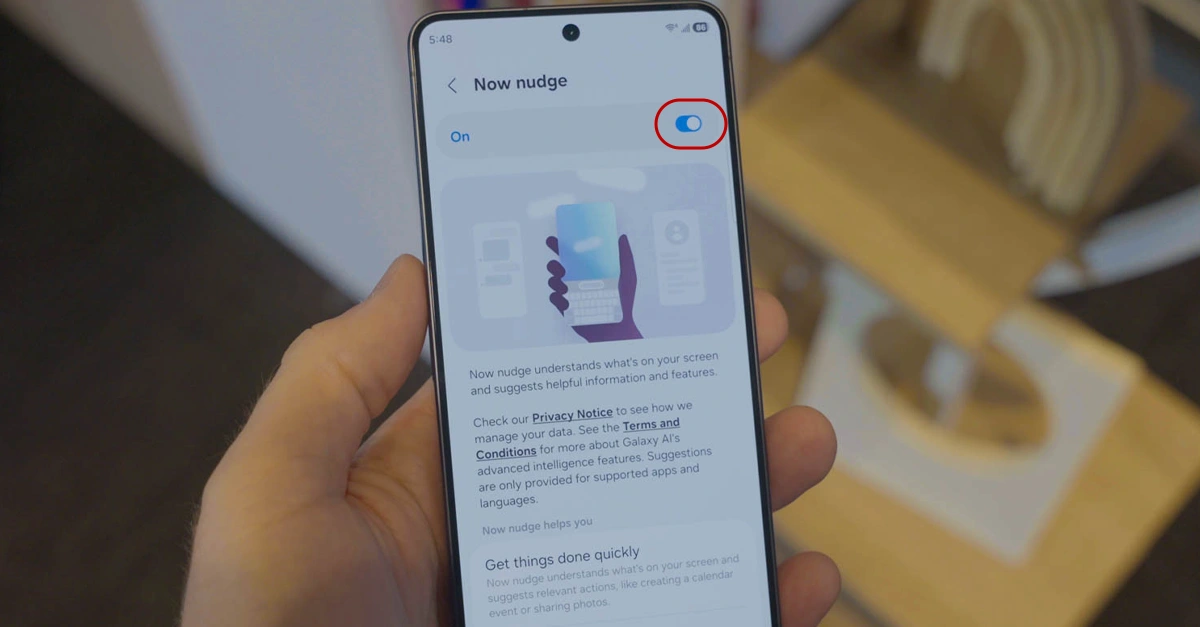
If you do not actively use the proactive AI features, disabling them removes the single most significant source of persistent NPU polling and modem wake-locks.
Disable Now Nudge and Now Brief
- Go to Settings → Galaxy AI.
- Tap Now nudge and toggle it OFF. This stops the OCR pipeline that continuously analyzes the screen buffer.
- Return to the Galaxy AI menu and tap Now brief.
- Disable the individual content category toggles (weather, schedule, health) to stop background data aggregation.
Force On-Device AI Processing
- In Settings → Galaxy AI, scroll to the bottom.
- Toggle Process data only on device to ON.
AI tasks will then execute using the on-board NPU only, removing the battery cost of maintaining a persistent cellular uplink to cloud servers. The trade-off is a potential reduction in the complexity of generative outputs—an acceptable compromise for users prioritizing battery longevity.
Disable Circle to Search (If Unused)
- Go to Settings → Display → Navigation bar.
- Toggle off Circle to Search.
- Go to Settings → Apps → Choose default apps → Digital assistant app.
- Toggle off Analyze on-screen images.
Fix 2 — Optimize One UI Battery Settings (High Impact, 2 Minutes)
These three adjustments address the baseline power management configuration and should be applied before any other fix.
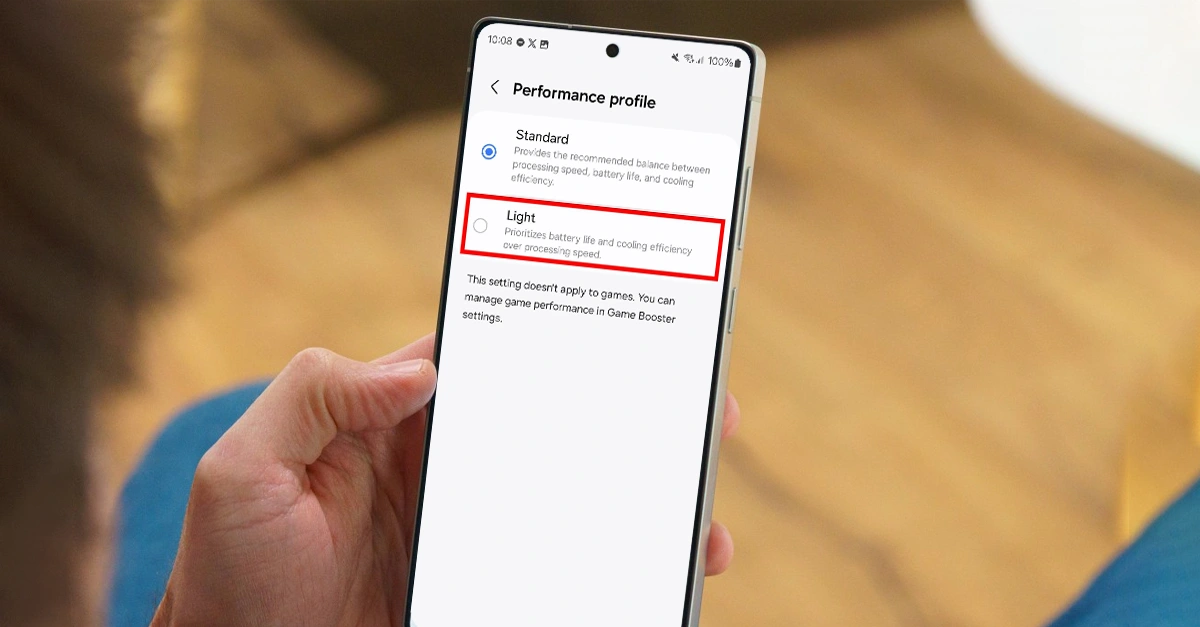
Switch to the Light Performance Profile
- Open Settings.
- Tap Device care (or Battery, depending on your One UI build).
- Tap Performance profile.
- Select Light.
This caps CPU clock speed and prioritizes thermal efficiency over peak burst performance. Game Booster governs gaming performance independently, so high-framerate rendering is not affected.
Enable Adaptive Power Saving
- Go to Settings → Battery → Power saving.
- Tap the three-dot menu in the upper right corner.
- Select Adaptive power saving and toggle it ON.
The system’s machine learning will then automatically drop the display refresh rate and suspend non-essential background synchronization during periods of historically low interaction, such as overnight.
Adjust Display Timeout and Always On Display
- Go to Settings → Display.
- Confirm Adaptive brightness is toggled ON.
- Set Screen timeout to 15 or 30 seconds.
- Go to Settings → Lock screen and AOD.
- Set Always On Display to Tap to show or turn it fully OFF.
The 6.9-inch Dynamic AMOLED 2X panel is the largest single power consumer on the device. Reducing the time it remains lit during inactivity produces an immediate, noticeable reduction in daily discharge.
Fix 3 — Stop Rogue Apps From Running in the Background (Medium Impact, 3 Minutes)
Identify Which Apps Are Draining in the Background
- Go to Settings → Battery.
- Tap directly on the battery discharge graph.
Review the per-app breakdown. Flag any application showing disproportionately high Background usage relative to its Active usage time. Samsung Health, rarely used social media apps, and background syncing utilities are the most frequently reported offenders.
Move Problem Apps to Deep Sleep
- Go to Settings → Battery → Background usage limits.
- Confirm Put unused apps to sleep is enabled.
- Tap Deep sleeping apps.
- Tap the + icon in the top right corner.
- Select the offending applications and tap Add.
Apps placed in Deep Sleep are moved to Android’s most restricted standby bucket. They lose access to the JobScheduler and AlarmManager APIs, which means they will not receive push notifications or sync data unless you actively launch them. Apply this selectively—do not deep sleep apps you rely on for real-time alerts.
Fix 4 — Install the Latest Security Patch (High Impact, 15–30 Minutes)
If your device is running an older patch level, updating can address security, device-stability, camera-processing, and power-management fixes included by Samsung or your carrier. It also removes older firmware from the troubleshooting path before you move to cache wiping or reset-level fixes.
- Go to Settings → Software update.
- Tap Download and install.
- If an update is available, allow it to download and install fully before evaluating battery behavior.
After updating, allow a minimum of 14 days before drawing conclusions about battery performance. Samsung states that the Adaptive Battery machine learning system resets following a major firmware update and needs this period to relearn usage patterns and re-optimize power allocation.
Fix 5 — Reset Galaxy AI Intelligence Data (Medium Impact, 2 Minutes)
If you prefer to keep Galaxy AI features enabled but suspect they are misbehaving, a targeted reset can clear corrupted learning models without a full factory reset.
- Go to Settings → Advanced features → Intelligence Service.
- Tap on Personal Data Intelligence.
- Select Reset Intelligence Data.
This forces the AI subsystem to rebuild its prediction models from scratch, which can resolve cases where the Agentic AI is stuck in a high-polling loop due to stale training data.
Fix 6 — Enable Battery Protection for Long-Term Health (Low Impact, 1 Minute)
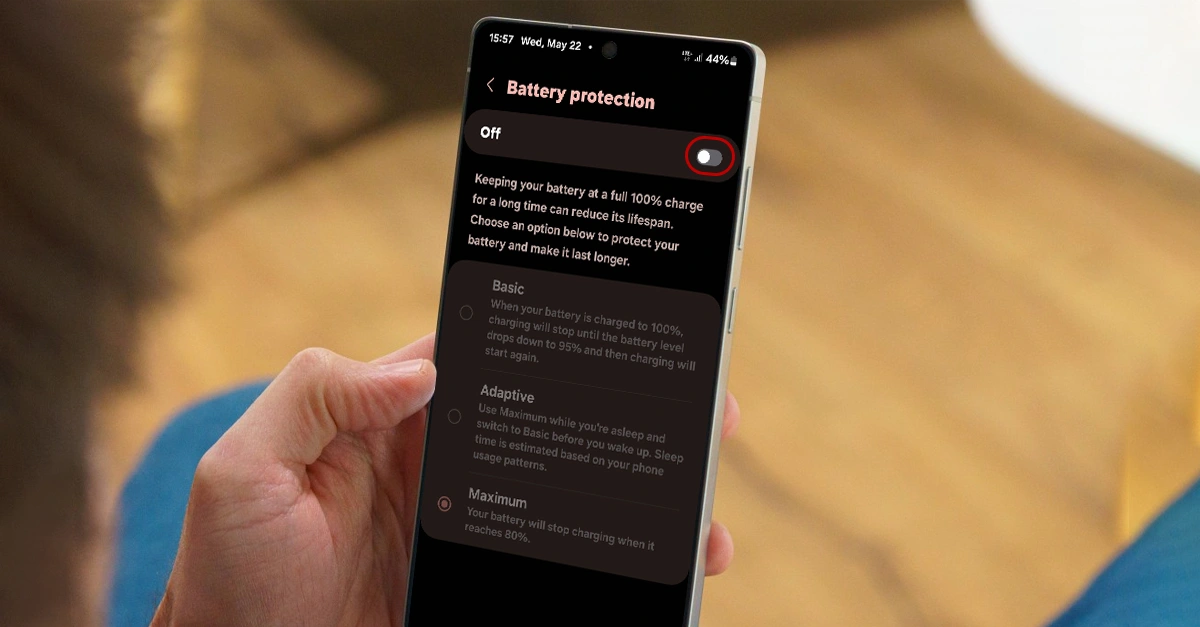
While this fix does not stop immediate drain, it preserves long-term capacity so your 5000mAh cell does not degrade prematurely.
- Go to Settings → Battery → More battery settings → Battery protection.
- Enable Battery protection.
Select the Adaptive option if available. This learns your sleep schedule and times the charge so the battery reaches full capacity shortly before you typically wake up, rather than sitting at 100% overnight.
Lithium-ion batteries degrade faster when kept at or near full charge for extended periods. By capping the charge level or timing it intelligently, you reduce long-term wear.
Fix 7 — Remove Third-Party Magnetic Cases (Low Impact, 10 Seconds)
As noted in the causes section, third-party magnetic cases are a hidden source of heat and phantom drain. The S26 Ultra does not have built-in Qi2 magnets. When you place a magnet-laden case on a wireless charging pad, the embedded magnets continuously trigger the Hall sensor, confusing the induction handshake.
Action: Remove the magnetic case before wireless charging. If you need a case, choose a non-magnetic alternative. If you must use a magnetic case, stick to wired 60W Super Fast Charging 3.0 instead.
Fix 8 — Switch from 5G to LTE in Weak Signal Areas (Medium Impact, 1 Minute)
In weak network signal areas, a 5G modem expends significantly more energy searching for and maintaining a connection than LTE. If you notice your phone running warm and draining rapidly in basements, rural areas, or crowded stadiums:
- Go to Settings → Connections → Mobile networks → Network mode.
- Temporarily switch to LTE/3G/2G (auto connect).
This is not a permanent recommendation—5G is efficient in strong signal areas—but it is a valuable toggle for problematic environments.
Fix 9 — Factory Reset (Last Resort, High Impact, 1–2 Hours)
A factory reset is the appropriate next step if the device continues to drain more than 15% overnight while completely idle (screen off, disconnected from charger), or if SOT remains consistently under 4 hours during standard non-gaming use on Wi-Fi—after completing Fixes 1 through 10 and waiting through the 14-day calibration period.
Before Resetting
Back up all critical data—photos, documents, and contacts—to a secure cloud service or an external drive.
Execute the Reset
- Go to Settings → General Management → Reset → Factory Data Reset.
- Confirm the prompt and allow the device to fully format its internal storage.
The Smart Switch Warning
Upon rebooting, avoid using Samsung Smart Switch to restore your previous backup. Restoring via Smart Switch can port over the same corrupted system files, broken application permissions, or rogue background processes that caused the original drain. Set the device up as a new phone and manually sign into accounts and download apps from the Google Play Store.
If battery drain persists on a clean installation with no third-party applications installed, the device most likely has a hardware defect and software troubleshooting is no longer applicable.
Fix 10 — Run Samsung Members Diagnostic (High Impact, 2 Minutes)
Before concluding that your battery is physically failing, run the built-in diagnostic.
- Open the Samsung Members app.
- Go to Support → Phone diagnostics → Battery status.
- Review the result.
If the diagnostic returns “Weak” or “Bad”, the lithium-ion cell has reached the end of its viable life. The EU energy-label record for the SM-S948B/DS model lists battery endurance at 1,200 cycles until usable capacity reaches 80% of rated capacity. Beyond that, hardware replacement is the only viable solution.
When Software Can’t Fix It: Hardware Failure Signs
Stop software troubleshooting and visit an authorized Samsung service center if you observe any of the following:
- Diagnostic failure: Samsung Members returns a “Weak” or “Bad” battery health status.
- Physical chassis deformation: Any swelling, bulging, or separation of the back glass panel. This indicates a dangerous electrochemical failure and a potential fire hazard—do not charge the device and seek service immediately.
- Voltage collapse: The device shuts down forcibly when the battery indicator reads 15% or higher. This signals that the degraded cell can no longer sustain the minimum voltage required by the SoC under load.
- Cycle limit reached: If you have owned the device for multiple years and charge daily, you may have exceeded the 1,200-cycle threshold.
Samsung Care+ and Warranty: How to Get a Battery Replacement
Standard manufacturer warranty: Samsung replaces a battery free of charge if it fails to hold a charge or shows a manufacturing defect within the first 12 months of ownership. Standard degradation from normal use is not covered.
Samsung Care+: Enrollment must usually be completed within a set window after device purchase. Samsung Care+ covers repairs for mechanical breakdowns, which can include battery replacements when capacity degrades past acceptable thresholds. Repairs are performed by certified technicians using OEM parts, and the IP68 water resistance seal is restored after service.
Claim strategy: When opening a repair ticket, present the results of your Samsung Members diagnostic test. If the issue is a sudden capacity drop—a manufacturing defect—rather than accidental damage such as a cracked screen, communicate this clearly to the service representative. Describing the failure as a mechanical breakdown helps the claim process correctly.
Final Verdict: Getting Your Battery Life Back
The Galaxy S26 Ultra battery draining fast is real, widely reported, and—in most cases—fixable through software. The single most impactful action is disabling Now Nudge and Now Brief, which removes the most persistent source of NPU and modem wake-locks. Pair that with Adaptive power saving, Deep Sleep for rogue apps, and the Light performance profile, and you will reclaim most of your lost endurance.
The 14-day Adaptive Battery calibration window is not optional. It is the period during which the system relearns your usage patterns after a firmware change. Evaluating the device before this period ends will produce misleading results.
If drain persists after all 10 fixes and the calibration period, run the Samsung Members battery diagnostic. A “Bad” result means the lithium-ion cell has reached the end of its viable life. Samsung Care+ may cover this under mechanical breakdown—present the diagnostic result clearly when filing the repair ticket.
2 thoughts on “How to Fix Samsung Galaxy S26 Ultra Battery Draining Fast”