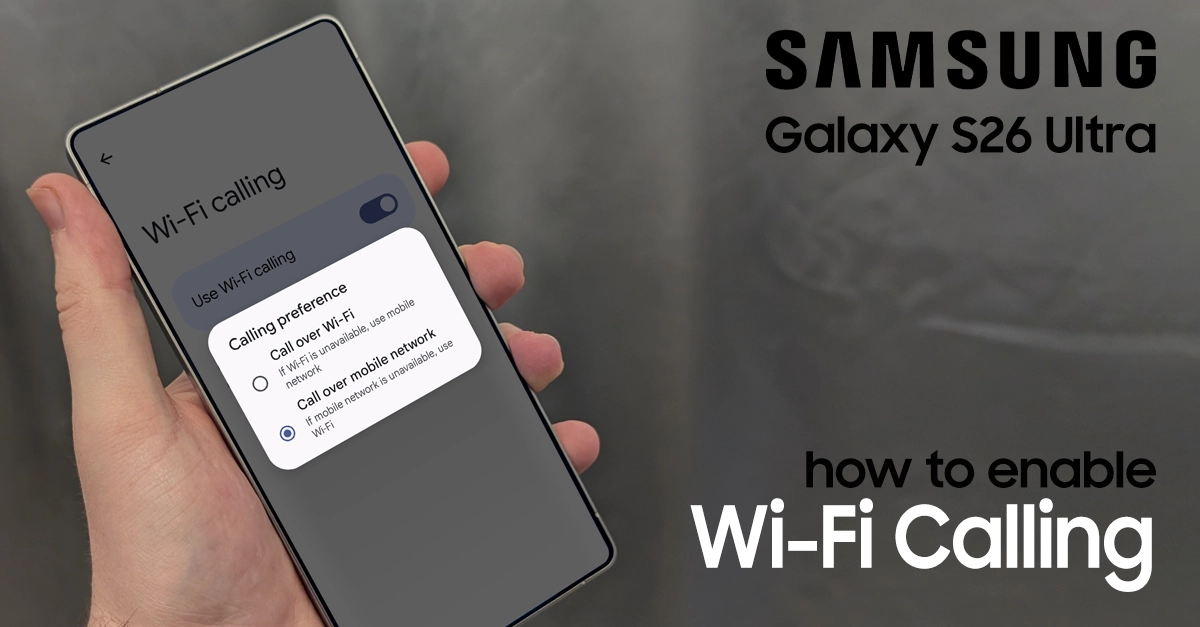
Wi-Fi calling is an essential feature for Galaxy S26 Ultra owners who want reliable connectivity in areas with poor cellular coverage. This guide walks you through exactly how to turn on Wi-Fi calling on Galaxy S26 Ultra so you can make and receive calls using your Wi-Fi network instead of relying solely on cellular towers.
What Is Wi-Fi Calling and Why Use It?
Wi-Fi calling allows your phone to route voice calls and text messages through an available Wi-Fi network rather than the cellular network. This feature proves invaluable when you’re indoors with thick walls, in rural areas with limited tower coverage, or traveling internationally where roaming charges apply.
The Galaxy S26 Ultra supports Wi-Fi calling through most major carriers, though availability depends on your specific service plan. You’ll need an active SIM card or eSIM and a stable Wi-Fi connection to use this feature.
Prerequisites Before Enabling Wi-Fi Calling
Before you turn on Wi-Fi calling on Galaxy S26 Ultra, ensure you have:
- An active SIM card or eSIM properly installed
- A stable Wi-Fi connection
- A carrier plan that supports Wi-Fi calling
- Your emergency address registered with your carrier (required for emergency services)
Steps to Turn On Wi-Fi Calling on Samsung Galaxy S26 Ultra
Below is a simple step-by-step guide to enable Wi-Fi Calling on your device.
The most direct way to turn on Wi-Fi calling on Galaxy S26 Ultra is through your device settings:
- Step 1: Open the Settings app on your home screen.
- Step 2: Tap Connections to access network settings.
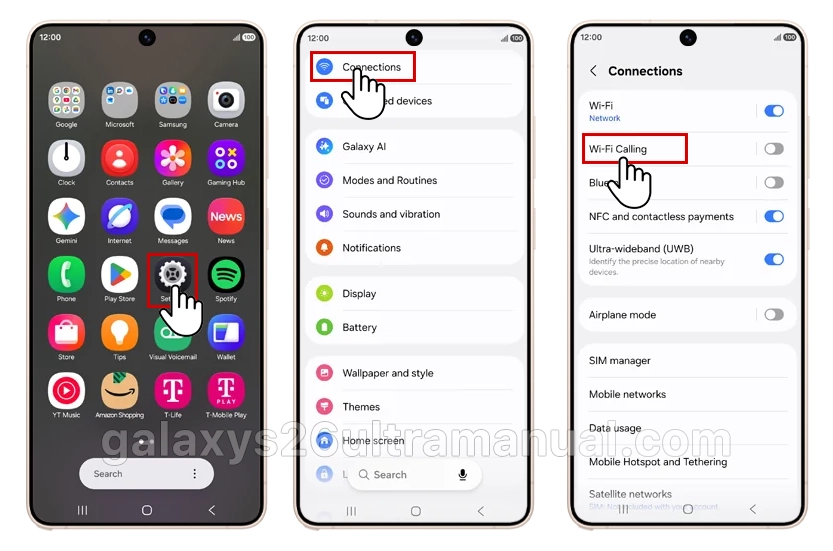
- Step 3: Select Wi-Fi Calling from the menu options.
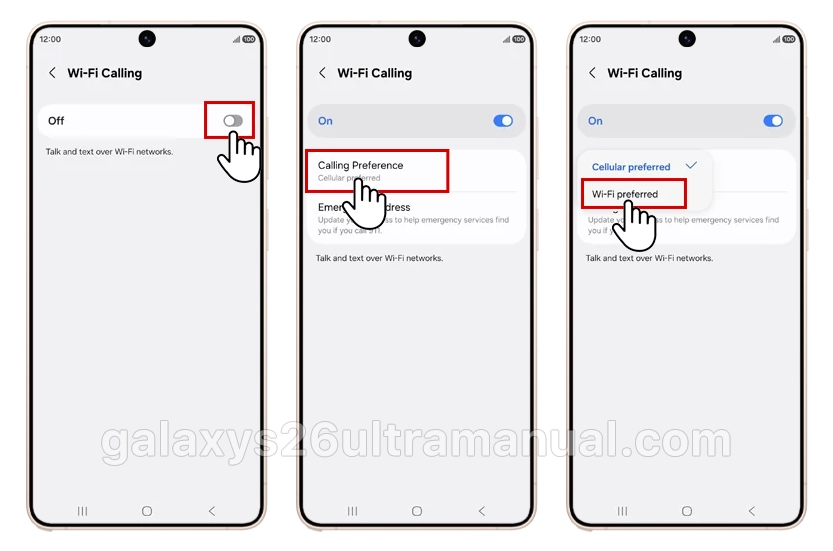
- Step 4: Toggle the switch to ON for your preferred SIM if you use dual SIM.
- Step 5: Choose your Calling Preference:
- Mobile network preferred: Uses cellular by default, switching to Wi-Fi only when cellular is unavailable.
- Wi-Fi preferred: Uses Wi-Fi by default, switching to cellular only when Wi-Fi is unavailable.
How to Confirm Wi-Fi Calling Is Active
Once you turn on Wi-Fi calling on your device, verify it’s working by checking for these indicators:
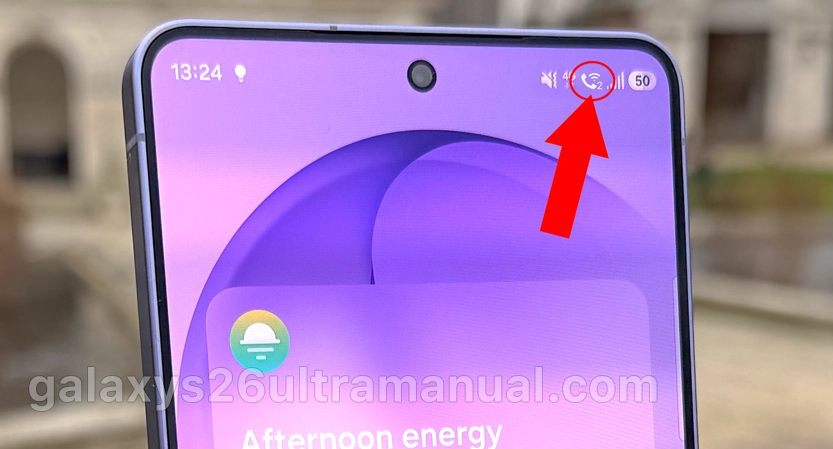
- Look for a Wi-Fi Calling icon in your status bar (a phone symbol with Wi-Fi waves).
- The icon appears when your phone detects weak or unavailable cellular signal and routes calls through Wi-Fi.
- During active calls, you may see “Wi-Fi Call” notation in your Phone app interface.
Troubleshooting Common Issues
Wi-Fi Calling Option Is Missing
If you cannot find the Wi-Fi calling toggle after following the steps above:
- Confirm carrier support: Contact your carrier to verify your plan includes Wi-Fi calling. Some prepaid or legacy plans exclude this feature.
- Update your software: Go to Settings > Software Update > Download and Install to ensure your Galaxy S26 Ultra runs the latest firmware.
- Restart your device: Power off completely, wait 10 seconds, then power back on.
Poor Call Quality Over Wi-Fi
If you experience dropped calls or poor audio quality:
- Ensure your Wi-Fi signal is strong (at least two bars).
- Switch to Mobile network preferred if your Wi-Fi connection is unstable.
- Restart your router if multiple devices experience connectivity issues.
Wi-Fi Calling Not Working Internationally
- When traveling abroad, confirm your carrier supports Wi-Fi calling from your destination. Some carriers restrict this feature to domestic networks only.
Data Usage and Battery Considerations
Wi-Fi calling consumes approximately 1MB of data per minute of talk time. This usage counts against your data plan only if you’re not on an unlimited plan, but does not typically incur voice minute charges.
Regarding battery life, Wi-Fi calling may slightly increase power consumption as your phone maintains both Wi-Fi and cellular connections simultaneously. However, the impact remains minimal for most users.
Final Thoughts
Knowing how to turn on Wi-Fi calling on Galaxy S26 Ultra ensures you stay connected regardless of cellular signal strength. This feature transforms weak indoor coverage, rural dead zones, and international travel into seamless communication experiences.
Take two minutes now to enable Wi-Fi calling through your preferred method. Once activated, your Galaxy S26 Ultra automatically manages the connection, switching between Wi-Fi and cellular networks without interrupting your calls.
1 thought on “How to Turn On Wi-Fi Calling on Samsung Galaxy S26 Ultra”