Is your Samsung Galaxy S26 Ultra freezing, running slow, or preparing for resale? A factory reset can restore your device to its original settings and solve persistent software problems. In this comprehensive guide, you’ll learn how to factory reset your Samsung Galaxy S26 Ultra safely and correctly, including important preparation steps and multiple reset methods.
What Is a Factory Reset?
A factory reset (also called a hard reset) erases all data, settings, and apps from your Galaxy S26 Ultra, returning it to the same state as when you first unboxed it.
This process deletes everything stored on your internal memory, including photos, messages, accounts, and downloaded apps. Before you factory reset Galaxy S26 Ultra, understanding what gets removed helps you prepare properly and avoid losing valuable information.
When Should You Factory Reset Galaxy S26 Ultra?
You should consider resetting your device when you experience these common issues:
- Persistent lag or freezing that restarting doesn’t fix.
- Apps crashing repeatedly despite updates.
- Battery draining unusually fast with no clear cause.
- Fast charging stop working.
- Preparing to sell or give away your phone.
- Removing malware or suspicious software.
- Failed software updates causing system instability.
A factory reset Galaxy S26 Ultra procedure solves most software-related problems by clearing corrupted files and conflicting settings.
Before You Start: Essential Backup Steps
Never skip backing up your data. Once you factory reset Galaxy S26 Ultra, recovery without a backup is impossible.
Backup Using Samsung Cloud
- Open Settings on your Galaxy S26 Ultra.
- Tap Accounts and backup.
- Select Samsung Cloud.
- Tap Back up data.
- Choose what to save (contacts, photos, messages, apps, settings).
- Tap Back up now and wait for completion.
Backup Using Google Account
- Go to Settings > Google.
- Tap Backup.
- Toggle Back up to Google Drive on.
- Tap Back up now.
Verify your backup finished successfully before proceeding to reset.
Some Methods to Factory Reset Galaxy S26 Ultra
Performing factory reset requires a bit of know-how. Don’t worry, though. We’ve put together this friendly, step-by-step guide to walk you through the entire process safely and effectively.
Method 1: Factory Reset Galaxy S26 Ultra Through Settings (Recommended)
Use this method when your phone still responds to touch and you can access menus.
Step 1: Charge Your Phone
Ensure your Galaxy S26 Ultra has at least 50% battery or connect it to a charger. Interrupting a reset due to power loss can brick your device.
Step 2: Open Reset Menu
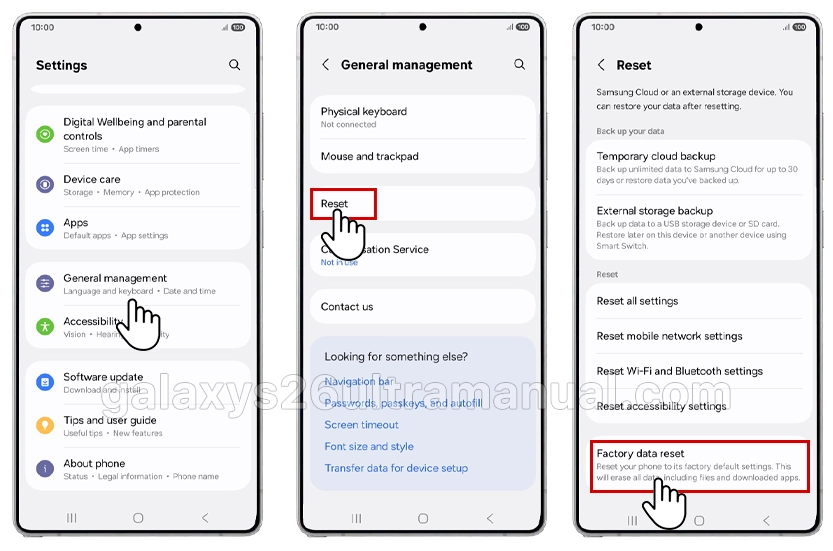
- Open Settings.
- Scroll down and tap General management.
- Tap Reset.
- Select Factory data reset.
Step 3: Review What Gets Deleted
The screen displays all accounts, apps, and data that will be removed. Scroll through the list to confirm you backed up everything important.
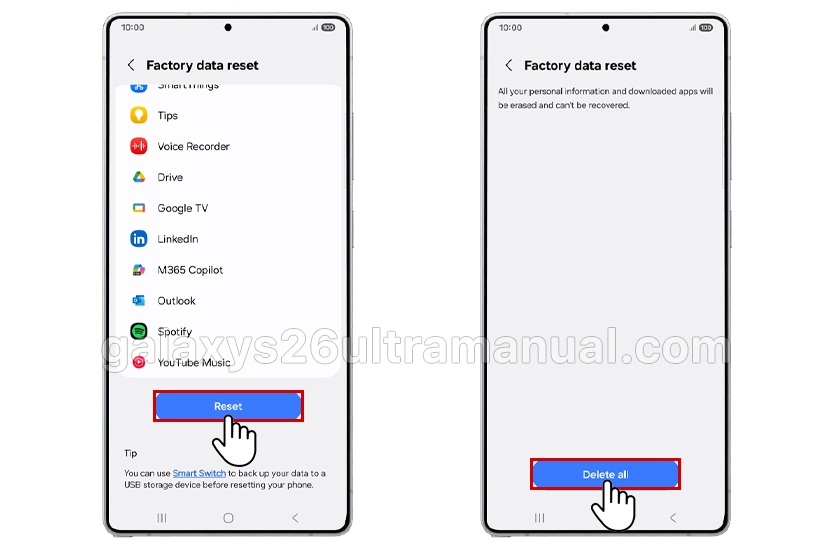
Step 4: Confirm Reset
- Tap Reset at the bottom.
- If prompted, enter your PIN, password, or pattern.
- Tap Delete all.
Step 5: Wait for Completion
Your Galaxy S26 Ultra will restart automatically. The reset process takes 5–15 minutes depending on data volume. Do not interrupt this process.
Step 6: Set Up Your Phone
Once finished, your device boots to the welcome screen. Set up your phone as new or restore from your Samsung Cloud or Google backup.
Method 2: Factory Reset Galaxy S26 Ultra Using Hardware Buttons (When Frozen)
Use this method when your phone won’t boot, the screen is unresponsive, or you forgot your unlock pattern.
Step 1: Power Off the Device
Hold the Side button and Volume Down button together until the phone turns off completely.
Step 2: Enter Recovery Mode
- Hold the Side button and Volume Up button simultaneously.
- Release both buttons when the Samsung logo appears.
- The Android Recovery menu displays after a few seconds.
Step 3: Navigate Recovery Menu
Use Volume Up and Volume Down buttons to highlight options. Press the Side button to select.
Step 4: Select Wipe Data/Factory Reset
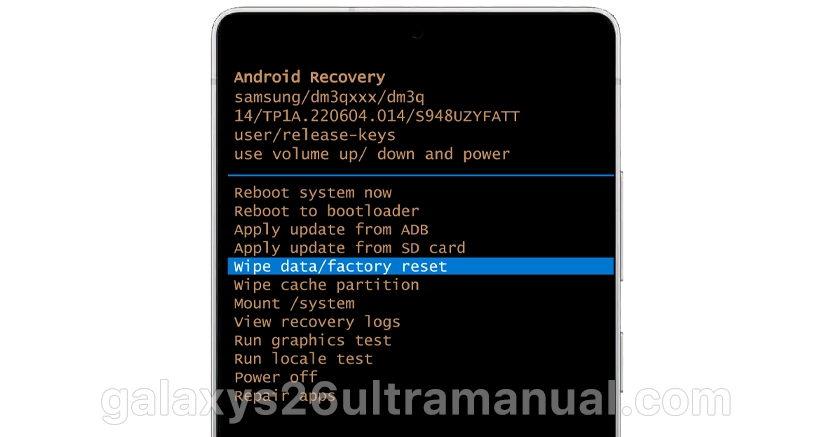
- Highlight Wipe data/factory reset.
- Press the Side button to select.
- Highlight Factory data reset.
- Press the Side button to confirm.
Step 5: Complete the Reset
The process takes several minutes. When finished, the recovery menu reappears.
Step 6: Reboot Your Phone
- Highlight Reboot system now.
- Press the Side button.
- Your Galaxy S26 Ultra restarts with factory settings restored.
What to Do After Factory Reset Galaxy S26 Ultra
Once your phone restarts, follow these steps to get back up and running:
- Restore from backup during setup if you saved data to Samsung Cloud or Google.
- Sign into your Samsung account to reactivate Find My Mobile and Samsung services.
- Re-download essential apps from the Galaxy Store or Play Store.
- Reconfigure settings like Wi-Fi passwords, display preferences, and notifications.
- Check for software updates to ensure you’re running the latest security patches.
Troubleshooting Common Reset Issues
Reset Button Grayed Out
If you can’t tap Factory data reset, check if:
- Your phone is enrolled in a work or school profile with restrictions.
- Find My Mobile is active — you may need to disable it first.
- You need to sign out of certain accounts before resetting.
Phone Stuck on Samsung Logo After Reset
- Wait 30 minutes — first boot takes longer than usual.
- If stuck, repeat the hardware button method and select Wipe cache partition before resetting again.
- Contact Samsung support if the problem persists.
Forgotten Google Account (FRP Lock)
After resetting, Google Factory Reset Protection (FRP) requires the previous Google account credentials. If you bought the phone used and can’t bypass this screen, contact the seller or Samsung support with proof of purchase.
Conclusion
Knowing how to factory reset Galaxy S26 Ultra empowers you to fix software problems, remove personal data securely, and prepare your device for new ownership. Always back up your data first, choose the reset method that matches your situation, and follow each step carefully.
Whether your phone is responsive or completely frozen, these methods restore your Galaxy S26 Ultra to peak condition. When troubleshooting fails to resolve persistent issues, a factory reset often provides the fresh start your device needs.
9 thoughts on “How to Factory Reset Your Samsung Galaxy S26 Ultra”