If you’re preparing your phone for repair or troubleshooting, one of the most important things you can do is turn on maintenance mode. This feature locks away your personal apps, photos, messages, passwords, and files so only basic device functions are available to the technician. In this guide, you’ll learn exactly how to turn on maintenance mode Galaxy S26 Ultra, what it does, and when you should use it.
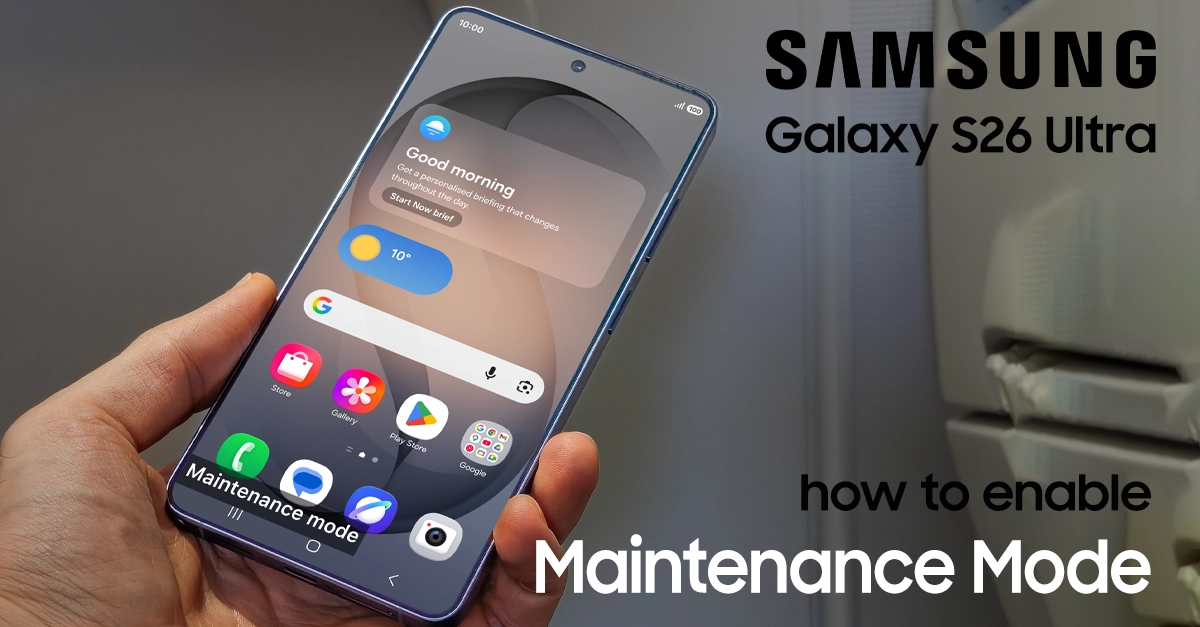
What Is Maintenance Mode on Galaxy S26 Ultra?
Maintenance mode on the Galaxy S26 Ultra is a privacy‑focused setting that lets you hand over your phone to a technician or service center while keeping your personal data secure.
Once enabled:
- Your apps, photos, messages, and files are hidden or locked.
- Only essential system apps and basic functions stay available.
- The technician can still diagnose and repair hardware or software issues.
This is especially useful when you’re troubleshooting screen problems, battery issues, charging faults, or software glitches and need to send the phone to a service center.
Before You Turn on Maintenance Mode
Before you turn on maintenance mode Galaxy S26 Ultra, make sure you:
- Back up your data: Use Samsung Cloud or Google Drive to back up photos, contacts, and messages. Confirm your backup completed successfully.
- Charge your phone: Make sure the Galaxy S26 Ultra is at least 40–50% charged so maintenance mode doesn’t end unexpectedly.
- Remove extra security layers: If you use Samsung Knox, work profiles, or a separate secure folder, double‑check what data it contains and whether it’s included in regular backups. Some enterprise or work profiles may behave differently in maintenance mode.
- Know your Google account: You’ll need to sign in again after maintenance mode ends, so keep your Google account email and password handy.
Steps to Turn on Maintenance Mode on Samsung S26 Ultra
You can easily turn on Maintenance Mode on your Samsung Galaxy S26 Ultra to protect your personal data when handing your phone to someone else for service. This feature creates a separate, secure environment that hides your photos, messages, and accounts while keeping the phone fully functional for diagnostics and repairs .
Here is a step-by-step guide to activate it:
- Open Settings: Navigate to the Settings app on your phone.
- Go to Device care: Scroll down and select “Device care“.
- Find Maintenance Mode: Scroll to the bottom of the Device care menu and tap on “Maintenance mode“.
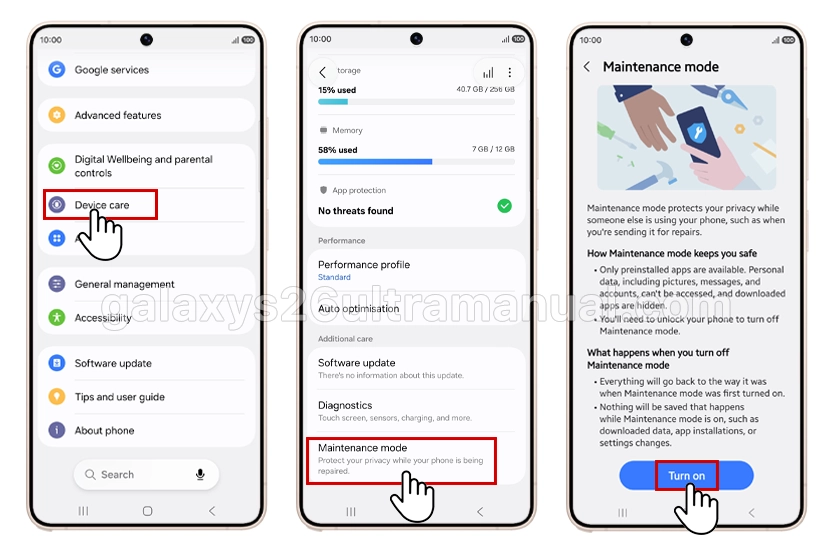
- Start the Process: Tap the “Turn on” button. A pop-up will appear, giving you the option to create a system log to help the technician troubleshoot. You can uncheck this if you prefer.
- Restart and Confirm: Tap “Restart” to confirm. Your phone will then ask for your lockscreen PIN to proceed with the restart into Maintenance Mode.
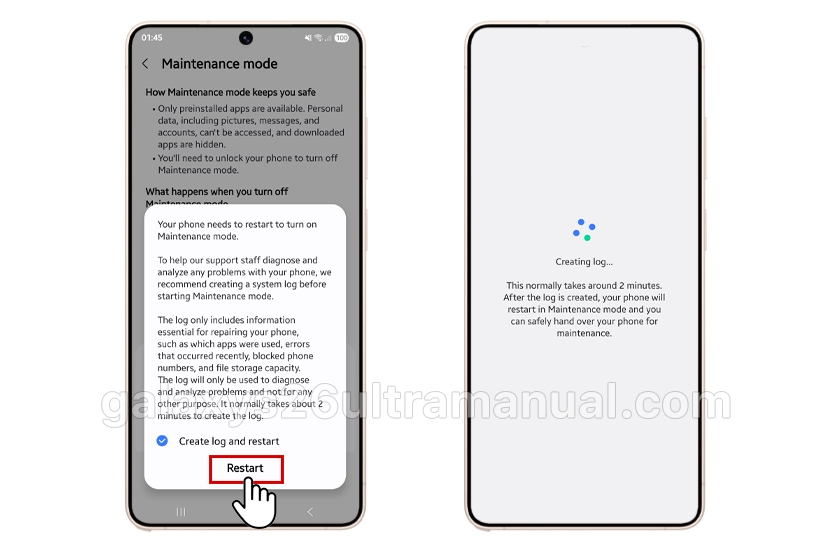
Once your phone reboots, you’ll see a small indicator on the screen confirming that Maintenance Mode is active, and your personal data is secure.
How to Exit Maintenance Mode
When you get your phone back, exiting the mode is just as simple and secure.
- Pull down the notification shade.
- Tap the notification banner that says “Your phone is in Maintenance mode“.
- Tap “Exit” and then “Restart“.
- Confirm your identity with your lockscreen PIN. This step ensures that only you can disable the mode and access your data again.
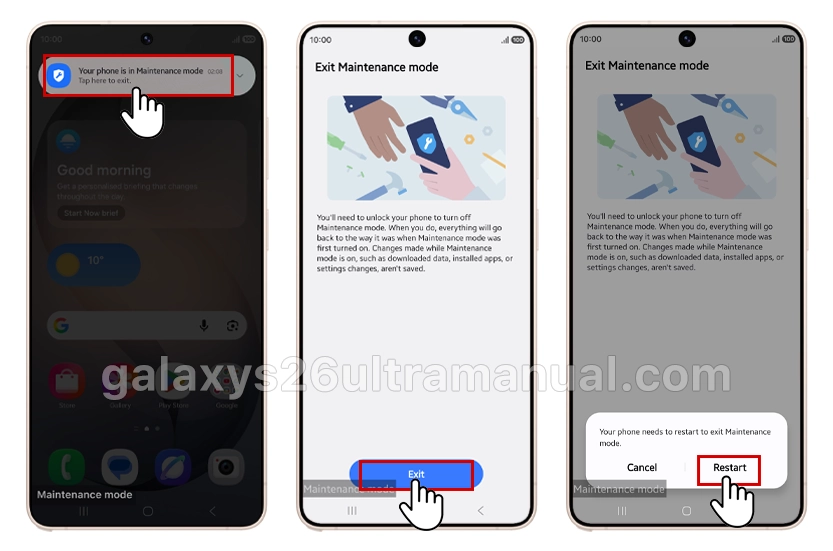
Your phone will then reboot, and everything will be restored exactly as you left it. Any apps or data created by the technician during the repair will be automatically deleted.
What You Can and Can’t Do in Maintenance Mode
Once you turn on maintenance mode Galaxy S26 Ultra, keep in mind:
What still works:
- Basic phone functions like calling and SMS (if allowed by the carrier).
- Diagnostic tools the technician needs.
- Some system apps required for repair.
What is restricted:
- Personal apps (social media, banking, email, etc.).
- Photos, videos, and private files.
- Password managers and saved credentials.
This separation helps you safely prepare for troubleshooting without exposing sensitive information.
When Should You Turn on Maintenance Mode S26 Ultra?
Use maintenance mode when you’re preparing for:
- Screen or hardware repair (technician may need to test touch, display, or buttons).
- Battery or charging issue troubleshooting.
- Software issues that require a technician to inspect the device.
- Any service center visit where you must hand over the phone.
It’s especially important if you store banking apps, business documents, or private photos on your Galaxy S26 Ultra.
Tips for a Safer Troubleshooting Experience
- Always back up first. Treat maintenance mode as an extra layer of protection, not a replacement for a backup.
- Use a strong Google account password. If someone else turns off maintenance mode, they need your Google credentials.
- Check your One UI version. Maintenance mode may be under slightly different menus in older Galaxy software versions.
- Ask the technician to confirm. Many service centers will ask if you want to turn on maintenance mode Galaxy S26 Ultra during check‑in.
Summary
Turning on maintenance mode Galaxy S26 Ultra is a simple but powerful way to protect your data when preparing for troubleshooting or repair. By following these steps, you let technicians fix your phone while keeping your personal apps, photos, and messages locked away.
If you’re planning to send your Samsung S26 Ultra for service, take a few minutes to turn on maintenance mode before troubleshooting and keep your data safe.