.Missing an important text because your Galaxy S26 Ultra decided to stay silent is incredibly frustrating. You see the message when you open the app, but no sound, no vibration, no banner and just silence. Many Galaxy S26 Ultra users have reported notification problems with Google Messages, especially after transferring data from an old phone or after a system update. Here’s a complete guide to fix Google Messages not sending notifications on Galaxy S26 Ultra.

Why Are Google Messages Notifications Not Working on Galaxy S26 Ultra?
Common root causes for Google Messages not sending notifications on the S26 Ultra include:
- Aggressive battery optimization – Samsung’s One UI 8.5 has powerful battery-saving features that can put apps into “deep sleep,” preventing them from sending notifications.
- Data transfer glitches – When you transfer data from an old phone, notification settings can get corrupted.
- Reset notification permissions – After a system update, notification permissions can get reset.
- Do Not Disturb mode – Accidentally enabled DND silences everything.
- Silent notification categories – Google Messages uses Android notification channels, and individual categories can be set to “Silent”.
How to Fix Google Messages Notifications on Galaxy S26 Ultra
Follow these solutions in order. Most users find that one of the first few fixes resolves the issue.
Fix 1: Check Do Not Disturb Mode

This is the quickest check and often the culprit.
- Open Settings on your Galaxy S26 Ultra.
- Tap Sounds and vibration.
- Tap Do Not Disturb.
- Make sure the toggle is turned off.
If DND is enabled, your phone won’t show or sound any notifications—including texts.
Fix 2: Enable Notifications for Google Messages
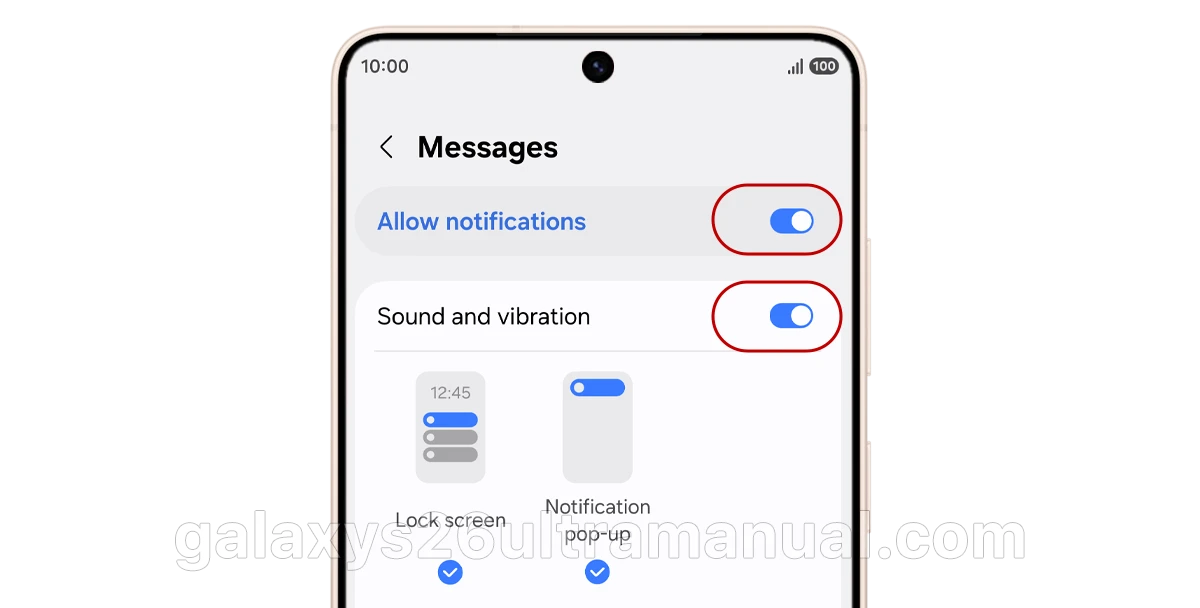
Sometimes an update or accidental tap can disable notifications entirely.
Method A – Through System Settings:
- Open Settings > Notifications > App notifications.
- Find and tap Messages (Google Messages).
- Make sure Allow notifications is turned on.
- Tap the app name to enter its specific alert settings.
- Ensure Allow sound and vibration is selected (not “Deliver quietly”).
Method B – Through Google Messages App:
- Open the Google Messages app.
- Tap your profile icon in the top-right corner.
- Tap Messages settings > Notifications.
- Make sure message notifications are enabled.
Fix 3: Check Notification Categories (Incoming Messages)
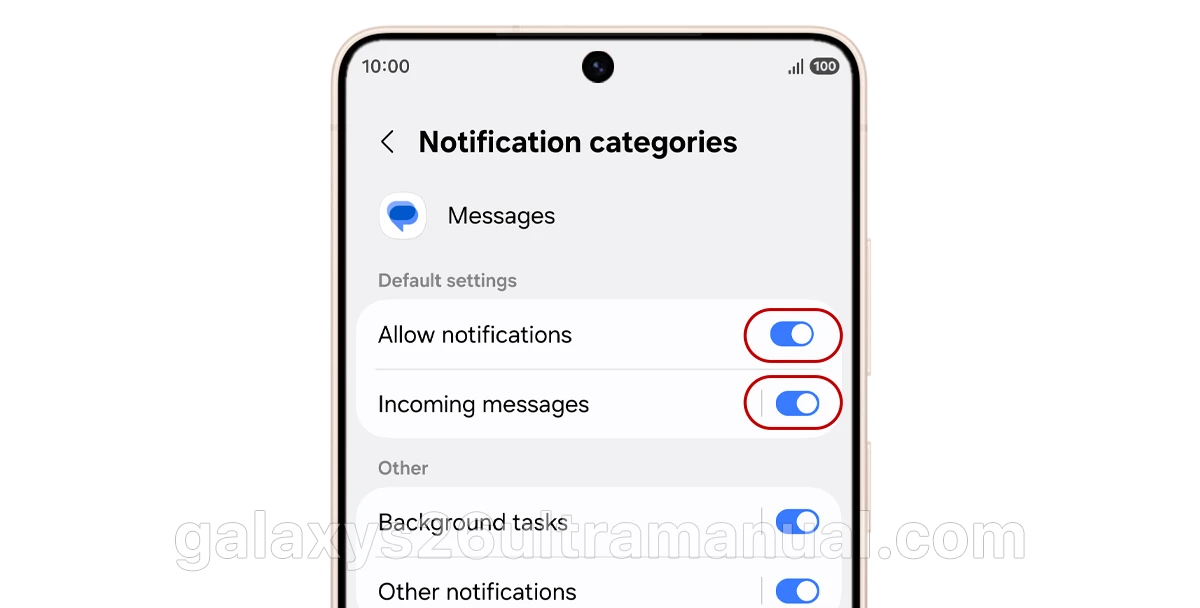
Google Messages uses separate notification channels. Even if the main toggle is on, the “Incoming messages” category might be set to silent.
- Go to Settings > Apps > Messages > Notifications.
- Tap Notification categories.
- Find Incoming messages and tap on it (not the toggle switch).
- Make sure it’s set to Alert (not Silent).
- Select a notification sound and enable vibration if desired.
Important: On newer One UI versions, notification categories may be hidden by default. To reveal them:
- Go to Settings > Notifications > Advanced settings.
- Turn on “Manage notification categories for each app”.
- Now go back to Google Messages notification settings and you’ll see all categories.
Fix 4: Clear Google Messages Cache and Data
This is one of the most effective fixes, especially if you transferred data from an old phone.
Warning: Clearing data will delete your messages unless you back them up first. Clearing cache is safe and should be tried first.
Clear cache only (safe):
- Go to Settings > Apps > Messages.
- Tap Storage.
- Tap Clear cache.
- Restart your phone.
Clear cache and data (if cache alone doesn’t work):
- Back up your messages first – Use SMS Backup & Restore or Google backup.
- Go to Settings > Apps > Messages > Storage.
- Tap Clear data (may be labeled “Clear storage”).
- Restart your phone and restore your messages.
Fix 5: Disable Battery Optimization for Google Messages
Samsung’s battery management is aggressive. It can put Google Messages to sleep, preventing notifications.
- Go to Settings > Apps > Messages.
- Tap Battery.
- Select Unrestricted.
Alternative – Remove from Sleeping Apps:
- Go to Settings > Battery and device care > Battery.
- Tap Background usage limits.
- Check Sleeping apps and Deep sleeping apps.
- If Google Messages is listed, remove it.
Best practice – Add to Never Auto Sleeping:
- In the same Background usage limits menu, tap Never auto sleeping apps.
- Tap the + icon and add Messages.
This tells the system that Google Messages has permission to stay awake and check for new messages constantly.
Fix 6: Check System Sound and Vibration Settings
Sometimes the issue isn’t with the app but with the phone’s overall sound settings.
- Go to Settings > Sounds and vibration.
- Make sure Sound mode is set to Sound (not Vibrate or Silent).
- Check that Notification sound is set to a valid tone (not “None”).
- Make sure Vibration is enabled if you want vibrating alerts.
Fix 7: Turn Off Multi Sound and Separate App Sound
The Galaxy S26 Ultra has advanced sound features that can interfere with notifications.
- Go to Settings > Sounds and vibration.
- Make sure Multi Sound is turned off.
- Check that Separate app sound is also off.
Fix 8: Check App Permissions
Google Messages needs certain permissions to function properly.
- Go to Settings > Apps > Messages > Permissions.
- Make sure SMS, Contacts, Notifications, and Bluetooth permissions are enabled.
Also check Notification Access:
- Go to Settings > Apps > Special access > Notification access.
- Make sure Messages has access enabled.
Fix 9: Update Google Messages and System Software
Outdated software can cause notification issues.
- Open the Google Play Store and search for Messages.
- Tap Update if available.
- Go to Settings > Software update > Download and install to check for system updates.
If you’re using the Google Messages beta version, consider leaving the beta program and reverting to the stable version.
Fix 10: Uninstall Updates and Reinstall
If nothing else works, try reverting Google Messages to its factory version.
- Back up your messages first.
- Go to Settings > Apps > Messages.
- Tap the three-dot menu (top right).
- Select Uninstall updates.
- Restart your phone.
- Open the Play Store and update Messages again.
Fix 11: Boot into Safe Mode
Safe Mode disables third-party apps to help identify if another app is interfering.
- Press and hold the Power button until the power menu appears.
- Press and hold Power off until the Safe Mode prompt appears.
- Tap Safe Mode.
- Test if Google Messages notifications work in Safe Mode.
- If they do, a third-party app is the culprit—uninstall recently added apps.
- Exit Safe Mode by restarting your phone.
Fix 12: Factory Reset (Last Resort)
If absolutely nothing works, a factory reset can resolve persistent software issues.
- Back up all your data.
- Go to Settings > General management > Reset.
- Tap Factory data reset and follow the prompts.
Final Thoughts
Google Messages not sending notifications on Galaxy S26 Ultra is frustrating but almost always fixable. The most common culprits are battery optimization settings and corrupted cache data from phone transfers.
Start with the easy fixes—check DND, enable notifications, and clear the cache. In most cases, one of these will solve the problem within minutes. If you’re still having issues after trying all these steps, consider reaching out to Samsung Support or visiting the Google Messages Help Community for additional assistance.
Have you tried these fixes? Which one worked for you? Let me know in the comments below!
2 thoughts on “How to Fix Google Messages Not Sending Notifications on Galaxy S26 Ultra”