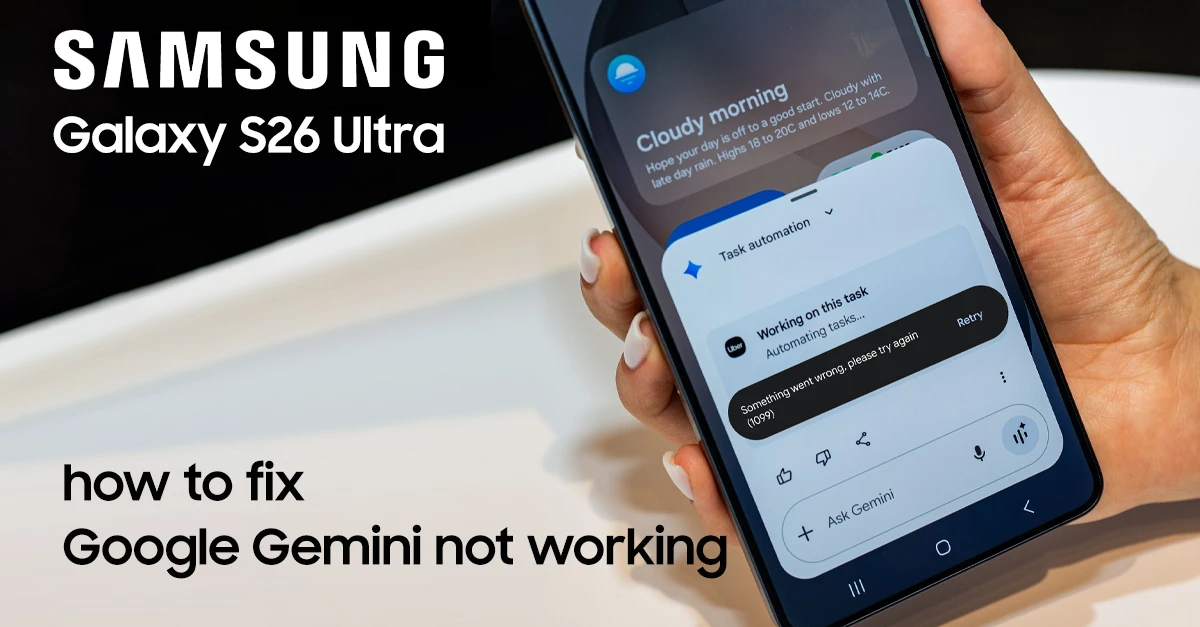
If Gemini not working on Galaxy S26 Ultra is your problem, this guide will help you fix it quickly. Gemini may crash, freeze, not open, or stop responding after typing on your Samsung S26 Ultra. Most of these issues are caused by app glitches, outdated components (like Android System WebView), or Samsung settings such as RAM Plus and battery optimization.
Why Gemini Stops Working on Galaxy S26 Ultra
Before you start, it helps to know what usually breaks Gemini on the S26 Ultra:
- Outdated app or system components (Gemini app, Android System WebView).
- Cached data or corrupted installation causing crashes after launch..
- Samsung device care features like RAM Plus conflicting with memory-heavy AI apps.
- Battery optimization putting Gemini in sleep mode while you type.
- Third‑party keyboards (Grammarly, etc.) interfering with text input in Gemini.
Understanding these causes makes it easier to choose the right fix from the steps below.
10 Proven Fixes for Gemini Not Working on Galaxy S26 Ultra
Across Samsung Community forums, XDA Developers, and Reddit, Galaxy S26 Ultra users are reporting various Gemini issues—from the assistant failing to respond on the lock screen to the dreaded Error 1099.
Below are steps to fix Gemini on your Galaxy S26 Ultra, from quick fixes to more advanced tweaks.
Fix 1: Clear Gemini App Cache and Data
Corrupted cache is one of the most common reasons Gemini crashes or freezes.
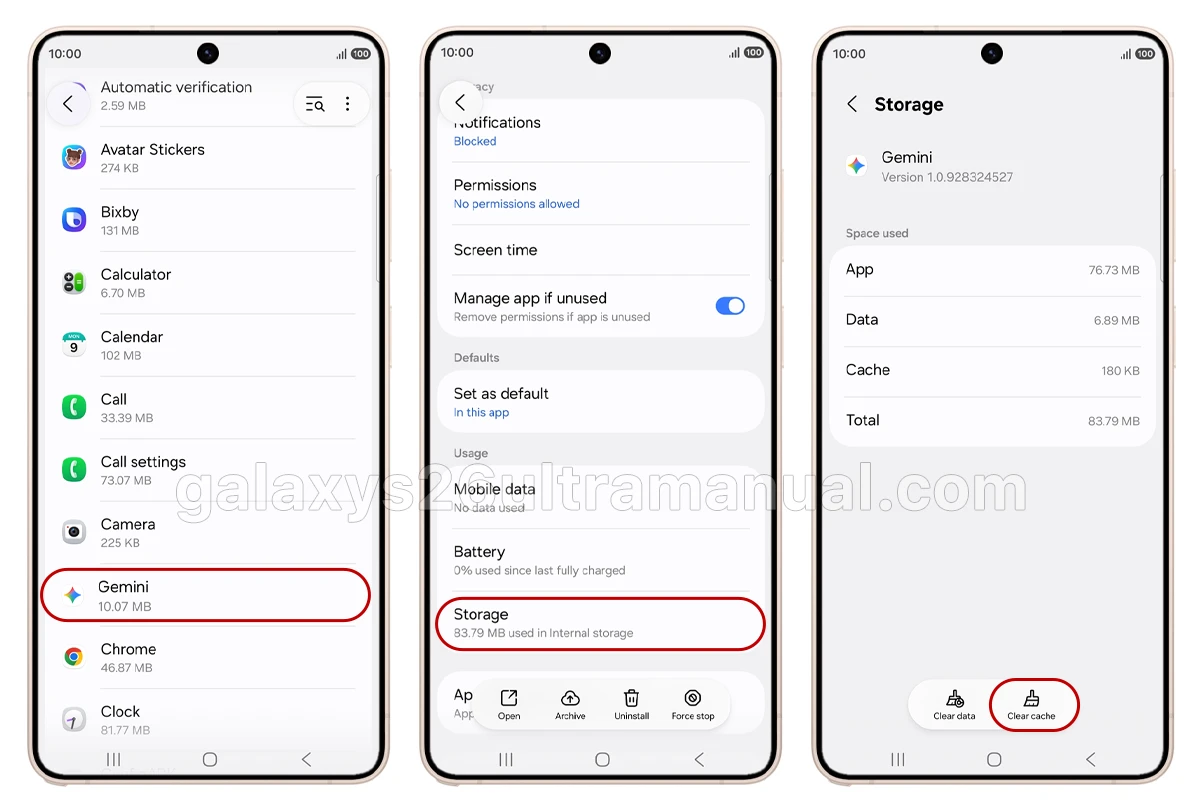
- Open Settings on your Galaxy S26 Ultra.
- Go to Apps.
- Find and tap Gemini.
- Tap Storage.
- Tap Clear cache, then Clear data (or Delete if shown).youtube
- Go back to the app page and tap Force stop, then confirm.
- Open the Gemini app again and test.
If Gemini loads and works normally, the issue was likely cache-related.
Fix 2: Resolve Error 1099 (The Most Frustrating Bug)
Error 1099 is the most widely reported Gemini issue on the Galaxy S26 Ultra. This error typically stems from server-side authentication failures or context overflow during processing.
Solution A: Toggle the Digital Assistant
This is the most reliable workaround according to Samsung Community users:
- Open the Google app.
- Tap your profile icon → Settings → Google Assistant.
- Switch the digital assistant from Gemini back to the classic Google Assistant.
- Restart your device to purge cached authentication states.
- Launch the Gemini app, tap the profile icon, and opt back into Gemini as your primary assistant.
Solution B: Switch Google Accounts
Several users report that Error 1099 only affects their primary Google account, while a secondary account works perfectly:
- Add a secondary Google account to your device.
- Switch to that account in the Gemini app.
- Test if the error persists.
Solution C: Update and Reinstall
- Update Google Play Services to the latest version.
- Uninstall updates for both Google and Gemini apps.
- Restart your phone.
- Reinstall the latest versions from the Play Store.
Fix 3: Update the Google App to Version 17.8.59 or Later
Samsung officially states that the Google app must be updated to v17.8.59 or later for Gemini multi-app functions to work properly on the Galaxy S26 series.
Steps:
- Open Google Play Store.
- Search for “Google” (the main Google app, not Gemini).
- If an update is available, tap Update.
- Also update Google Gemini, Google Play Services, and Android System WebView.
Tip: Some users report that a buggy Google app update (around February 2026) caused crashes. If Gemini started failing after a Google app update, try uninstalling the Google app updates and reinstalling the latest stable version.
Fix 4: Check and Grant All Required Permissions
Android 16 introduced a more granular permission system. Missing permissions cause specific features to fail while the app otherwise appears functional.
Steps:
- Settings → Apps → Gemini → Permissions.
- Ensure these are all set to “Allow”:
- Microphone — Required for voice input and “Hey Google”.
- Phone — Required for making calls through Gemini.
- Contacts — Required for messaging and calling by name.
- Notifications — Required for Gemini alerts.
- Nearby devices / Bluetooth — Required for headset integration.
- Restart Gemini after adjusting permissions.
Fix 5: Disable Bixby to Prevent Assistant Conflicts
Many S26 Ultra users on Reddit report that Bixby actively interferes with Gemini. Completely disabling Bixby is often the key to getting Gemini working reliably.
Steps:
- Open Bixby app → Settings → turn off “Voice wake-up”.
- Go to Settings → Advanced features → Side button.
- Under “Press and hold,” select Gemini (not Bixby).
- If you don’t use Bixby at all, go to Settings → Apps → Bixby and Disable it.
- Set Gemini as your default assistant: Settings → Apps → Default apps → Digital assistant app → select Gemini.
Fix 6: Remove Battery Optimization Restrictions
One UI 8.5’s aggressive battery optimization frequently kills Gemini’s background processes, which breaks voice activation and multi-app functions.
Steps:
- Settings → Battery → Background usage limits.
- Find Gemini and Google in the list.
- Tap each and select “Don’t restrict”.
- Also check: Settings → Apps → Gemini → Battery → select “Unrestricted”.
Fix 7: Update Google Play Services
Google Play Services provides the foundation for Gemini’s authentication, background processing, and app integration. An outdated version causes mysterious failures.
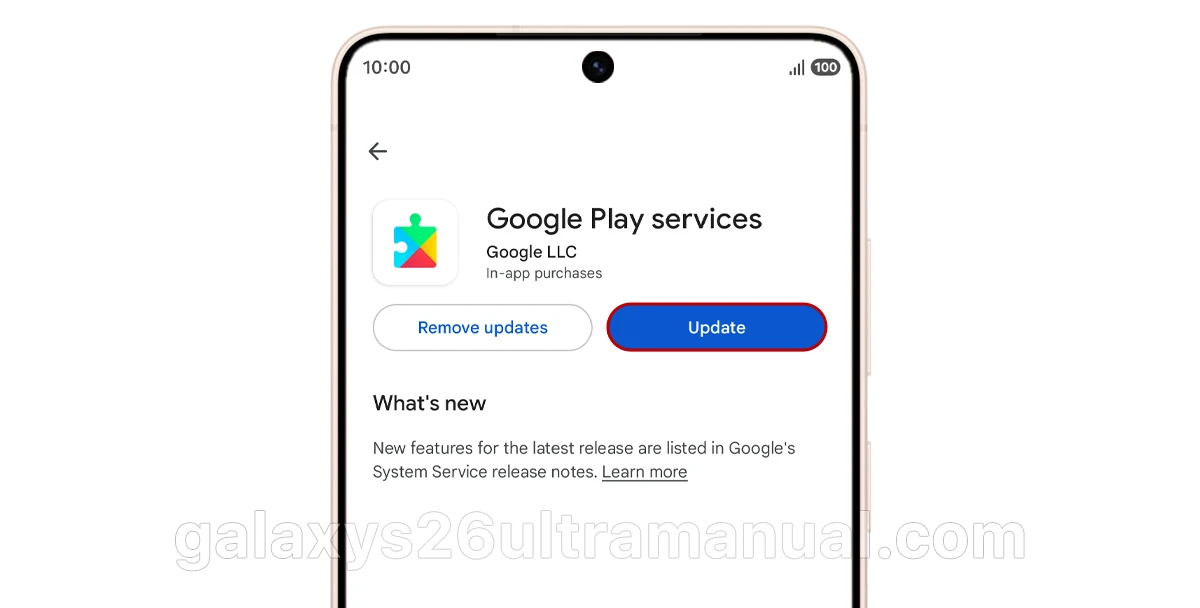
Steps:
- Open Google Play Store.
- Search for “Google Play Services”.
- If an update is available, install it
- Restart your device to ensure the new version activates.
Fix 8: Sign Out and Back Into Your Google Account
Android 16 modified how apps sync with Google accounts. Cached credentials often become invalid after updates, causing authentication failures in Gemini.
Steps:
- Settings → Accounts → select your Google account.
- Tap “Remove account” (this only removes it from the device, doesn’t delete it).
- Restart your device.
- Settings → Accounts → Add account → sign back in.
- Open Gemini — it will connect with fresh credentials.
Fix 9: Reinstall the Gemini App
If all else fails, a fresh installation ensures you have the latest version compatible with Android 16, without corrupted installation files.
Steps:
- Long-press the Gemini app icon → Uninstall.
- (Or go to Settings → Apps → Gemini → Uninstall).
- Open Google Play Store → search “Google Gemini”.
- Install fresh and grant all permissions during setup.
Fix 10: Disable Bixby to Prevent Assistant Conflicts
Many S26 Ultra users on Reddit report that Bixby actively interferes with Gemini. Completely disabling Bixby is often the key to getting Gemini working reliably.
Steps:
- Open Bixby app → Settings → turn off “Voice wake-up”.
- Go to Settings → Advanced features → Side button.
- Under “Press and hold,” select Gemini (not Bixby).
- If you don’t use Bixby at all, go to Settings → Apps → Bixby and Disable it.
- Set Gemini as your default assistant: Settings → Apps → Default apps → Digital assistant app → select Gemini.
When to Contact Support
If you’ve tried all the fixes above and Gemini still isn’t working, it’s time to reach out to the experts:
- Samsung Support — Contact via the Samsung Members App or Samsung.com.
- Google Gemini Help Center — For app-specific issues.
- Samsung Community Forums — Other S26 Ultra users may have found new solutions.
Important: Samsung has noted that Gemini issues are often third-party app problems that need to be addressed directly with Google.
Final Thoughts
The Galaxy S26 Ultra is one of the first devices to fully support Gemini’s advanced features, including task automation. While teething issues are expected with cutting-edge AI integration, most problems can be resolved with the troubleshooting steps above.
The most effective fixes in order:
- Clear cache and data
- Update all Google apps
- Toggle the digital assistant (for Error 1099)
- Enable lock screen and voice permissions
If you’re still experiencing issues, remember that Google is actively rolling out server-side fixes. Sometimes, patience is the final solution—server updates can take up to 12 hours to reflect on your device.
Have you found another fix that worked for your Galaxy S26 Ultra? Share it in the comments below to help other users!