The “Camera Failed” error on Galaxy S26 Ultra typically occurs due to software glitches, corrupted cache files, or app conflicts. This frustrating issue prevents you from taking photos, recording videos, or using camera-dependent features like document scanning and facial recognition. This article will guide you how to fix Camera Failed error on Galaxy S26 Ultra.
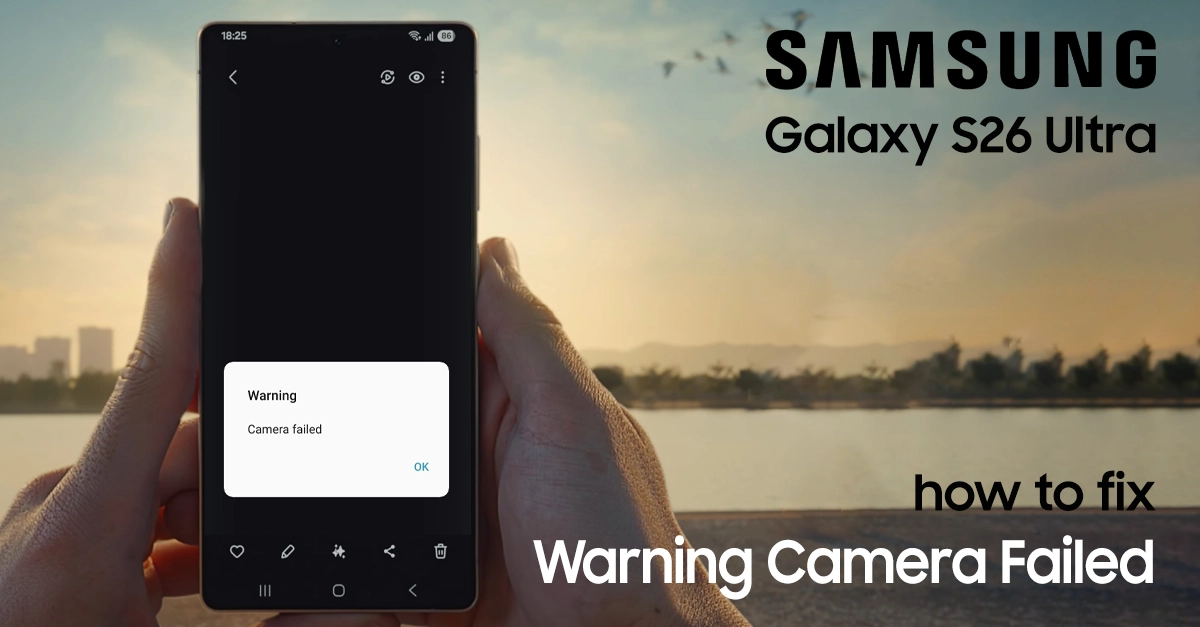
What’s Going On? Understanding the “Camera Failed” Error
The “Camera Failed” error on the S26 Ultra can manifest in a few different ways:
- The App Crashes: You open the Camera app, and it closes immediately or freezes.
- The Shaky Cam: The image in the viewfinder, particularly when using the ultra-wide lens (0.6x), starts shaking uncontrollably, often accompanied by a faint clicking or buzzing noise.
- Focus Fail: The camera struggles to focus, especially on close-up objects .
- The Fade to Black: The screen fades to black and refuses to take a picture .
These issues can be triggered by recent software updates, conflicting apps, or sometimes, a hardware defect . The good news? We can troubleshoot most of these from the comfort of your couch.
Step-by-Step to Fix Camera Failed Error on Galaxy S26 Ultra
If you’re seeing a “Camera Failed” error on your Galaxy S26 Ultra, here are the troubleshooting steps to resolve it, starting with the simplest fixes.
Quick Fixes to Try First
Before starting more in-depth troubleshooting, try the following quick solutions, which can often solve the problem immediately:
- Restart your phone – A simple reboot clears temporary glitches and refreshes system performance. Many “Camera Failed” errors disappear after restarting.
- Close all background apps – Running too many apps simultaneously can overload your phone’s RAM. Close everything running in the background, then try the camera again.
- Remove your phone case – Some cases, especially poorly fitted ones, may block the lens or press against the phone in ways that affect the camera.
- Switch between front and rear cameras – Toggling between cameras can sometimes bypass a temporary glitch and help narrow down where the issue lies.
Step-by-Step Solutions for Galaxy S26 Ultra
If the quick fixes didn’t work, proceed through these methods in order. Start with the simplest solutions before moving to more advanced ones.
Step 1: Clear Camera App Cache and Data
Corrupted cache files are a leading cause of camera failures. Clearing them removes temporary glitches without affecting your saved photos.
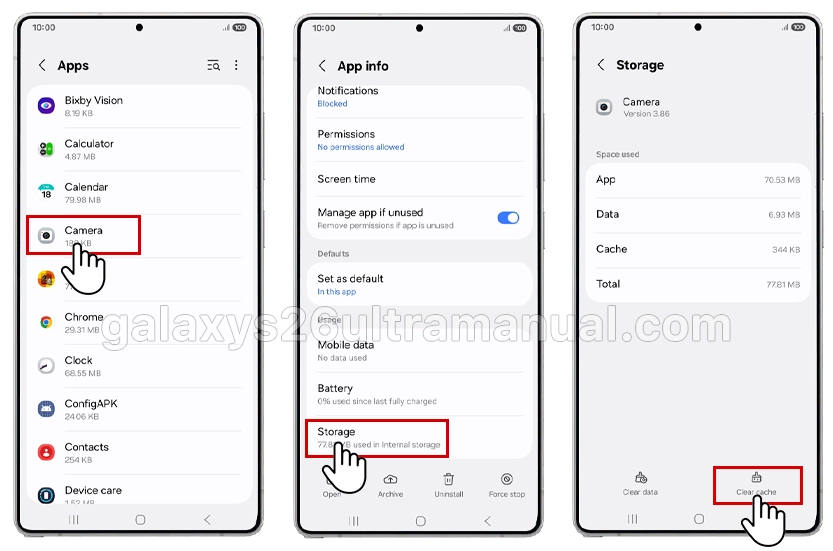
- Open Settings > Apps.
- Find and select Camera.
- Tap Storage > Clear cache > OK to confirm.
- Tap Clear data > OK to confirm.
Clearing the cache removes temporary files causing glitches, while clearing data resets the app to default settings. This step resolves most camera-related problems on the Galaxy S26 Ultra.
Step 2: Reset Camera App Settings
Resetting camera settings eliminates configuration conflicts that trigger error messages.
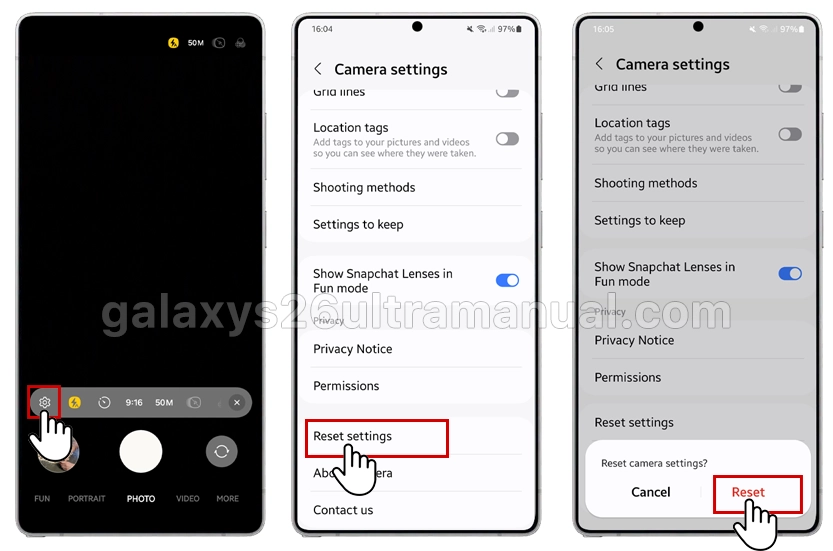
- Open the Camera app.
- Tap the Settings icon (gear symbol).
- Scroll down and select Reset settings.
- Tap Reset to confirm.
This restores all camera parameters—including resolution, timer, and shooting modes—to factory defaults without deleting your photos.
Step 3: Update Software and Camera App
Samsung releases regular updates to fix bugs and improve camera performance. An outdated system often causes compatibility issues.
- Go to Settings > Software update.
- Tap Download and install.
- Follow on-screen instructions to complete the update.
- Open Galaxy Store > Updates and install any Camera app updates.
Keeping your Galaxy S26 Ultra updated ensures you have the latest stability patches and camera optimizations.
Step 4: Boot into Safe Mode
Safe Mode helps identify if third-party apps are interfering with camera functionality.
- Press and hold the Power button until the power menu appears.
- Press and hold Power off until the Safe Mode prompt appears.
- Tap Safe Mode to restart.
Test the camera in Safe Mode. If it works correctly, a recently installed app is causing the conflict. Uninstall recently downloaded apps one by one to identify the culprit. Restart normally to exit Safe Mode.
Step 5: Perform a Force Restart
A force restart refreshes the device more thoroughly than a standard reboot.
- Press and hold the Volume Down key and Side key for 10 seconds.
- Release when the Samsung logo appears.
- Wait for the device to restart completely.
This method clears deeper system caches and resolves persistent software freezes affecting the camera.
Step 6: Factory Reset (Last Resort)
If all previous methods fail, a factory reset eliminates deep-rooted software conflicts. Back up all data before proceeding.
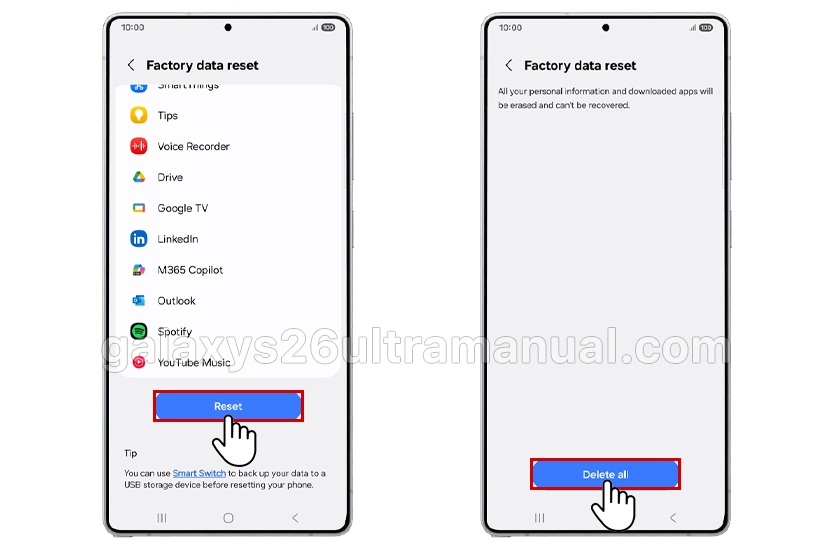
- Go to Settings > General management > Reset.
- Select Factory data reset.
- Tap Reset > Delete all.
This restores your Galaxy S26 Ultra to original factory settings, removing all apps, accounts, and personal data. Use only when other solutions fail.
When to Contact Samsung Support
Seek professional assistance if:
- The error persists after factory reset.
- Physical camera lens damage is visible.
- The device experienced water exposure or impact.
- Multiple apps accessing the camera show similar errors.
Samsung’s official support channels provide warranty repairs and hardware diagnostics for the Galaxy S26 Ultra. Authorized service centers can replace faulty camera modules under warranty coverage.
Preventing Future Camera Errors
- Update regularly: Enable automatic software updates in Settings.
- Manage storage: Keep at least 10% storage free for optimal performance.
- Avoid third-party camera apps: They often conflict with Samsung’s proprietary software.
- Clean the lens: Use a microfiber cloth weekly to remove oils and debris.
Conclusion
The “Camera Failed” error on Galaxy S26 Ultra is typically a software issue resolved through systematic troubleshooting. Start with simple fixes like restarting and clearing cache, progressing to Safe Mode and factory reset only when necessary. Most users restore full camera functionality within minutes using these proven methods.
2 thoughts on “How to Fix Camera Failed Error on Samsung Galaxy S26 Ultra”