Is your Galaxy S26 Ultra overheating after a recent software update? You‘re not alone. Many users have reported increased temperatures and battery drain following system updates. This is a temporary issue that can be resolved with a few simple adjustments.
In most cases, this isn’t a hardware defect. It’s a software optimization issue that can be resolved with the right troubleshooting steps. This guide covers 10 proven fixes—from quick 30-second adjustments to advanced recovery mode solutions—to cool down your Galaxy S26 Ultra and restore normal battery life.
Why Does My Galaxy S26 Ultra Overheat After an Update?
Before jumping into fixes, it helps to understand why your S26 Ultra is running hot after an update. Here are the most common culprits:
1. Post-Update System Optimization
After a major One UI or Android update, your phone spends 24–72 hours (sometimes up to two weeks) re-indexing apps, rebuilding caches, and re-learning your usage patterns for adaptive battery features. During this period, CPU usage spikes and the device runs warmer than usual.
2. Corrupted System Cache
Old or broken cache files from the previous software version can conflict with the new update, forcing background processes to run continuously and overwork the processor.
3. Rogue Third-Party Apps
Apps like Instagram, YouTube, and TikTok have been specifically identified by users as causing excessive CPU usage and heat generation after recent updates. One user reported Instagram consuming over 30% CPU via Thermal Guardian.
4. Reset or Changed Settings
Software updates sometimes revert your custom settings. High refresh rate, Always On Display, enhanced processing, and location services may re-enable themselves, increasing power consumption.
5. 5G Network Strain
The Galaxy S26 Ultra maintains simultaneous connections to 5G, LTE, and 3G networks for call consistency. After an update, modem firmware recalibration can cause the device to run warmer than usual during the adjustment period.
10 Methods to Fix Galaxy S26 Ultra Overheating after Software Update
This guide covers 10 proven methods to cool down your Galaxy S26 Ultra and get it running normally again.
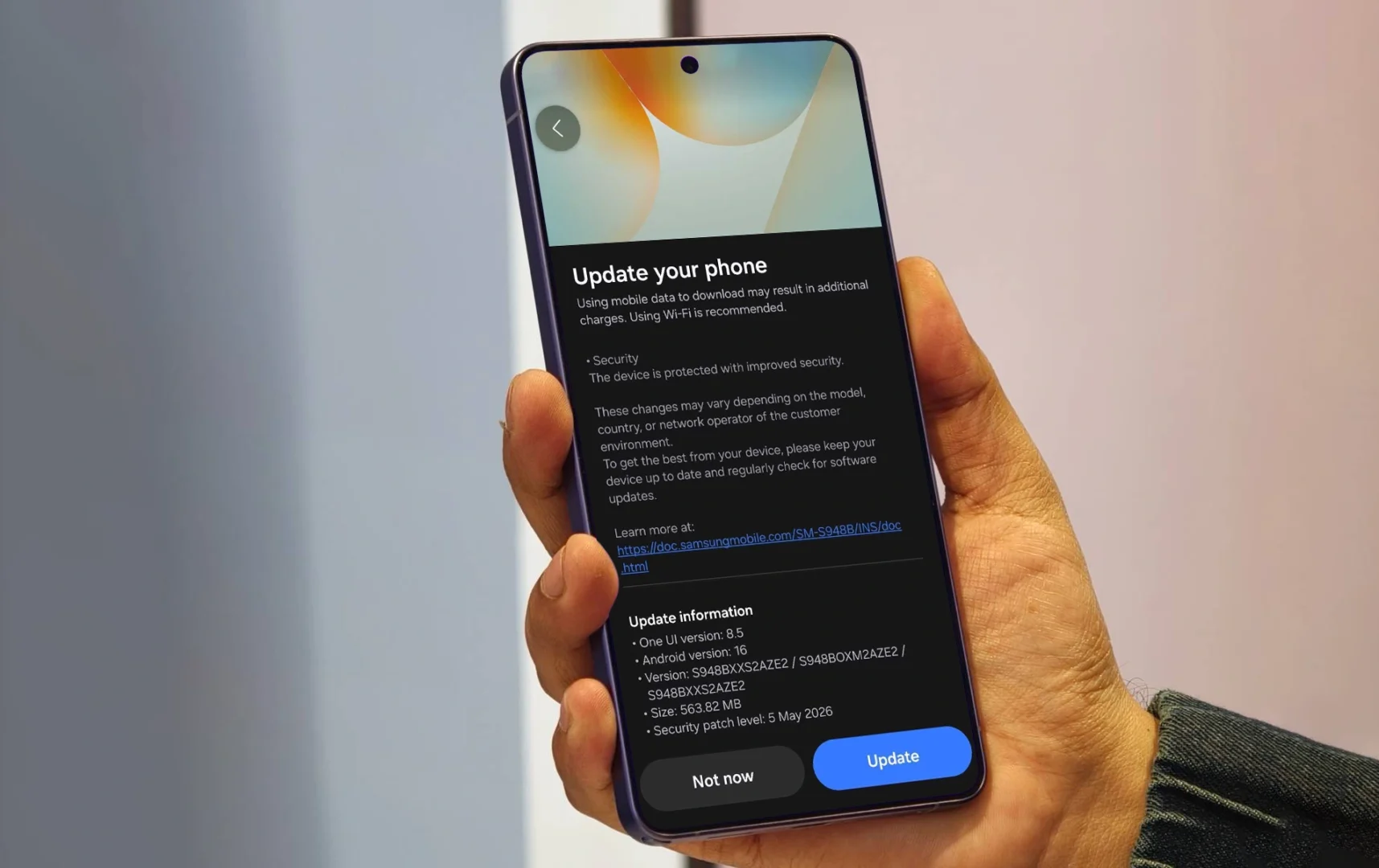
Method 1: Give It Time to Finish Post-Update Processing
Your phone can run warmer than normal for several hours while it rebuilds caches and optimizes apps.
- Keep your phone connected to Wi-Fi for a while after the update.
- Avoid long gaming sessions, 8K video recording, or using the hotspot during this period.
- Check the temperature again after a few hours—it often resolves on its own.
- If the phone is new, some warmth is completely normal during the first days of setup.
Pro tip: A slight to moderate temperature increase during the first few days is expected as the phone completes data restoration, app installations, and system optimizations.
Method 2: Find the Rogue App Causing the Heat
Sometimes a single app misbehaves after an update, keeping the processor active in the background.
- Open Settings > Battery.
- Review which apps have used the most battery since your last charge.
- Look for any app with unusually high battery consumption.
- Force stop, update, or uninstall any app that looks abnormal.
Also check: Go to Settings > Device care and run the optimization tool to clear cache and manage resources.
Method 3: Lower Display and Performance Load
High brightness, high refresh rates, poor signal, and GPS use all contribute to heat generation.
- Reduce screen brightness: High brightness can contribute to heating during extended use.
- Lower the refresh rate: Switch from 120Hz to 60Hz if available.
- Switch from 5G to LTE: In weak-signal areas, 5G Auto mode can cause the phone to work harder. Switch to LTE temporarily.
- Turn off unused connections: Disable Wi-Fi, Bluetooth, or location services when not needed.
Method 4: Temporarily Disable Fast Charging
Fast charging generates extra heat, especially right after a major update.
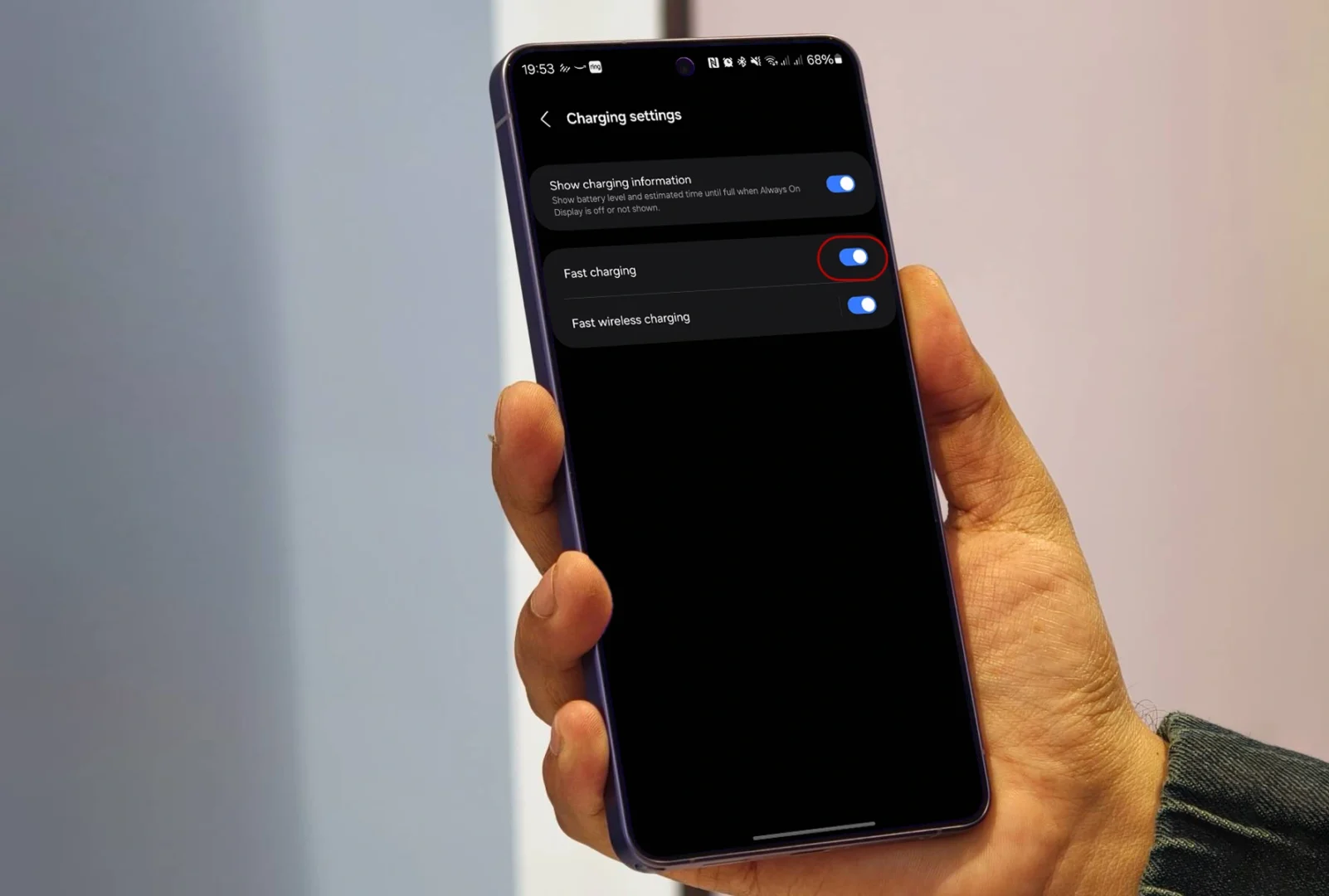
- Open Settings > Battery > Charging settings.
- Turn off Fast charging and Fast wireless charging temporarily.
- Use the original Samsung charger and cable while testing.
Important: Avoid using the phone for gaming or heavy tasks while charging—this is one of the biggest causes of excessive heat.
Method 5: Remove the Phone Case
Certain cases, especially thick or insulating ones, trap heat and prevent proper dissipation.
- Remove the case and let the phone cool down.
- Test the phone without the case for a few hours to see if temperatures improve.
- Avoid placing the phone on surfaces that retain heat, like blankets or pillows.
Method 6: Reset All Settings
If the problem began immediately after the update, a settings reset can clear broken system configurations without deleting your files.
- Open Settings > General management > Reset.
- Tap Reset all settings.
- Restart the phone and monitor the temperature again.
This won’t delete your photos, messages, or apps—it only resets system settings to default.
Method 7: Run Diagnostics with Samsung Members
Samsung provides built-in diagnostic tools to check if your hardware is functioning properly.
- Open the Samsung Members app.
- Tap on Support > Diagnostics.
- Run tests for battery, processor, and temperature.
- If all tests pass, the issue is likely software-related.
You can also use Samsung Members to submit an error report if the problem persists—Samsung Customer Support recommends submitting reports within 3 minutes of encountering the issue.
Method 8: Use Galaxy Labs / Thermal Guardian
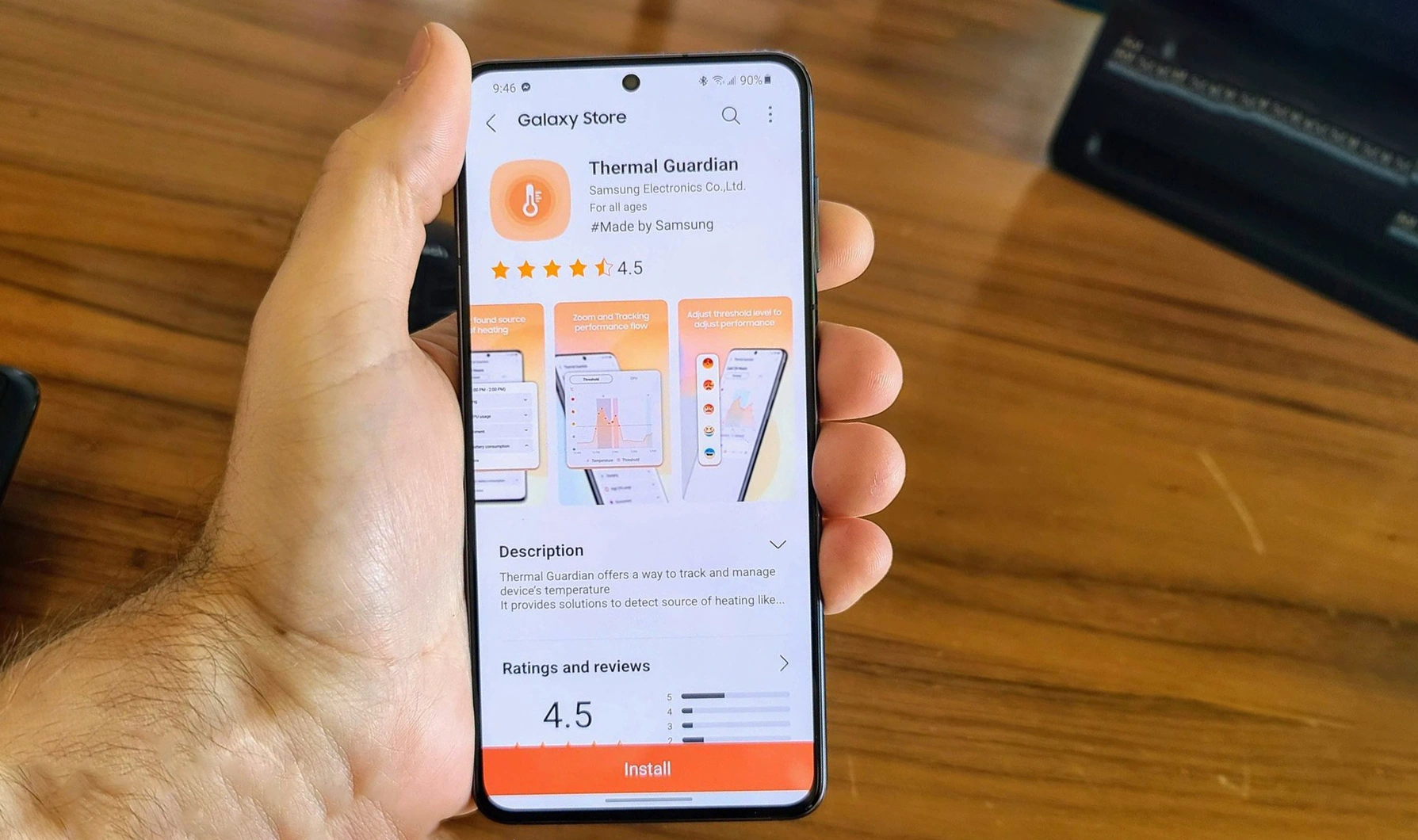
Samsung’s Galaxy Labs (available from the Galaxy Store) offers advanced thermal monitoring tools.
- Download Galaxy Labs from the Galaxy Store.
- Install and open Thermal Guardian.
- View real-time heat graphs to identify what’s causing the temperature spike.
Use the app’s temperature control features to manage overheating.
You can also use Good Guardians for advanced thermal monitoring and App Booster to keep apps optimized.
Method 9: Boot Into Safe Mode
Safe Mode starts your phone with only pre-installed apps, helping you determine if a third-party app is causing the problem.
- Press and hold the Power button.
- Tap and hold Power off until the Safe Mode prompt appears.
- Tap Safe Mode.
- Use the phone normally for a while—if it doesn’t overheat, a third-party app is the culprit.
- Restart to exit Safe Mode and uninstall recently added apps one by one.
Method10: Factory Data Reset
If none of the above fixes work after 10–14 days, a factory reset gives your S26 Ultra a completely clean software environment. This is especially effective if corrupted data migrated from your old phone during setup.
Before you start: Back up all data using Samsung Cloud, Google Drive, or Smart Switch.
- Path: Settings > General management > Reset > Factory data reset > Reset > Delete all.
Pro tip: After resetting, set up the device as new (don’t restore from backup immediately). Test thermal performance for 24 hours. If it’s stable, restore your data gradually.
When to Seek Professional Help
If your Galaxy S26 Ultra still overheating after trying all these methods, it may be time to consider professional assistance:
Signs You Need Service:
- Continuous overheating during light use (browsing, messaging, etc.).
- Overheating at rest—when the phone is idle and not charging.
- Accompanying issues like rapid battery drain, random shutdowns, or performance alerts.
- Persistent heat that doesn’t improve after several days.
What to Do:
- Back up your data and consider a factory reset as a last resort.
- If the problem persists, contact Samsung Support or visit an authorized service center.
- For potential firmware issues, professional Android system repair tools may be needed to reinstall compatible firmware.
Remember: Continuous overheating during light use can point to a battery, charging, or mainboard problem that requires professional service.
Final Thoughts
A Galaxy S26 Ultra overheating after update is frustrating, but it’s rarely permanent. Start with the quick fixes—restart, close apps, and remove your case. If heat persists, clear the cache partition and identify rogue apps using Safe Mode. For severe cases, a factory reset almost always resolves software-related thermal issues.
If you’ve found a fix that worked for your S26 Ultra, share it in the comments below. Your experience could help another user cool down their device.
1 thought on “How to Fix Galaxy S26 Ultra Overheating After Software Update | 10 Easy Methods”