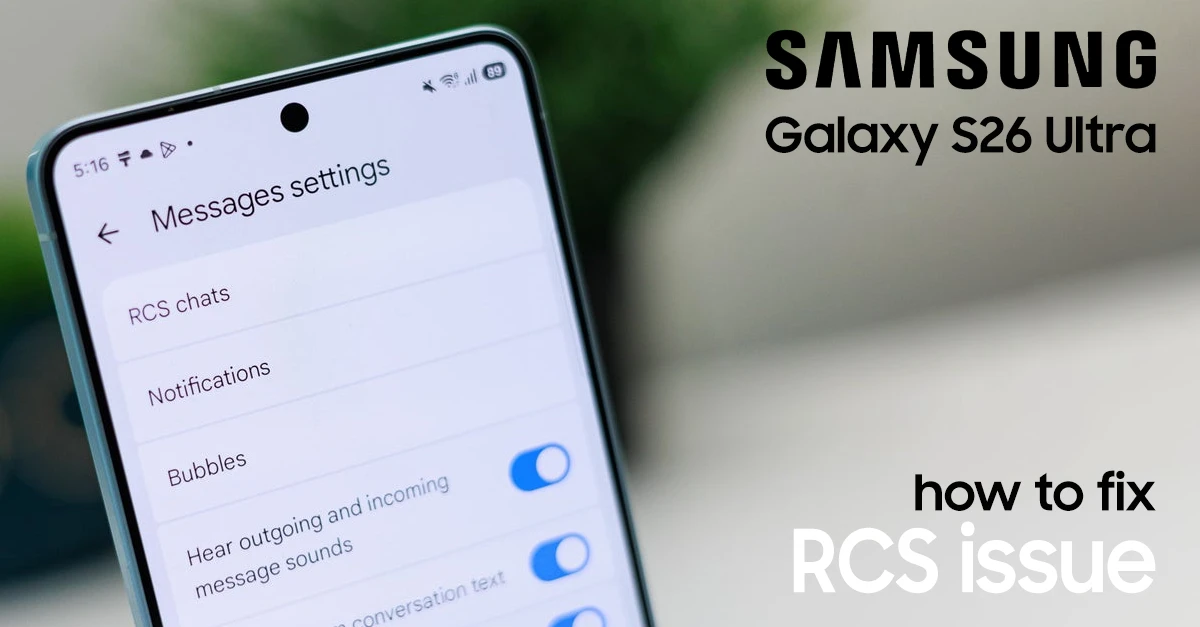
Samsung Galaxy S26 Ultra users have been reporting widespread issues with RCS (Rich Communication Services) chat features failing to activate or suddenly stopping after device setup. In this guide, we’ll walk you through exactly how to fix RCS not working on your Galaxy S26 Ultra—from the simplest fixes to more advanced solutions.
Why Is RCS Not Working on the Galaxy S26 Ultra?
The S26 Ultra presents a unique combination of factors that can break RCS:
- Data transfer from old phones often corrupts Google Messages registration.
- eSIM activation can conflict with RCS carrier provisioning.
- Samsung Messages deprecation — Samsung has shifted to Google Messages as the default, but old app data persists.
- Google Play Services cache bloat after Android 16 updates.
According to Samsung Community reports, the most common trigger is transferring data from a previous device during setup, which causes RCS to hang indefinitely.
Step-by-Step Fixes for RCS Error on the Samsung S26 Ultra
Try these solutions in order—most users find success with the first few steps.
Fix 1: Clear Google Messages Cache and Data
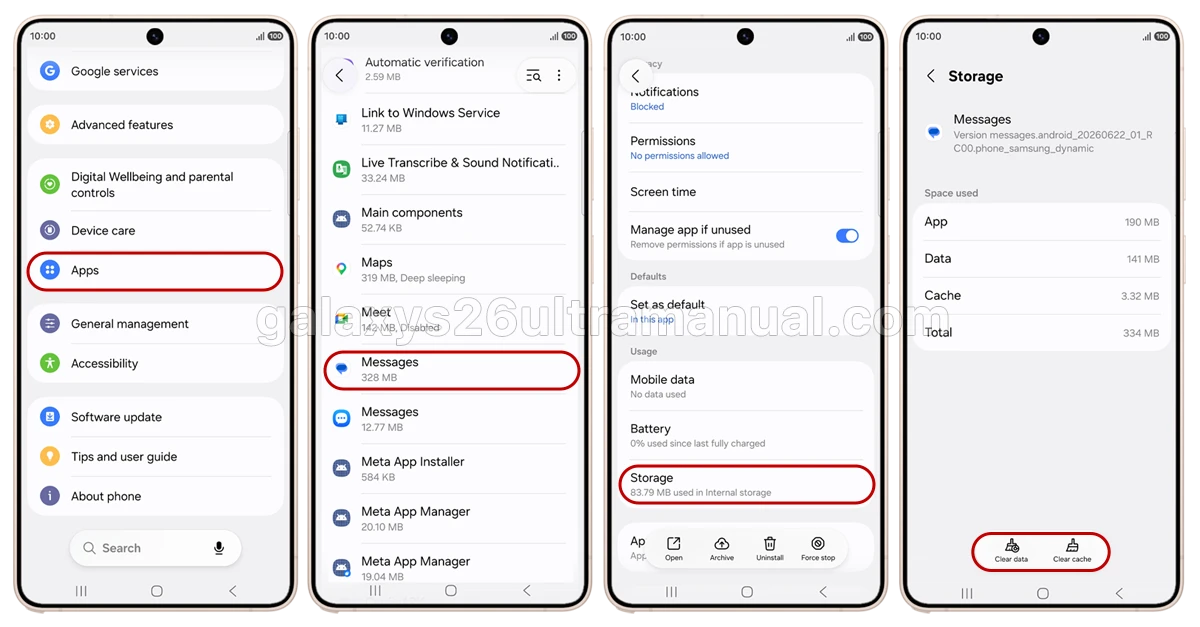
This is the #1 solution confirmed by Samsung Community users. Data transfers from old devices (especially via Smart Switch) frequently corrupt the RCS registration tokens.
Steps:
- Go to Settings > Apps.
- Find and tap Messages (Google Messages).
- Tap Storage.
- Tap Clear cache, then Clear data.
- Restart your S26 Ultra.
- Re-open Google Messages and re-enable RCS chats.
Will this delete my messages? No. Clearing data for Google Messages removes app settings and RCS registration, but your SMS/MMS/RCS conversations are stored in the app’s database and typically remain intact. However, if you want to be 100% safe, back up to Samsung Cloud first.
Fix 2: Clear Google Play Services Cache
If clearing Messages data didn’t work, the issue may lie in Google Play Services—the backbone that handles RCS authentication.
- Go to Settings > Apps.
- Tap the filter icon (three dots) > Show system apps.
- Find Google Play Services.
- Tap Storage > Clear cache.
- Do NOT tap “Clear data” here—this can break Google Wallet and other services.
- Restart your phone and test RCS again.
Fix 3: Clear Carrier Services Cache and Data
Carrier Services handles the backend connection for RCS. Clearing its cache can resolve provisioning errors.
- Open Settings > Apps.
- Tap Carrier Services.
- Tap Storage.
- Tap Clear cache and Clear data.
- Restart your phone.
Fix 4: Check eSIM vs. Physical SIM
Several S26 Ultra users on T-Mobile and other carriers have reported that RCS works inconsistently with eSIM but functions correctly after switching to a physical nano-SIM.
If you recently converted to eSIM:
- Contact your carrier to confirm RCS provisioning is active on your eSIM line.
- Ask them to “re-provision” RCS/chat features.
- As a test, request a physical SIM and check if RCS connects immediately.
Fix 5: Check Carrier RCS Support
Not all carriers support RCS universally. If you see “RCS not supported by your carrier”:
- Open Google Messages.
- Tap Profile picture > Message settings > RCS chats.
- Toggle Turn on RCS chats to Off.
- Wait 10 seconds, toggle it back On.
- If the error persists, your carrier may block RCS on unlocked devices or specific plans.
AT&T, Verizon, and T-Mobile officially support RCS on the S26 Ultra, but MVNOs (Mint, Cricket, Metro) sometimes have limited compatibility.
Fix 6: Disable Auto Blocker (For Sideloaded Samsung Messages)
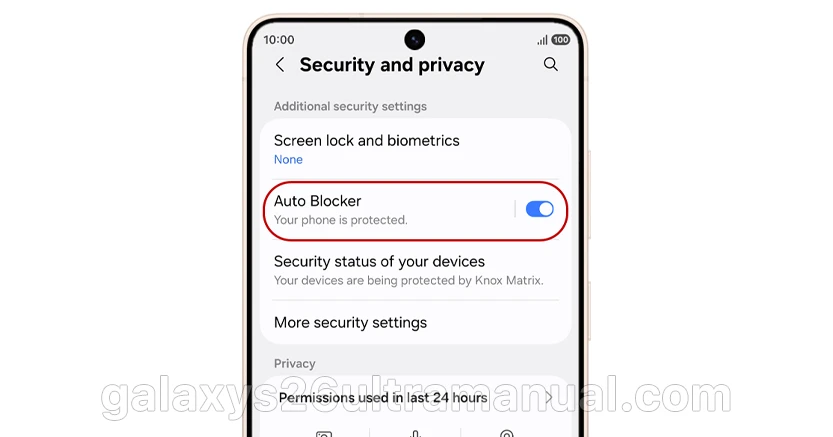
If you’re attempting to use the legacy Samsung Messages app via sideloading:
- Go to Settings > Security and privacy > Auto Blocker.
- Disable Auto Blocker.
- Grant all requested permissions to Samsung Messages.
Note: Samsung has officially ended RCS support in Samsung Messages for the S26 series, so this is not recommended long-term.
Fix 7: Reset Network Settings
If RCS still won’t connect, reset your network stack. This will erase Wi-Fi passwords and Bluetooth pairings, but not your photos or apps.
- Settings > General management > Reset.
- Tap Reset network settings.
- Confirm and restart.
- Reconnect to Wi-Fi/mobile data and test RCS.
Fix 8: Update Software and Carrier Settings
- Settings > Software update > Download and install.
- Ensure you’re on the latest Android 17 / One UI 8.5 build.
- Go to Settings > Connections > Mobile networks > Access Point Names.
- Tap the three dots > Reset to default.
Final Thoughts
RCS issues on the Samsung Galaxy S26 Ultra are frustrating but almost always fixable. Start with clearing the cache and data for Google Messages—this resolves the majority of cases, especially if you transferred data from an old phone. If that doesn’t work, work your way through the methods above, and don’t forget to check with your carrier if all else fails.
With the right troubleshooting, you’ll have RCS up and running in no time, enjoying read receipts, typing indicators, and high-quality media sharing on your new S26 Ultra.
If this guide fixed your RCS issue, drop a comment with which step worked for you—it helps other S26 Ultra owners find the right solution faster.