Software updates keep your Samsung Galaxy S26 Ultra secure and running smoothly, but sometimes they fail to download or install. If you’re seeing messages like “software update failed,” “couldn’t download update,” or your Galaxy S26 Ultra won’t update, this guide will help you fix software update issues on your Galaxy S26 Ultra.
Below, you’ll find a complete checklist of proven solutions for software update failed on Samsung Galaxy S26 Ultra, from basic checks to advanced troubleshooting using Safe Mode and Smart Switch.
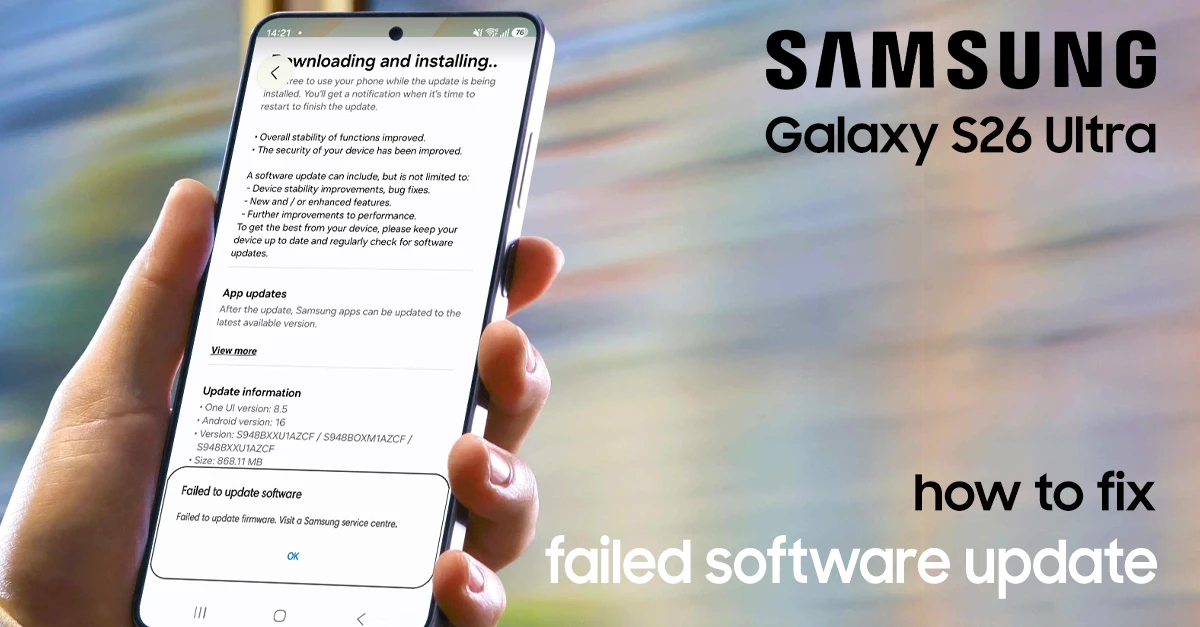
Key Takeaway: Most software update failures on the Galaxy S26 Ultra are caused by connectivity issues, insufficient storage, low battery, or corrupted cache files — and all of these can be fixed in minutes.
Why Software Updates Fail on the Galaxy S26 Ultra
Before we go into fixes, it helps to understand what‘s causing the problem. Here are the most common reasons your Galaxy S26 Ultra won’t update:
- Unstable or slow internet connection — interrupts the download.
- Insufficient storage space — not enough room for the update package.
- Low battery — phone blocks updates below a certain charge level.
- Corrupted cache or temporary system files — leftover files from previous updates.
- Samsung server issues — rollout delays or overloaded servers.
- Third-party app conflicts — apps interfering with the update process.
- Corrupted update file — the downloaded package may be damaged.
Step-by-Step Fixes for Samsung Galaxy S26 Ultra Update Issues
This guide covers every proven fix, from basic checks to advanced recovery methods, so you can get your S26 Ultra running the latest firmware without visiting a service center.
Fix #1: Check Your Internet Connection
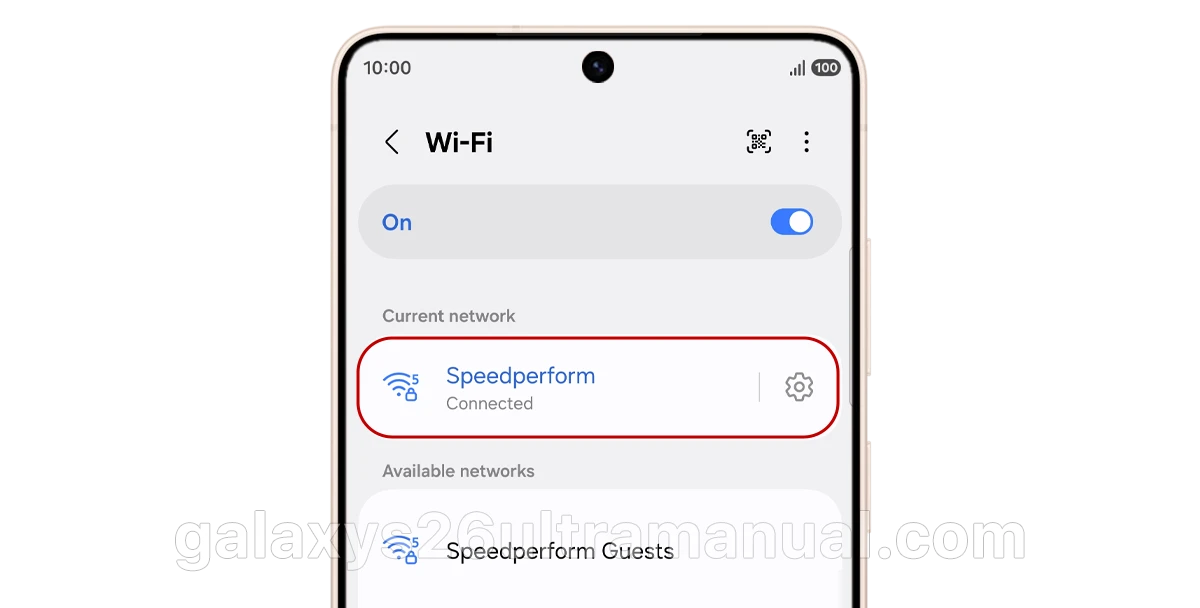
A stable Wi-Fi connection is essential for downloading large update files. If your network drops even briefly, the update may fail or restart.
Steps:
- Open Settings → tap Connections.
- Tap Wi-Fi and connect to a stable network.
- If your current network is slow, switch to another one.
- Try downloading the update again.
Pro Tip: Samsung recommends using Wi-Fi rather than mobile data for system updates. Mobile data is slower and less reliable for large files.
Fix #2: Free Up Storage Space
The Galaxy S26 Ultra needs enough internal storage to download and install updates properly. If your phone is running low, the installation may fail midway.
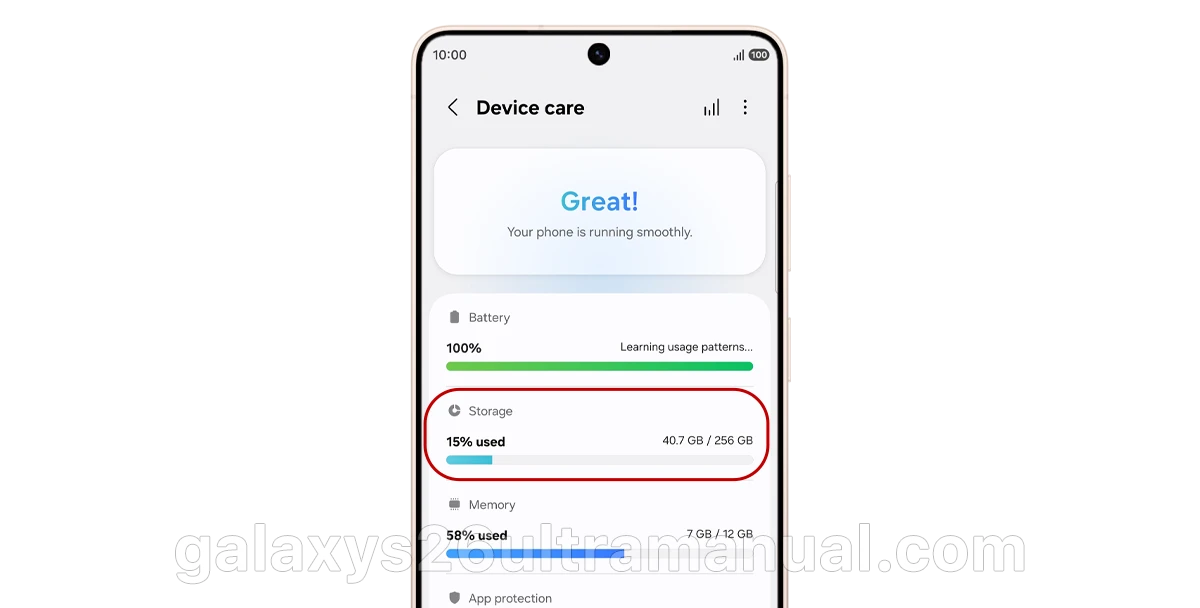
Steps:
- Open Settings → tap Battery and device care.
- Tap Storage and check available space.
- Delete unused apps, old photos, videos, or large files.
- Restart the update after clearing storage.
What to aim for: Keep at least 5–10 GB of free space for major One UI updates. Security patches are smaller but still require 2–3 GB.
Fix #3: Make Sure Your Battery Is Charged
Your phone may block updates if the battery level is too low. This prevents interruptions during installation that could damage the system.
Steps:
- Open Settings → tap Battery.
- Check the battery level — charge if needed.
- Keep the device above 50% before installing updates.
- Plug it into a charger during the update for stability.
Samsung officially recommends at least 30% battery before installing any update.
Fix #4: Restart Your Phone
A simple restart can fix temporary glitches that stop updates from installing. It refreshes the system and clears minor bugs.
Steps:
- Swipe down from the top right to open Quick Settings.
- Tap the Power icon → tap Restart.
- Wait for the phone to reboot completely.
- Check for updates again after restarting.
If the screen is frozen, perform a force restart by pressing and holding Volume Down + Power for about 10 seconds until the Samsung logo appears.
Fix #5: Reset Network Settings
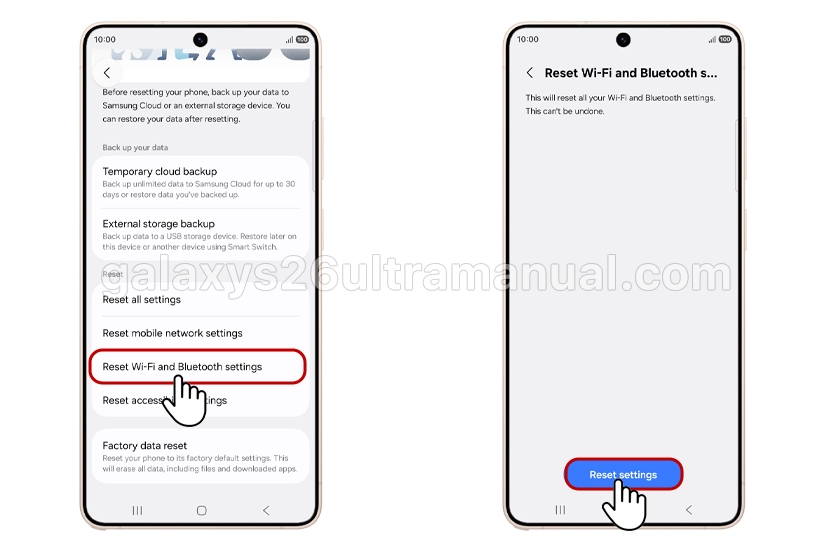
Network issues can block downloads or cause verification errors. Resetting network settings restores all connections to default and often fixes update failures.
Steps:
- Open Settings → tap General management.
- Tap Reset → tap Reset mobile network settings.
- Confirm the reset and reconnect to Wi-Fi.
- Download the update again.
Warning: This will delete saved Wi-Fi passwords and Bluetooth pairings. Make sure you have them handy before proceeding.
Fix #6: Boot into Safe Mode

If your phone keeps crashing or freezing during or after an update, Safe Mode helps determine if a third-party app is causing the issue.
Steps:
- Hold the Power button until the power menu appears.
- Long-press Power Off until the Safe Mode prompt appears.
- Tap Safe Mode.
If the problem stops in Safe Mode: A third-party app is the culprit. Uninstall recently updated apps — especially launchers, battery tools, VPNs, and screen filters.
Fix #7: Use Samsung Smart Switch for Emergency Recovery
If the update was interrupted or your phone won‘t boot properly, Samsung Smart Switch can repair the system image.
Steps:
- Connect your Galaxy S26 Ultra to a computer using a USB-C cable.
- Open Samsung Smart Switch on the computer.
- Click → Emergency Software Recovery and Reset.
- If the update failed, you can repair your device using the recovery code.
- Follow the on-screen instructions.
Important: This process may include a factory data reset. Back up your data first if possible.
Fix #8: Factory Reset (Last Resort)
If nothing else works, a factory reset is the definitive software fix. This wipes all data and restores the phone to factory settings.
Steps:
- Back up all data — photos, contacts, files, etc.
- Go to Settings → General Management → Reset.
- Tap Factory Data Reset → tap Reset and confirm.
Alternative (if phone won‘t boot):
- Turn off the phone.
- Hold Volume Up + Power to enter Recovery Mode.
- Select Wipe data/factory reset.
After reset: Set up the phone as new first before restoring backups to check if the issue is truly resolved.
Special Case: Google Play System Update Showing Wrong Date
Some Galaxy S26 Ultra users have reported that the Google Play system update shows November 1, 2025 even after installing the latest available version.
What‘s happening: This appears to be a labeling error from Google rather than a functional problem. All affected devices continue to operate normally.
What to do:
- Check for Google Play system updates at Settings → Security & Privacy → Updates → Google Play system update.
- Samsung and Google are expected to resolve this in future updates.
- No action is required — your device is not at risk.
Bottom line: This is a cosmetic display issue, not a security concern.
Special Case: One UI 9.0 Beta Update Issues
If you‘re enrolled in the One UI 9.0 Beta program for the Galaxy S26 series, you may encounter beta-specific bugs.
Known beta issues fixed in Beta 3:
- Privacy settings display errors with automation scenarios.
- Camera preview cropping under certain conditions.
- Lock screen widget information (weather, battery) not updating correctly.
- 30x zoom camera focus accuracy.
If you experience beta issues:
- Check for the latest beta update at Settings → Software update → Download and install.
- Ensure battery is above 30% before updating.
- Report bugs through the Samsung Members app.
Final Thoughts
Software update issues on the Samsung Galaxy S26 Ultra are usually easy to fix once you address connectivity, storage, or system glitches. Start with the simplest fixes (checking Wi-Fi and storage) and work your way up to more advanced solutions like wiping the cache partition or using Smart Switch.
Most importantly:
- Always back up your data before major updates.
- Keep your battery charged above 50%.
- Stay on a stable Wi-Fi network.
- Be patient — large updates can take 20–30 minutes to install.
Have you encountered a different update issue on your Galaxy S26 Ultra? Drop a comment below — we‘re here to help!
2 thoughts on “How to Fix Software Update Issues on Samsung Galaxy S26 Ultra”