If your Galaxy S26 Ultra feels sluggish, apps freeze unexpectedly, or the battery drains faster than usual, corrupted system cache files might be the culprit. Learning how to wipe cache partition Galaxy S26 Ultra is a safe, effective troubleshooting step that clears temporary system data without deleting personal photos, apps, or settings. This guide walks you through the entire process with clear, actionable steps designed for users of all technical levels.
UPDATE:
Daebak 앤디 on Twitter (Now X), The system now uses the Android Runtime (ART) to manage app optimization and temporary files dynamically. With the introduction of seamless updates (A/B partitions) on the S26 series, the way updates are applied has changed.
The phone essentially cleans itself up during the update process, making a manual “wipe” redundant. One UI now handles “stale” files automatically during idle time (while charging at night), reducing the need for users to enter the recovery menu.
What Is a Cache Partition and Why Clear It?
The cache partition stores temporary system files that Android uses to boot faster and run apps smoothly. Over time, these files become outdated or corrupted, causing performance hiccups.
Wiping the cache partition removes this digital clutter, allowing your Galaxy S26 Ultra to rebuild fresh, optimized temporary files. Unlike a factory reset, this procedure preserves all your personal data while targeting only system-level temporary storage.
Before You Start: Prerequisites
Before you begin, ensure you have:
- At least 50% battery charge (to prevent shutdown during the process).
- 5–10 minutes of uninterrupted time.
- Your device powered off completely.
Important: Do not confuse wiping cache partition with a factory reset. This process will not erase photos, contacts, downloaded apps, or personal files.
Step-by-Step Instructions to Wipe Cache Partition Galaxy S26 Ultra
Follow these steps precisely to enter Recovery Mode and clear the system cache.
Step 1: Power Off Your Device

Press and hold the Side Key and Volume Down button simultaneously until the power menu appears. Tap “Power Off” and wait until the screen goes completely dark.
Step 2: Enter Recovery Mode
Plug your USB-C cable into your Galaxy S26 Ultra and connect the other end to a powered-on computer.

Press and hold the Volume Up and Side Key buttons at the same time. Continue holding both buttons even after the Samsung logo appears. Release only when you see the Android Recovery screen with a list of options.
Step 3: Navigate the Recovery Menu
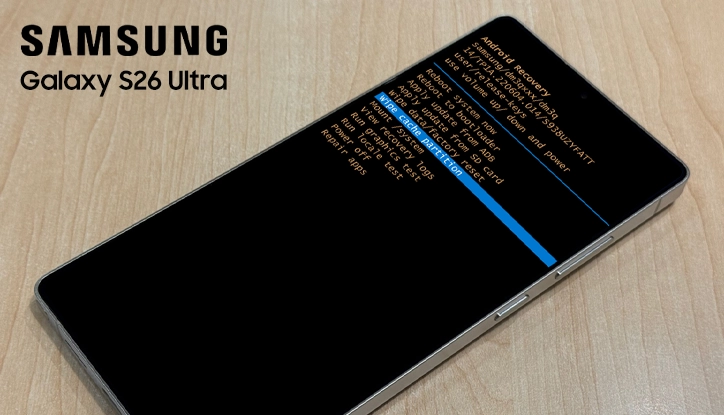
Use the Volume Down button to scroll through the menu options. Stop when you highlight “Wipe cache partition.” Do not use touch gestures—the Recovery Mode only responds to physical buttons.
Step 4: Select the Option
Press the Side Key (Power button) once to select “Wipe cache partition.” A confirmation prompt appears asking if you want to proceed.

Step 5: Confirm the Action
Press the Volume Down button to highlight “Yes” and press the Side Key to confirm. The system will now clear the cache partition—this takes 10–30 seconds.
Step 6: Reboot Your Device
Once complete, the menu returns. Ensure “Reboot system now” is highlighted, then press the Side Key. Your Galaxy S26 Ultra will restart normally, which may take slightly longer than usual as it rebuilds the cache.
What to Expect After Wiping Cache
Your device will boot into the standard lock screen after a few minutes. You may notice:
- Faster app loading times.
- Smoother multitasking between apps.
- Improved battery efficiency.
- Reduced lag when navigating menus.
The first boot after clearing cache may feel slightly slower—this is normal as the system regenerates necessary temporary files.
When Wiping Cache Does Not Resolve the Issue
If performance problems persist after clearing the cache partition, consider these next steps:
- Check for software updates in Settings > Software update.
- Boot into Safe Mode to identify problematic third-party apps.
- Perform a factory reset as a last resort (backup data first).
- Contact Samsung Support if hardware issues are suspected.
Conclusion
Knowing how to wipe cache partition Galaxy S26 Ultra gives you a powerful, non-destructive tool to resolve common performance issues without losing personal data. This simple maintenance procedure clears corrupted temporary files and restores system responsiveness in under 10 minutes. Make this a regular troubleshooting step before considering more drastic measures like factory resets.
1 thought on “How to Wipe Cache Partition Galaxy S26 Ultra to Restore Performance”