New Galaxy S26 Ultra owners often worry about losing important contacts after setup. Backing up contacts ensures your phone numbers, emails, and notes stay safe from loss or device changes. This guide will help you to back up contacts on Galaxy S26 Ultra, summarized from Samsung’s official support.
Why Back Up Contacts on Galaxy S26 Ultra
Contacts hold vital info like family numbers and work emails. The Samsung Galaxy S26 Ultra runs One UI 8.5, which supports seamless backups to prevent data loss during upgrades or resets. Regular backups also sync across devices for easy access.
Methods to Back Up Contacts on your Galaxy S26 Ultra
Samsung recommends multiple options for full coverage. Below are the most reliable methods to back up contacts on your Galaxy S26 Ultra.
1. Back Up Using Google Account (Recommended)
Using your Google account automatically saves contacts to the cloud so they sync across devices.
Steps:
- Go to the Home screen. To open the menu, swipe up on the screen.
- Choose Contacts.
- Choose the options symbol.
- Choose Settings.
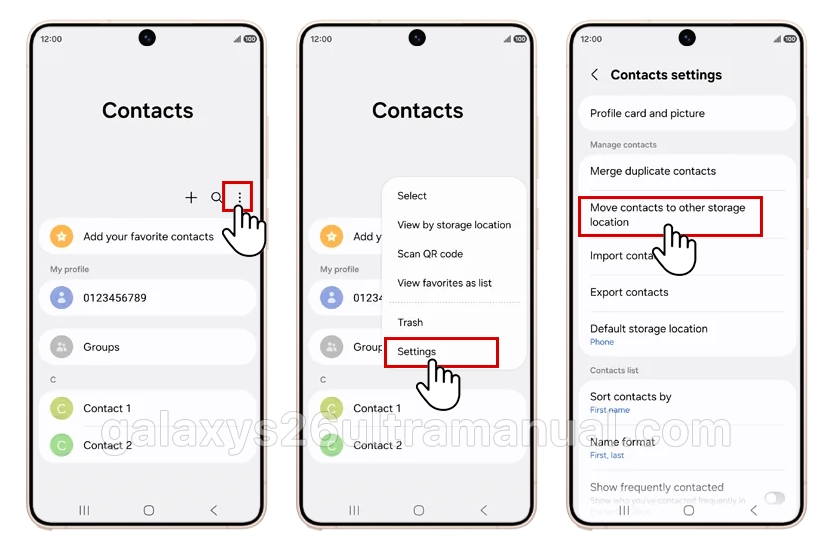
- Choose Move contacts to other storage location.
- Choose Phone.
- Choose one or more contacts or, in this case, check All.
- Choose Done.
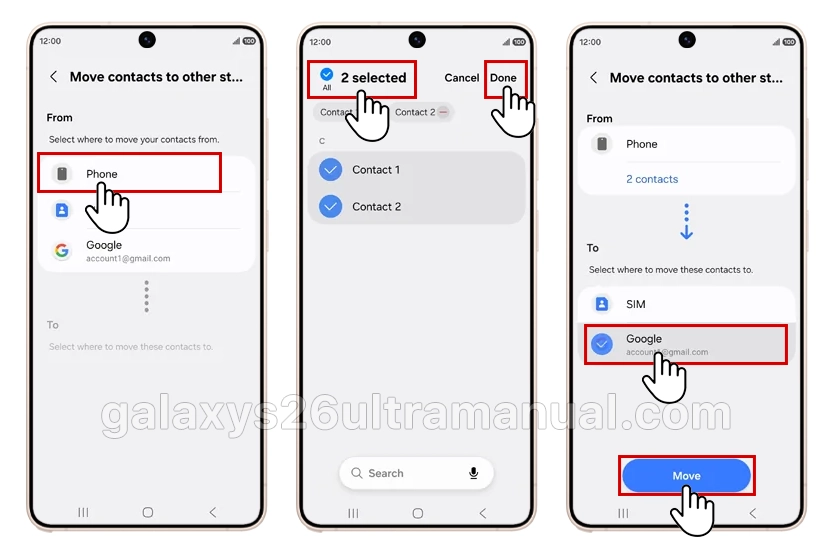
- Choose the account you want to use to backup your contacts.
- Choose Move.
- A backup of your personal data will now automatically be stored in your Google account.
Why this method is useful:
- Contacts are saved to your Google account.
- They automatically restore when you sign in to another Android phone.
- You can access them anytime via Google Contacts on the web.
2. Back Up with Samsung Cloud
Samsung Cloud is another built-in backup option designed specifically for Samsung devices.
Steps:
- Open Settings.
- Tap Accounts and backup.
- Select Samsung Cloud.
- Tap Back up data.
- Turn on Contacts.
- Tap Back up now.
Your contacts will now be securely stored in Samsung Cloud and can be restored later.
3. Export to Phone Storage (Manual Backup)
You can also create a manual backup file (VCF file) that can be saved on your phone or transferred to a computer.
Steps:
- Open the Contacts app.
- Tap the three-line menu or More options (⋮).
- Select Manage contacts.
- Tap Import or export contacts.
- Choose Export.
- Select Internal storage or SD card.
- Tap Export.
This creates a .VCF file containing all your contacts.
Tip:
You can copy this file to:
- A computer
- Cloud storage like Google Drive
- An external SD card
4. Back Up with Smart Switch
You can also back up contacts to a computer using Samsung Smart Switch.
Steps:
- Install Smart Switch on your computer.
- Connect your Galaxy S26 Ultra with a USB cable.
- Open Smart Switch.
- Click Backup.
- Wait for the backup process to finish.
This method backs up contacts and other phone data at the same time.
Advanced Contacts Tips for Galaxy S26 Ultra
Merge duplicates in Contacts app via Manage contacts > Merge. Enable auto-backup reminders in Settings. For bulk transfers, use Smart Switch app from Galaxy Store.
Test restores periodically to confirm data integrity.
Troubleshooting Common Issues
- If sync fails, check internet and account permissions in Settings > Apps > Contacts > Permissions.
- Clear cache via Settings > Apps > Contacts > Storage > Clear cache. Update One UI for fixes.
- Restart device if errors persist.
Conclusion
Backing up contacts on the Samsung Galaxy S26 Ultra only takes a few minutes and can save you from losing valuable information. The Google account sync method is the easiest and most automatic solution, while Samsung Cloud, VCF export, and Smart Switch provide additional backup options for extra security.
For the best protection, consider using both Google sync and a manual backup file so your contacts are always safe.
Exceĺlent articles. Thanks very much.