The Samsung Galaxy S26 Ultra is one of the most powerful Android flagships of 2026, but it arrives with a frustrating companion: pre-installed apps also called bloatware you never asked for. If you want to remove bloatware on Galaxy S26 Ultra quickly and safely, this guide shows you exactly which apps to delete, how to uninstall them, and what to do with apps you can’t remove normally.
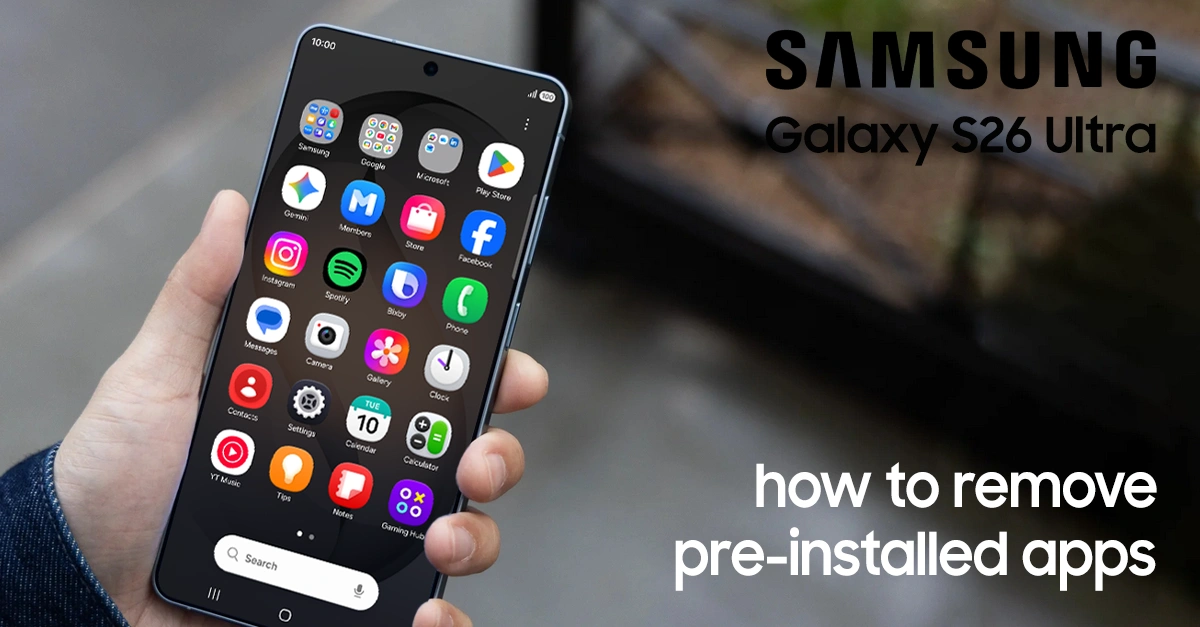
Samsung packs the device with preinstalled apps from Meta, Microsoft, and its own services, some useful, many redundant. According to Android Authority, third-party apps alone consume over 17 GB of storage, with system files pushing total used space to approximately 40 GB before you even take your first photo.
If you’re looking to reclaim storage, improve battery life, and declutter your app drawer, this guide covers everything you need to know about removing bloatware from your Galaxy S26 Ultra safely without rooting your device.
What Is Bloatware on the Samsung Galaxy S26 Ultra?
Bloatware refers to preinstalled applications that consume system resources without providing meaningful value to the user. On the Galaxy S26 Ultra, these fall into three categories:
- Samsung first-party apps: Samsung Shop, Samsung TV Plus, Global Goals, Samsung Kids, Samsung Free
- Third-party partner apps: Facebook, LinkedIn, Spotify, Microsoft OneDrive, M365 Copilot, Outlook
- Carrier-branded apps: Verizon, AT&T, or T-Mobile-specific utilities (varies by purchase source)
The frustrating reality is that many of these apps run background processes, consume RAM, and push notifications, even if you never open them. Independent testing shows that disabling non-essential apps like Samsung Free, Samsung Kids, and Samsung Weather reduced overnight battery drain from 4.2% to 2.7%.
Methods to Remove Bloatware on your Galaxy S26 Ultra
This methods above will help you to remove bloatware from your Galaxy S26 Ultra, no advanced techniques and no computer needed.
Method 1: Uninstall or Disable Apps via Settings (Easiest)
This is the simplest method and requires no technical skills. However, not all pre-installed apps can be fully uninstalled this way—some can only be disabled.
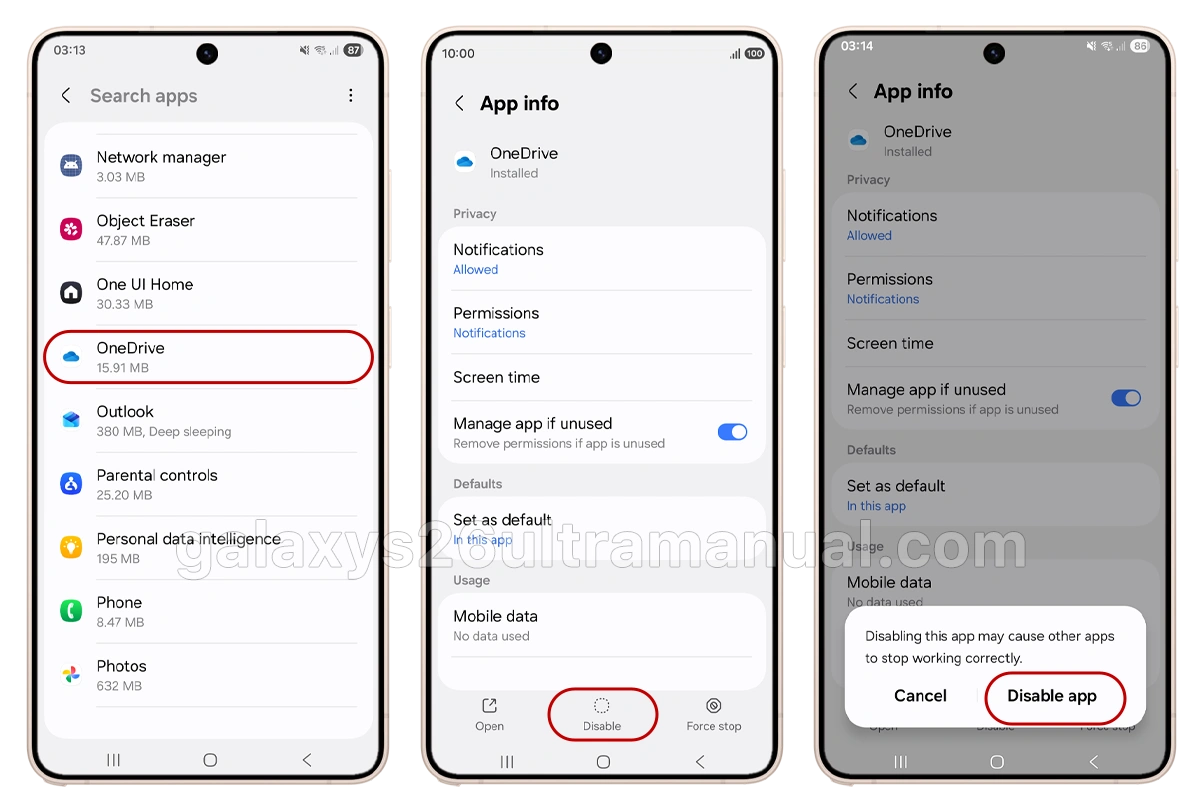
Steps:
- Open Settings on your Galaxy S26 Ultra.
- Tap Apps.
- Find the app you want to remove.
- Tap Uninstall (if available) or Disable (if uninstall isn’t an option).
What You Can Remove This Way:
- Facebook and Instagram – These can be uninstalled completely by long-pressing the icon or going through Settings.
- Samsung Shop – A shopping app for Samsung products.
- Any third-party app that offers an Uninstall button.
What You Can Only Disable:
Some Samsung system apps can only be disabled, not uninstalled, through the Settings method. Disabling an app removes it from your app drawer, stops it from running, and prevents it from receiving updates but it keeps the app files on your device.
Reverting: You can always re-enable a disabled app at a later time through your Settings menu.
Method 2: On-Device Debloating (No Computer Needed)
If you prefer not to use a computer, you can debloat directly from your phone using Shizuku and Canta:
- One-time setup: Enable Developer Options and Wireless Debugging on your phone.
- Install Shizuku: Grants ADB-level permissions without a PC.
- Install Canta: A GUI-based debloating app.
- Import a preset: Download the conservative.json preset for Galaxy S26 Ultra.
- Review and remove: Select apps safely and uninstall them with visual confirmation.
This method is ideal for users who want the power of ADB without the command-line complexity. The complete guide is available on GitHub.
What Bloatware Should You Remove? (Safe List)
Based on expert recommendations, here are apps that are safe to remove from your Galaxy S26 Ultra:
Safe to Remove (Third-Party Apps):
- Facebook – Privacy concerns, background data usage.
- Instagram – Redundant if you don’t use it.
- Samsung Shop – Shopping app with unwanted notifications.
- Microsoft 365 Copilot – Only useful if you pay for the service.
- OneDrive – Redundant if you use Google Drive.
- LinkedIn – Professional networking app.
- Outlook – Redundant if you use Gmail.
- Link to Windows – Only useful for Windows integration.
- Spotify – Only useful if you use the service.
Proceed with Caution (Samsung/Google Apps):
- Samsung Internet vs. Chrome – Keep at least one browser.
- Galaxy Store vs. Play Store – Keep at least one app store.
- Gmail vs. Outlook – Keep at least one email client.
- Bixby vs. Gemini – Keep at least one assistant if you use voice commands.
What You Should NEVER Remove
Even advanced users should avoid removing core system packages. Accidentally uninstalling these can cause crashes, bootloops, or break essential features:
- System UI (com.android.systemui) – Controls the notification shade and navigation.
- Samsung Keyboard (com.samsung.android.honeyboard) – Unless you install Gboard or SwiftKey first.
- One UI Home (com.sec.android.app.launcher) – The default launcher; remove only if another launcher is active.
- Settings (com.android.settings) – Self-explanatory.
- Phone/SMS apps – Core telephony functionality.
- Knox and Secure Folder services – Security-critical components.
If you’re unsure about a package, disable it first rather than uninstalling. Disabling is fully reversible.
Performance Impact: What to Expect After Debloating
Claims that debloating “speeds up your phone” are often overstated for a device with the Snapdragon 8 Elite Gen 5 processor. However, measurable benefits do exist:
- Battery life: Overnight drain reduced by ~1.5% (from 4.2% to 2.7%) after disabling Samsung Free, Kids, and Weather.
- Notifications: Disabling Samsung Daily, Samsung Members, and Galaxy Store updates cut unsolicited push notifications by up to 73%.
- Storage: Removing 12 non-essential apps frees an average of 1.2 GB. On a 128 GB model, this is meaningful; on a 512 GB model, it’s less critical but still welcome.
- RAM: Users commonly report 10–25% faster app launch times and 500 MB–2 GB of freed RAM, particularly on devices with heavier bloatware loads.
The psychological benefit is equally significant: a cleaner app drawer and fewer interruptions make your $1,300 flagship feel like the premium device it is.
Tips to Keep Your Galaxy S26 Ultra Clean After Debloating
Once you’ve removed bloatware on Galaxy S26 Ultra:
- Review app permissions
Go to Settings → Privacy → Permission manager and restrict unnecessary permissions.
- Use Samsung’s built-in Storage cleaner
Settings → Battery and device care → Storage → Clean now.
- Regularly check for new bloatware
After updates, Samsung may add new pre-installed apps. Repeat the uninstall process if needed.
- Install only what you need
Prefer lightweight alternatives (e.g., use YouTube instead of Samsung TV Plus, Google Docs over M365 Copilot).
Final Thoughts: Finding Your Balance
The Galaxy S26 Ultra delivers exceptional hardware—arguably the best in the Android ecosystem in 2026. But Samsung’s software philosophy still prioritizes partnerships and ecosystem lock-in over user choice. The good news is that with a few minutes of cleanup, you can transform the software experience to match the hardware excellence.
Removing bloatware on Galaxy S26 Ultra is a quick way to reclaim storage, reduce notifications, and improve overall performance.