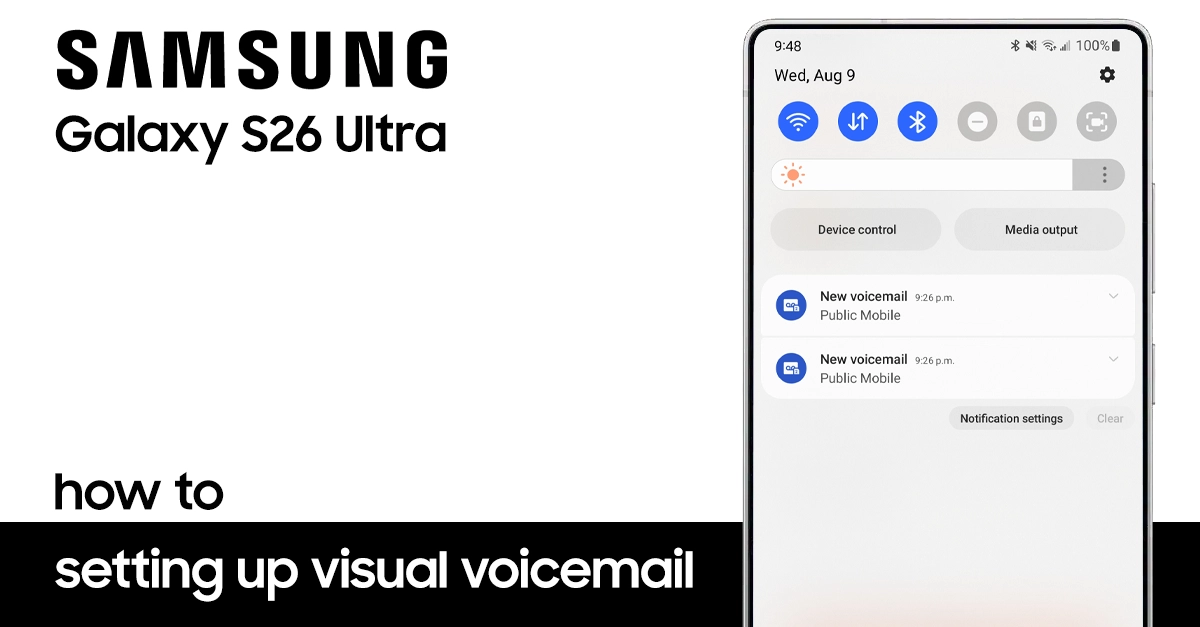
Setting up voicemail on your Samsung Galaxy S26 Ultra is a great way to ensure you never miss important messages. Whether you’re new to the device or upgrading, this guide will walk you through every step to set up voicemail on Samsung S26 Ultra. Let’s dive into how you can customize your voicemail greeting, set a secure password, and manage notifications with ease.
Why Set Up Voicemail on your Samsung S26 Ultra?
Voicemail remains a vital communication tool, especially when you can’t answer your phone. The Galaxy S26 Ultra offers easy access to voicemail settings and advanced options like visual voicemail for quicker message management. Setting it up helps you stay connected and ensures voice messages are never lost.
How to Access Voicemail Settings on the Galaxy S26 Ultra
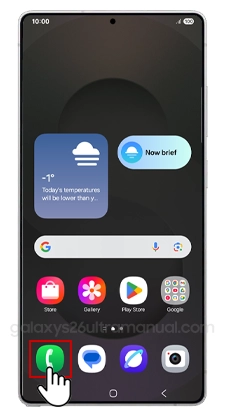
- Open the Phone app on your device.
- Tap the Keypad icon.
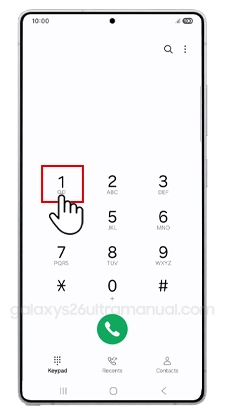
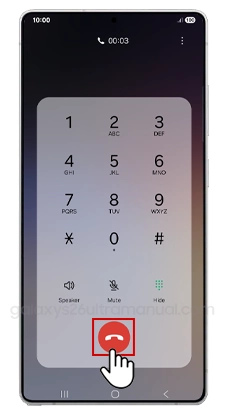
- Press and hold the number 1 key. This action dials your voicemail service.
- Follow the voice prompts to enter your voicemail password or create one if it’s your first time.
- You can also access voicemail settings by tapping the three dots in the top-right corner of the Phone app, selecting Settings, then Voicemail.
Setting Up your Voicemail Password
Creating a strong voicemail password protects your messages from unauthorized access. Samsung recommends a password with at least 6 digits, avoiding easily guessable sequences. This step is crucial for maintaining privacy.
Recording a Personalized Voicemail Greeting
Your greeting is your phone’s first impression when callers reach your voicemail. Record a clear and friendly message that includes:
- Your name.
- A brief note about when you’ll return the call.
- Alternative contact info, if necessary.
To record your greeting, follow the voicemail prompts after calling your voicemail, or use the visual voicemail app if supported.
Managing Advanced Voicemail Features
Samsung Galaxy S26 Ultra supports advanced voicemail functionalities:
- Visual Voicemail: View and manage messages via the app interface instead of calling voicemail.
- Voicemail to Email: Forward your voice messages to your email for easy access on any device.
- Notification Customization: Set personalized ringtones and alert styles for voicemail notifications.
Check if your carrier supports these features, and enable them in voicemail settings if available.
Troubleshooting Common Voicemail Issues on the S26 Ultra
If voicemail isn’t working as expected:
- Ensure a stable cellular or Wi-Fi connection.
- Verify your voicemail number matches your carrier’s configuration in phone settings.
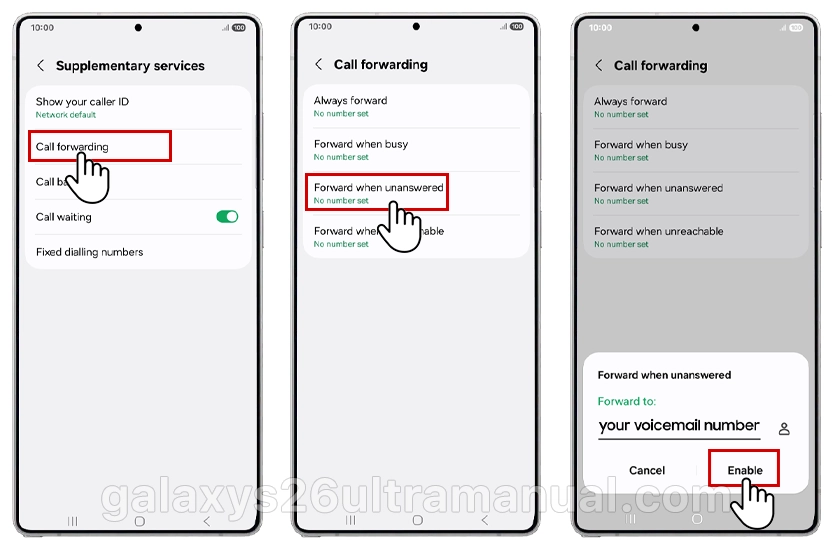
- Make sure you activate the call forwarding to voicemail.
- Restart your device to refresh network settings.
- Update your device software for bug fixes related to voicemail.
- Read your manual carefully.
- Contact your carrier if problems persist.
Conclusion
Setting up voicemail on your Samsung Galaxy S26 Ultra is simple and essential for seamless communication. By configuring your password, greeting, and notifications, you keep your messages secure and accessible. Advanced features like visual voicemail enhance your experience, making message management effortless. Follow this guide to ensure you never miss an important call or message on your Galaxy S26 Ultra.
2 thoughts on “How to Set Up Voicemail on Samsung S26 Ultra: Easy Guide for All Users”