Tired of spam calls and scammers interrupting your day? The Galaxy S26 Ultra’s new AI-powered Call screening feature lets your phone answer suspicious calls automatically, ask who they are and why they’re calling, then transcribe everything in real-time. This complete guide shows you exactly how to use Call screening on Galaxy S26 Ultra — from activation to advanced settings — so you never miss important calls while blocking the junk.
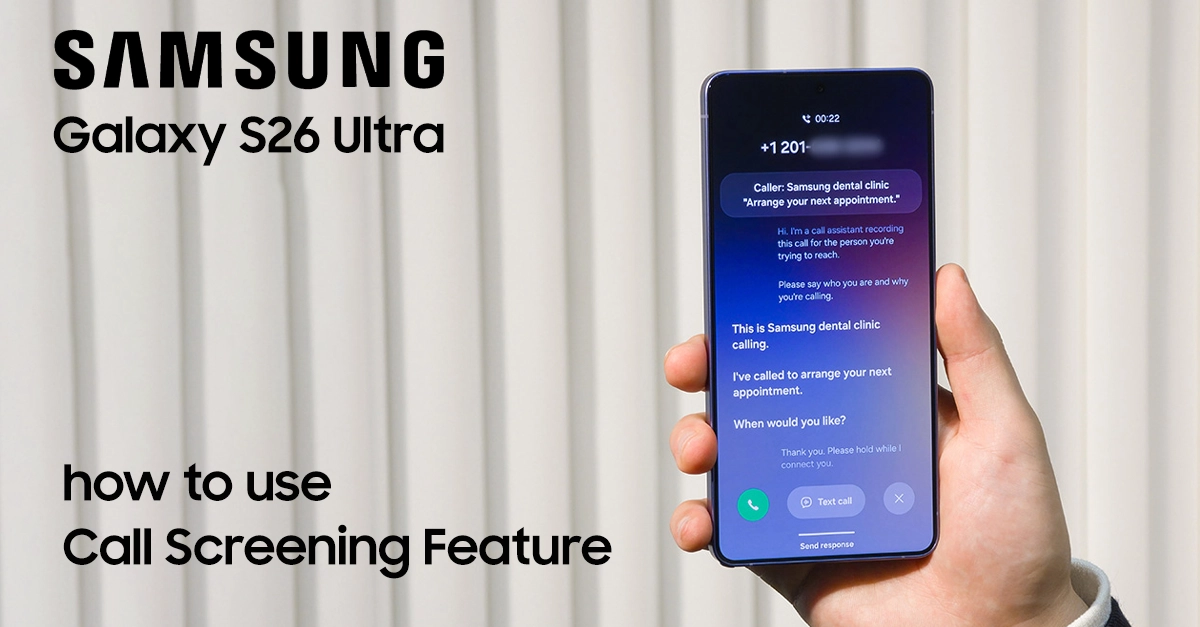
What Is Call Screening on the Samsung Galaxy S26 Ultra?
Call screening uses Galaxy AI to answer unknown or suspicious calls with a digital voice assistant. The AI asks the caller to state their name and reason for calling, then shows you a live transcript. You decide whether to pick up, send a text response, or let it go to voicemail — all without saying a word.
Key benefits for new S26 Ultra owners:
- Blocks spam/scam calls automatically.
- Real-time transcription of caller intent.
- Works with Text call for hands-free responses.
- Customizable screening levels.
Steps to Use Call Screening on Samsung Galaxy S26 Ultra
The Call Screening feature on the Samsung Galaxy S26 Ultra helps protect you from spam, scam, or unknown callers.
Step 1: Activate Call Screening on Galaxy S26 Ultra
Follow these exact steps to enable Call screening on Galaxy S26 Ultra:
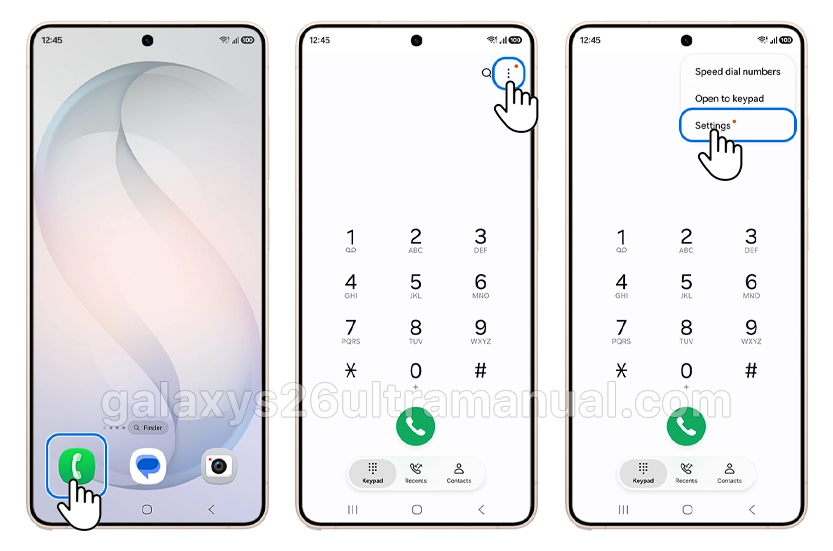
- Open the Phone app on your Galaxy S26 Ultra home screen.
- Tap the More options icon (three dots) in the top-right corner.
- Select Settings from the dropdown menu.
- Tap Call screening (may be under Galaxy AI features).
- Choose your language for the AI voice assistant.
- Toggle Call screening ON — you’re now protected!.
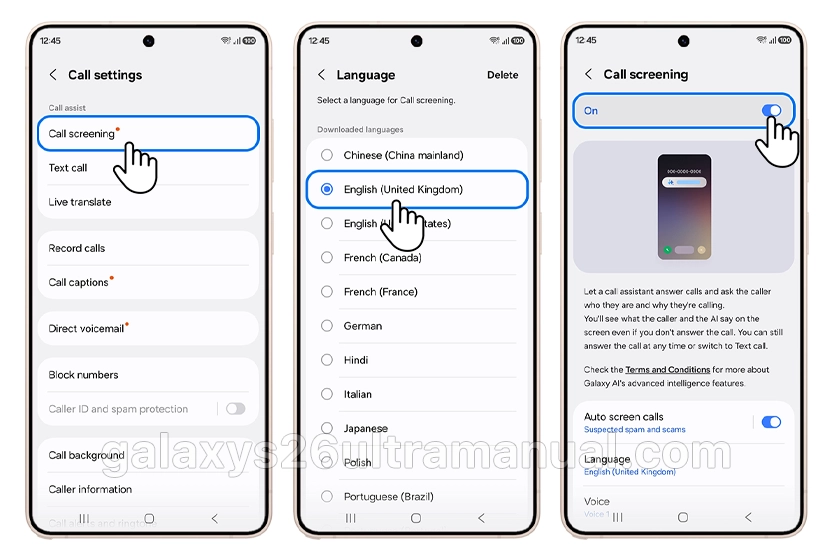
Pro tip: Download additional language packs if needed for your region.
Step 2: Enable Auto Screen Calls (Most Important Setting)
Auto screen calls automatically screens suspected spam without you lifting a finger:
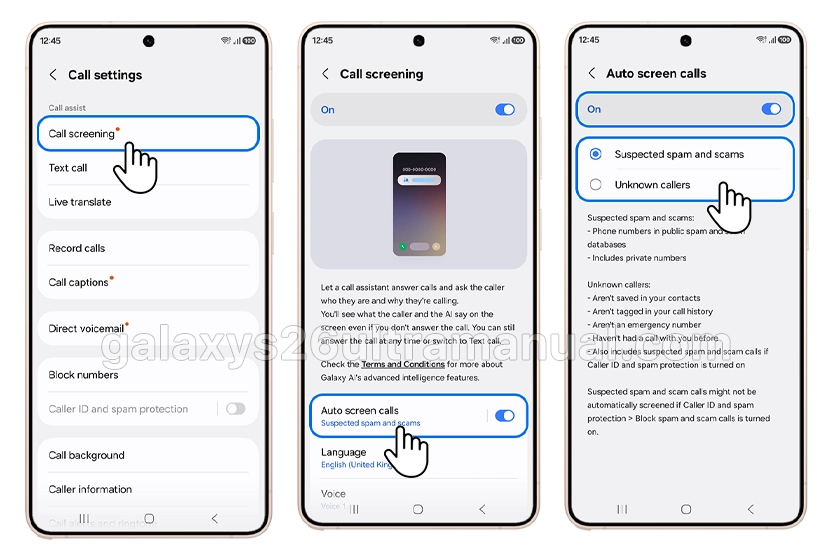
- Go back to Phone app > More options > Settings.
- Tap Call screening (already enabled from Step 1).
- Select Auto screen calls.
- Toggle it ON.
- Choose screening types:
- Suspected spam.
- Unknown callers/private numbers.
- Tap Done — auto-protection activated!
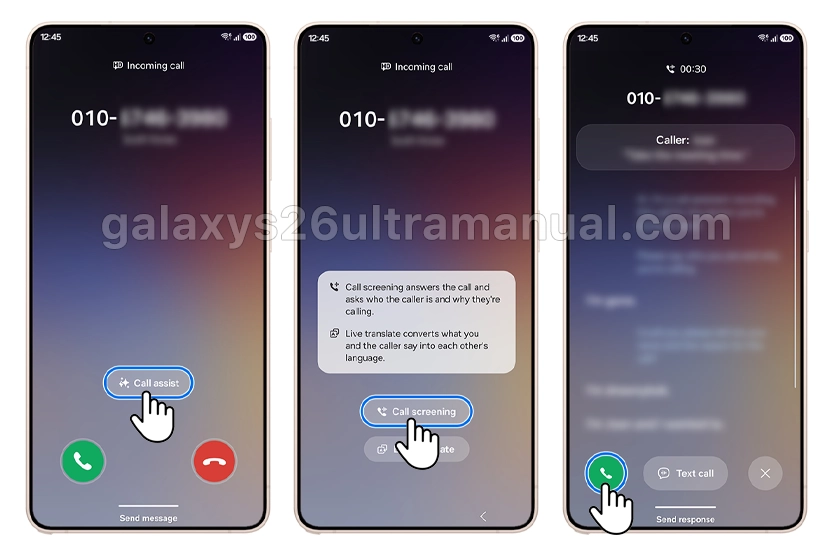
Step 3: Use Call Screening During Incoming Calls
When a suspicious call comes in:
- See Call assist button on the incoming call screen.
- Tap Call assist (don’t answer yet).
- Select Call screening.
- Watch live transcript — AI asks: “Hello, may I ask who’s calling and the reason?”.
- Review caller details in real-time.
- Choose your action:
- Tap Call icon to connect.
- Tap Text call for AI responses.
- Decline to send to voicemail.
- End call immediately.
Advanced: Text Call Feature After Screening
Can’t talk right now? Use Text call:
- After Call screening shows caller details.
- Tap Text call button.
- Type your message (AI reads it aloud).
- Continue conversation via text-to-speech.
- Switch to voice call anytime or end conversation.
Troubleshooting Common Call Screening Issues
“Call screening option missing?”
- Update Phone app and One UI to latest version.
- Check Settings > Galaxy AI > Call Assist first.
“Auto screening not working?”
- Verify Auto screen calls is ON.
- Check selected screening types match your needs.
- Restart Phone app.
“Language issues?”
- Download correct language pack in Call screening settings.
Why Call Screening Is Useful
Call Screening on the Galaxy S26 Ultra adds a smart layer of protection by letting your phone interact with unknown callers before you do. The AI assistant can answer calls, request the caller’s information, and show a live transcript so you stay informed without immediately engaging.
Benefits include:
- Reducing spam and scam calls.
- Screening unknown numbers safely.
- Seeing call details before answering.
- Replying with text instead of speaking.
Conclusion
The Call Screening feature on the Samsung S26 Ultra is a powerful AI tool designed to keep unwanted calls away while giving you full control over incoming calls. By enabling this feature, you can let your phone handle suspicious callers, view real-time transcripts, and decide whether the call is worth answering.
It’s a simple yet effective way to protect your time and privacy while staying connected. Enable it today — your phone line will thank you.
1 thought on “How to Use Call Screening on Samsung Galaxy S26 Ultra”