The Samsung Galaxy S26 Ultra ships with the Samsung Keyboard as the default on-screen keyboard, packed with features like predictive text, auto-correction, voice input, and Galaxy AI-powered writing assistance. But after months of customization—tweaking layouts, adding languages, enabling swipe gestures, and teaching the keyboard your typing habits—things can go awry. This article will help you to reset keyboard settings on Galaxy S26 Ultra.

Why You Need to Reset Your Samsung Keyboard?
The Samsung Galaxy S26 Ultra ships with the latest Samsung Keyboard optimized for One UI8 and Android 16. Over time, your keyboard learns your typing habits, custom words, and personalized shortcuts. While this is helpful, it can also lead to:
- Unresponsive or laggy keys – If typing feels sluggish or keys don’t register properly.
- Incorrect auto-corrections – When the keyboard keeps “fixing” words that were correct.
- After a software update – New One UI versions can sometimes disrupt previous keyboard configurations.
- Over-customization – Too many tweaks to layout, size, toolbar toggles, or feedback settings.
- Persistent glitches – When clearing cache alone doesn’t solve the problem.
Note: Resetting keyboard settings is not the same as a factory data reset. Your personal files, photos, and apps remain untouched. Only keyboard-related settings and learned data are affected.
Methods to Reset Keyboard Settings on your Galaxy S26 Ultra
Resetting your keyboard settings restores the default configuration without affecting your personal files, photos, or apps.
Method 1: Reset Keyboard Settings to Default
This is the fastest way to restore your Samsung Keyboard to its original state. This method resets layout, themes, size, and smart typing options—but does not remove downloaded languages.
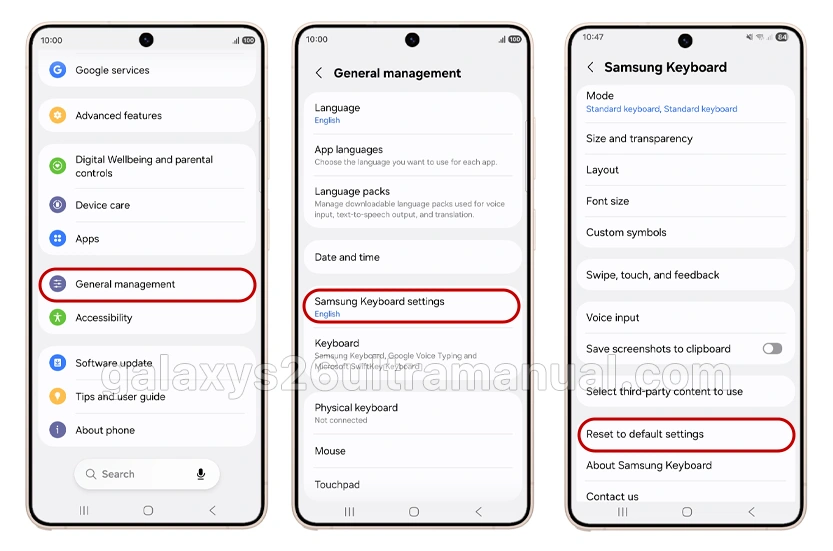
Step-by-Step Instructions:
- Open the Settings app on your Galaxy S26 Ultra.
- Tap General management.
- Tap Samsung Keyboard settings.
- Scroll all the way to the bottom of the menu.
- Tap Reset to default settings.
- Select Reset keyboard settings.
- Tap Reset to confirm.
Your keyboard will now revert to its factory defaults. Any custom themes, resized layouts, or disabled toolbars will be restored.
Method 2: Erase Personalized Predictions
If your issue is specifically with autocorrect or word suggestions, you may only need to erase the keyboard’s learned data. This removes saved words and typing patterns without touching other settings.

Step-by-Step Instructions:
- Navigate to Settings > General management > Samsung Keyboard settings.
- Scroll to the bottom and tap Reset to default settings.
- Tap Erase personalized predictions.
- Tap Erase to confirm.
Note: This action cannot be undone. The keyboard will need to relearn your typing habits from scratch.
Method 3: Clear Keyboard Cache & Data
If your Samsung Keyboard is crashing, lagging, or not appearing at all, clearing the cache and data can resolve deeper software issues. This is more thorough than a simple settings reset.
Step-by-Step Instructions:
- Open Settings and tap Apps.
- Tap the Sort icon (three lines) in the top right.
- Toggle on Show system apps, then tap OK.
- Find and select Samsung Keyboard from the list.
- Tap Force stop, then tap OK.
- Tap Storage.
- Tap Clear data, then tap Delete.
Warning: This will erase all your keyboard settings, including saved words, themes, and layout preferences.
Method 4: Change the Default Keyboard
Sometimes the issue isn’t with the Samsung Keyboard itself, but with a third-party keyboard app causing conflicts. If you recently installed Gboard, SwiftKey, or another keyboard and are experiencing problems, switching back to the default Samsung Keyboard is recommended.
Step-by-Step Instructions:
- Open Settings > General management.
- Tap Keyboard list and default.
- Tap Default keyboard.
- Select Samsung Keyboard.
If you prefer a third-party keyboard, ensure it is fully updated and compatible with One UI 8.
Troubleshooting: What If the Reset Doesn’t Fix the Issue?
If you’ve reset the keyboard and problems persist, try these additional steps:
1. Restart Your Device
A simple restart can resolve temporary glitches. Press and hold the Power button, then tap Restart.
2. Update Your Software
Ensure your Galaxy S26 Ultra is running the latest software. Go to Settings > Software Update > Download and Install.
3. Check Default Keyboard Settings
Make sure Samsung Keyboard is set as your default keyboard: Settings > General Management > Keyboard List and Default > Default Keyboard > Samsung Keyboard.
4. Boot into Safe Mode
If third-party apps are interfering, restart in Safe Mode (hold Volume Down while booting) and test the keyboard.
5. Optimize Device Performance
Go to Settings > Device Care > Optimize Now to clear memory and improve performance.
6. Factory Reset (Last Resort)
As a final option, back up your data and perform a factory reset: Settings > General Management > Reset > Factory Data Reset. Warning: This erases all data on your device.
Pro Tips for a Better Typing Experience
After resetting, here’s how to rebuild your keyboard setup the right way:
- Enable swipe typing – Go to any text field, tap the gear icon on the keyboard, scroll down, and select Swipe
- Adjust auto-correction – In Samsung Keyboard settings, toggle Auto Replace on/off for specific languages
- Add languages – Go to Languages and types > Manage input languages to download additional keyboards
- Customize layout – Adjust Size and transparency under keyboard settings
- Use Galaxy AI features – Enable Chat translation, Composer, or Style and grammar under Smart typing
Final Thoughts
Resetting the keyboard on your Samsung Galaxy S26 Ultra is a quick fix for most typing-related issues. Whether you need to erase personalized predictions, clear corrupted cache data, or simply restore default settings, the methods above cover every scenario. Start with Method 1, and only escalate to a factory reset if absolutely necessary.
If you found this guide helpful, share it with other Galaxy S26 Ultra users experiencing keyboard issues!
1 thought on “How to Reset Keyboard Settings on Samsung Galaxy S26 Ultra”