If your Galaxy S26 Ultra 5G is not working, keeps dropping to LTE, or mobile data feels slower than expected, you’re not alone. Many S26 Ultra users report “No service”, unstable 5G, or data cutting out randomly on new devices.
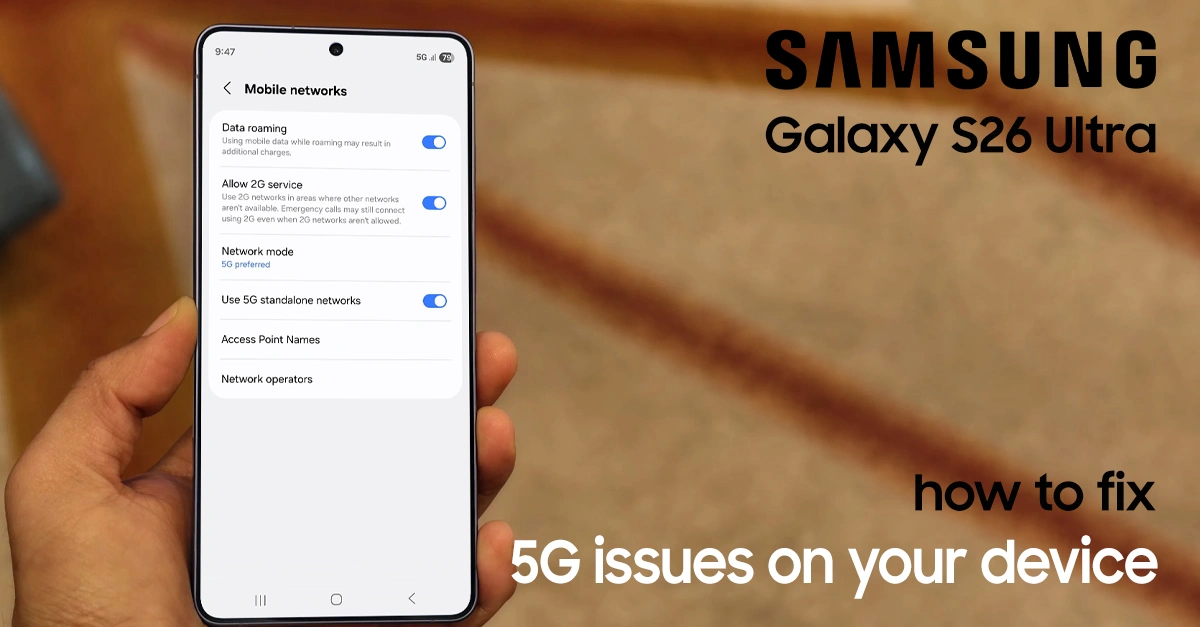
This guide walks you through simple settings checks, network tweaks, and advanced fixes to get 5G running properly again on your Samsung Galaxy S26 Ultra.
Quick checks before changing settings
Start with these quick checks. They often fix 5G issues without deeper troubleshooting.
- Check if mobile data is turned on in the Quick Panel and in Settings.
- Make sure you’re in an area with actual 5G coverage from your carrier. 4G/LTE zones will never show 5G even if the phone supports it.
- Confirm that your SIM plan includes 5G and that 5G is active on your line (contact carrier if unsure).
- If everything above looks fine and 5G still doesn’t appear or keeps failing, move through the fixes below.
Powerfull Methods to Fix 5G Not Working on your Galaxy S26 Ultra
Try these methods to restore 5G connectivity on your Galaxy S26 Ultra—organized from quickest fixes to advanced solutions. These methods work for both physical SIM and eSIM configurations.
Toggle All Mobile Network Toggles
A fix specifically recommended by Samsung Community moderators involves toggling all network-related switches:
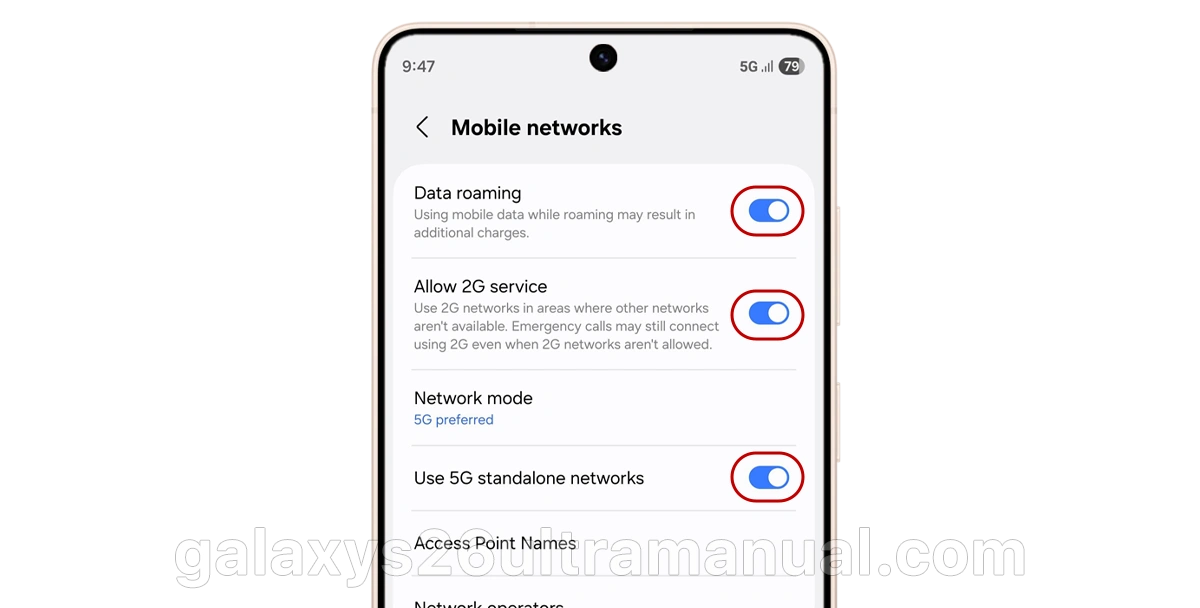
- Go to Settings > Connections > Mobile networks.
- Toggle OFF the following (if enabled):
- Data roaming.
- VoLTE calls.
- Allow 2G service.
- Any other network toggles.
- Toggle them all back ON.
- Restart your device.
This refreshes the network registration and has resolved 5G issues for multiple S26 Ultra users.
Reset Mobile Network Settings
If toggling doesn’t work, a full network reset often resolves deeper configuration conflicts. This will erase saved Wi-Fi passwords and Bluetooth pairings, so have those handy.
Steps:
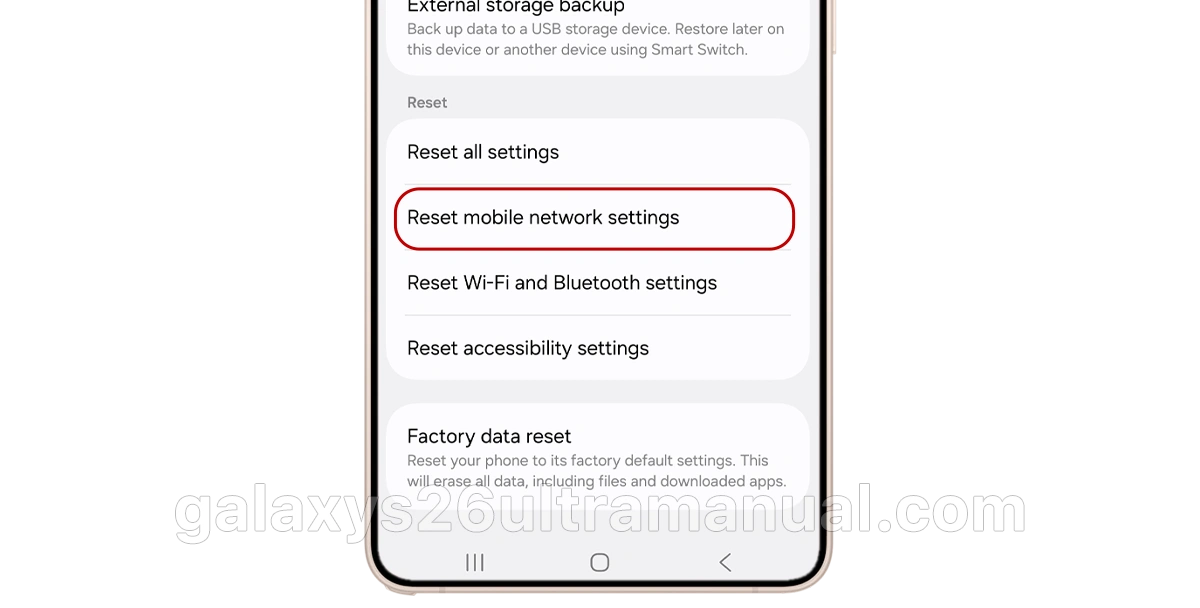
- Open Settings.
- Go to General management > Reset.
- Tap Reset mobile network settings.
- If you have both eSIM and physical SIM, select the affected SIM from the dropdown.
- Tap Reset settings, then confirm with Reset.
Verizon Support Note: Resetting network settings can fix problems connecting to Wi-Fi, mobile data, or Bluetooth devices on the Galaxy S26 series.
After resetting, your device will automatically reconfigure carrier settings, but you may need to re-enter APN details if you’re on a smaller carrier.
Enable VoLTE & Voice Over 5G
Voice over LTE (VoLTE) is required for proper 5G network registration on many carriers. Without it, your S26 Ultra may refuse to connect to 5G.
Enable VoLTE:
- Settings > Connections > Mobile networks.
- Toggle VoLTE calls ON.
- If available, also enable 5G calling or Voice over 5G.
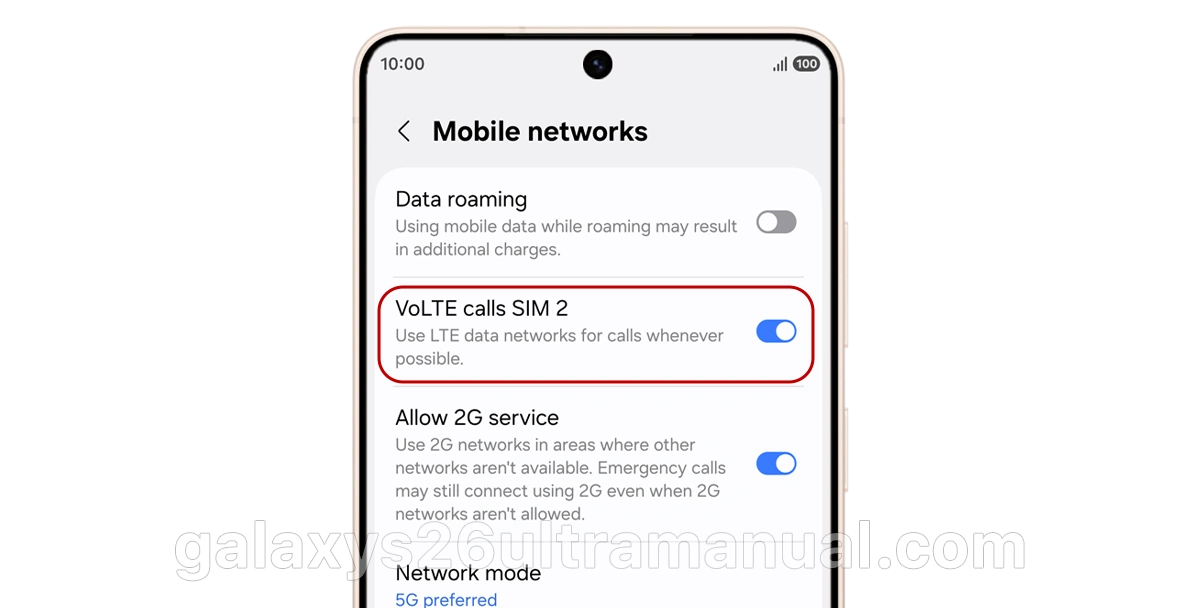
Some carriers require VoLTE to be active before 5G data will function.
Run Samsung Device Care Diagnostics
The Galaxy S26 Ultra includes built-in hardware diagnostics that can identify modem or antenna issues.
How to Run:
- Open the Device care app (or go to Settings > Battery and device care).
- Scroll down and tap Diagnostics.
- Run the Network or Signal strength test.
- Review results for any flagged errors.
If diagnostics reveal a hardware fault, contact Samsung Support immediately—this may require warranty service.
Check for Android 16 Software Updates
Samsung has released multiple Android 16 patches addressing 5G connectivity, especially for early production units.
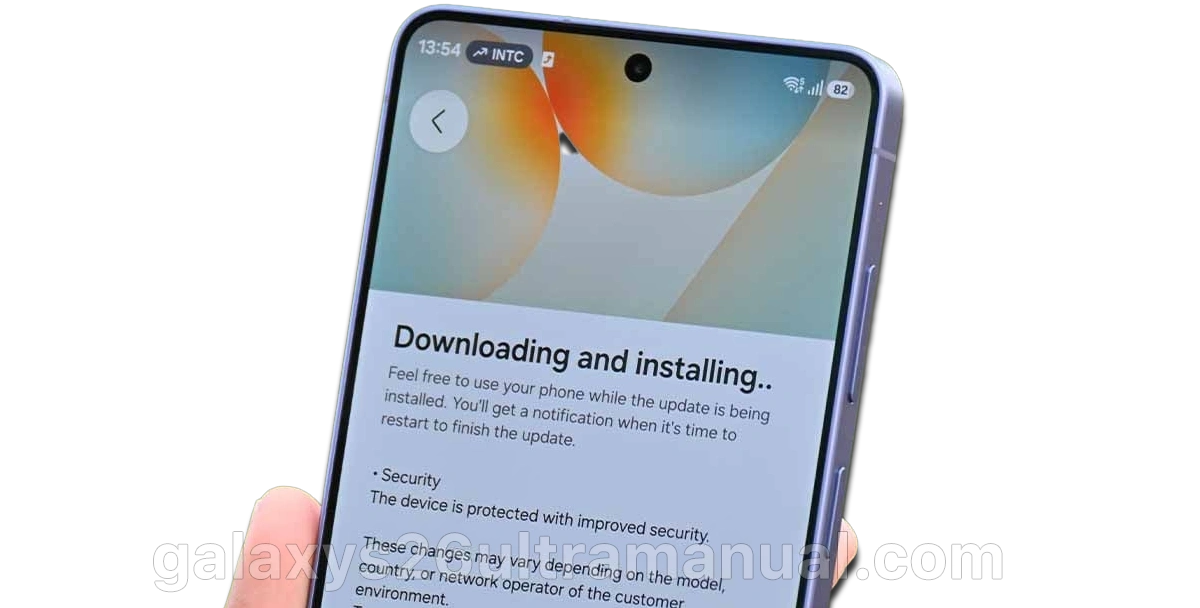
Update Steps:
- Settings > Software update > Download and install.
- If an update is available, install it and restart.
- After updating, check Settings > About phone > Software information to confirm you’re on the latest build.
Early Samsung S26 Ultra units had modem firmware bugs that caused 5G to default to 4G. The May 2026 and June 2026 patches specifically addressed these issues.
Advanced: Factory Reset & Safe Mode
If all else fails, a factory reset eliminates software conflicts. Back up your data first.
Factory Reset via Recovery Mode:
- Power off your S26 Ultra.
- Press and hold Volume Up + Power until the Android logo appears.
- Release Power, keep holding Volume Up until Recovery menu appears.
- Use Volume keys to select Wipe data/factory reset.
- Press Power to confirm, then select Yes – Delete All Data.
- After completion, select Reboot System Now.
Test in Safe Mode:
If 5G works in Safe Mode, a third-party app is interfering. To enter Safe Mode:
- Hold Power button.
- Long-press Power Off until Safe Mode prompt appears.
- Tap Safe Mode to restart.
When to Contact Your Carrier or Samsung
Contact your carrier if:
- Other 5G phones work in the same location but your S26 Ultra doesn’t.
- You’ve tried all fixes and 5G still won’t register.
- You suspect a carrier-side misconfiguration (common with eSIM activations).
Contact Samsung Support if:
- Device Care diagnostics show hardware errors.
- Your phone overheats during network use.
- 5G worked previously but stopped after a drop or water exposure.
- You’re within warranty and suspect a defective modem.
Final Thoughts
5G issues on the Galaxy S26 Ultra are frustrating but usually fixable. Start with quick fixes like airplane mode and SIM reseating, progress through network settings and APN configuration, and use Device Care diagnostics to rule out hardware faults. If nothing works, your carrier or Samsung Support can help resolve deeper provisioning or hardware issues.
Did this guide fix your 5G problem? Let us know which solution worked in the comments below, and share this guide with other S26 Ultra users experiencing connectivity issues.