The Samsung Galaxy S26 Ultra boasts some of the most advanced AI-powered voice features on the market. But what happens when Google Talk to Text suddenly stops working on your Galaxy S26 Ultra? You tap the microphone icon, and nothing happens or worse, it listens but transcribes gibberish.
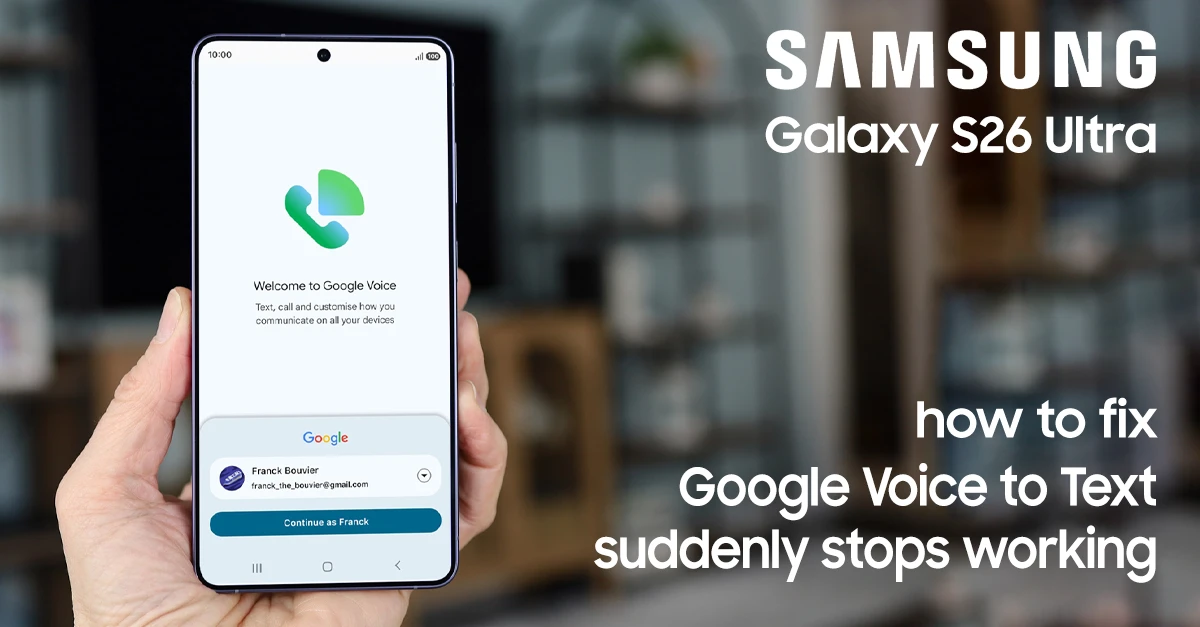
Samsung Community forums show multiple Galaxy S26 Ultra users reporting this exact issue, with some experiencing it as early as day two of ownership. The good news? Most cases can be fixed in minutes without factory resetting your device.
This guide walks you through every possible fix Google Talk to Text not working on your Galaxy S26 Ultra, from the simplest to the most advanced.
Why Is Google Talk to Text Not Working on My Galaxy S26 Ultra?
Before diving into fixes, it helps to understand what’s causing the problem. Based on user reports and troubleshooting data, here are the most common culprits:
| Cause | What Happens |
|---|---|
| Microphone permissions disabled | The keyboard or Google app can’t access your mic |
| Poor internet connection | Google Voice Typing requires cloud processing |
| Voice input turned off in settings | The microphone icon may disappear entirely |
| Corrupted app cache | Temporary files interfere with voice recognition |
| Outdated software | System or app updates fix compatibility issues |
| Samsung Keyboard vs. Google Voice Typing conflict | The mic button activates Samsung’s engine instead of Google’s |
| Third-party app interference | Accessibility or mic-using apps can block voice input |
Understanding these causes makes it easier to choose the right fix from the steps below.
Steps to Fix Google Voice to Text Stop Working
If Google Talk to Text (voice typing) is not working on your Galaxy S26 Ultra, it’s usually due to disabled voice input settings, microphone permissions, or an outdated keyboard app. The fastest fix is to re-enable Google Voice Typing in your keyboard settings and ensure the microphone permission is allowed for your keyboard app.
Fix 1: Check Microphone Permissions
This is the #1 reason voice typing stops working. If the microphone isn’t allowed, the feature simply can’t function.
Steps:
- Open Settings → tap Apps.
- Tap Samsung Keyboard (or Google if you use Gboard).
- Tap Permissions → make sure Microphone is set to Allow only while using the app.
- If voice-to-text only fails in one specific app (like Messages or WhatsApp), check that app’s permissions separately.
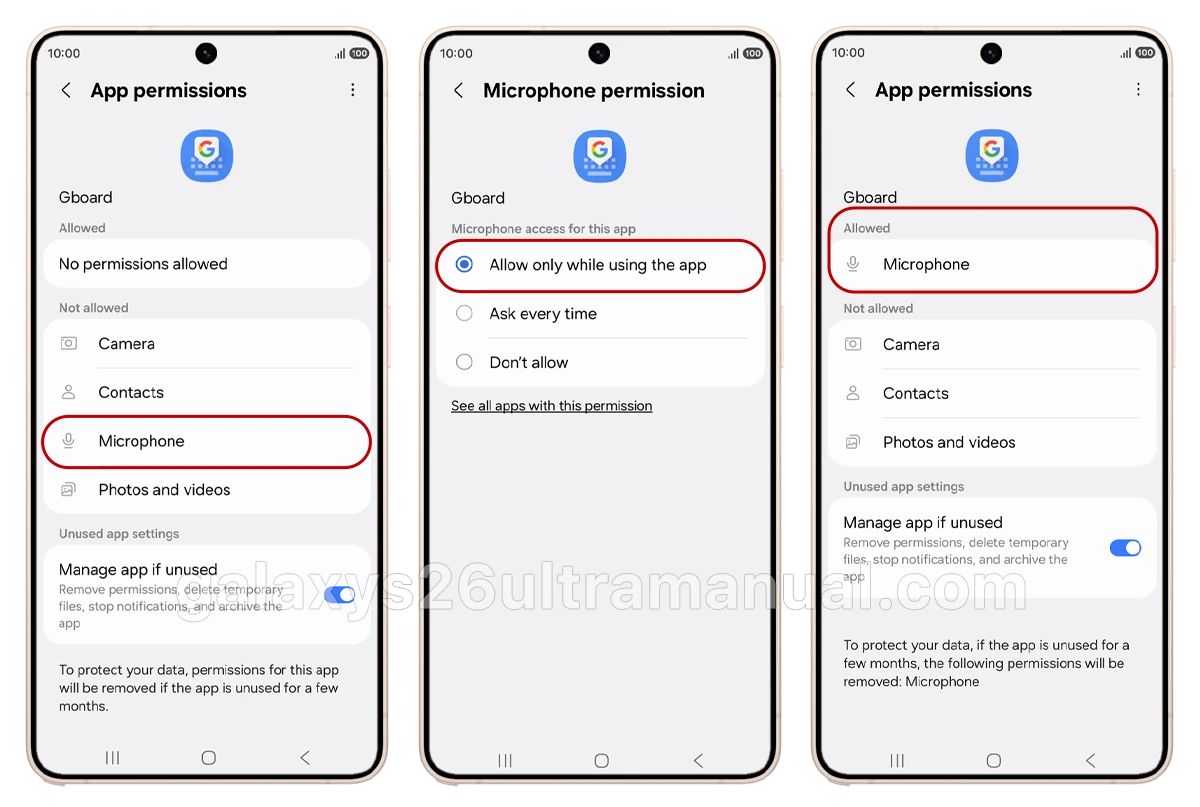
Pro Tip: Also check system-wide microphone access. Pull down Quick Settings and look for a microphone toggle—if it’s off, turn it back on.
Fix 2: Enable Google Voice Typing in Keyboard Settings
Many Galaxy S26 Ultra users report that the microphone button activates Samsung Voice Input instead of Google’s—and Samsung’s engine is often less accurate.
To set Google Voice Typing as your default:
- Open Settings → General management.
- Tap Keyboard list and default.
- Toggle Google Voice Typing ON.
- Go back → tap Samsung Keyboard settings → Voice input.
- Select Google voice typing instead of Samsung voice input.
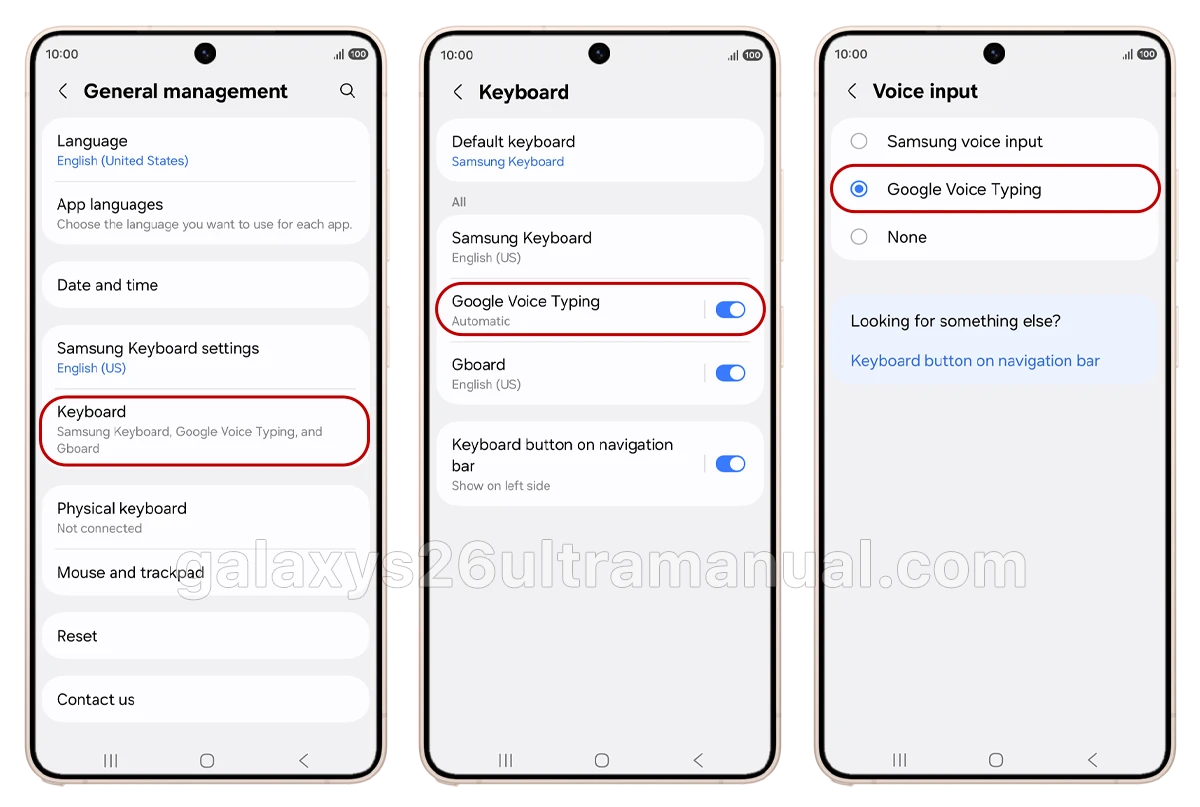
If the microphone still doesn’t work, try this workaround shared by a Galaxy S26 Ultra user: long-press the mic icon on the bottom right of your keyboard, then select Google voice input.
Fix 3: Clear Cache and Data
Corrupted temporary files are a common cause of voice typing failures.
Clear Samsung Keyboard cache:
- Open Settings → Apps.
- Tap Samsung Keyboard → Storage.
- Tap Clear cache.
If the issue persists, tap Clear data—this resets keyboard settings but won’t delete personal files.
Fix 4: Update Everything
Outdated software is a silent killer of voice features.
Check for system updates:
- Open Settings → Software update.
- Tap Download and install.
Update apps:
- Open Google Play Store → search for Google → tap Update.
- Update Gboard if you use it.
- Open Galaxy Store → check for Samsung Keyboard updates.
A Samsung Community Honored Contributor also recommends checking Google System Services for updates:
- Settings → Google → Services → All services → System Services → look for updates.
Fix 5: Reset Keyboard Settings
If you’ve customized your keyboard and voice typing broke afterward, resetting your keyboard settings may help.
- Open Settings → General management.
- Tap Samsung Keyboard settings.
- Scroll down → tap Reset to default settings.
- Select Reset keyboard settings and confirm.
Fix 6: Switch to Gboard
Some Galaxy S26 Ultra users have found that Samsung Keyboard simply refuses to work with Google Voice Typing, no matter what they try.
How to switch:
- Download Gboard from the Play Store.
- Open Settings → General management → Keyboard list and default.
- Set Gboard as your default keyboard.
- In Gboard settings, ensure Voice Typing is enabled.
Fix 7: Test in Safe Mode
If a third-party app is interfering, Safe Mode will tell you.
- Press and hold the Power button.
- Tap and hold Restart → select Safe Mode.
- Test voice typing.
If it works, a third-party app is the culprit—uninstall recently downloaded apps one by one
Fix 9: Reset Voice Model
If voice recognition has become inaccurate over time, resetting the voice model can help.
- Settings → General management → Language and input.
- Tap Google Voice Typing → Reset Voice Model.
This clears words you’ve trained the system to recognize but keeps your dictionary intact.
Why Choose Google Voice Typing Over Samsung’s?
Many users prefer Google Voice Typing because it’s more accurate especially with accents and punctuation. As one forum user put it: “Google’s technology simply working flawlessly regardless of how thick my accent is”. Samsung Voice Input often struggles in comparison.
Final Thoughts
Google Talk to Text not working on your Galaxy S26 Ultra is frustrating—but in most cases, it’s fixable without visiting a service center. Start with the simplest fixes (permissions, internet, cache) and work your way up. If all else fails, switching to Gboard or restoring from a cloud backup usually does the trick.
Have you tried these fixes? Did one work for you? Drop a comment below—your experience might help another Galaxy S26 Ultra user!
Disclaimer: Steps may vary slightly depending on your One UI version and carrier settings. Always back up your data before performing major resets.