Samsung has equipped its latest flagship with a powerful solution built right into the stunning 6.9-inch Dynamic AMOLED 2X display. Whether you’re a night owl scrolling through social media or someone who simply wants to protect their vision, mastering the blue light filter on Galaxy S26 Ultra is the key to a more comfortable viewing experience.
In this guide, we’ll walk you through the simple steps to activate this essential feature, so you can enjoy your device’s brilliant screen without the burn.
Understanding Eye Comfort Shield Technology
Modern devices like the Galaxy S26 Ultra have advanced tech to protect your eyes. As you use your phone more, your eyes face high-energy light waves. This can cause eye discomfort.
Knowing how your screen affects your vision is key to better eye health.
The science behind blue light and digital eye strain
Digital screens give off a lot of blue light. This light has a short wavelength and high energy. Your eyes work hard to focus on it, leading to eye strain.
Eye strain shows as dryness, irritation, and blurry vision. The flicker and intensity of these light waves can mess with your natural vision rhythm. By controlling these wavelengths, you can lessen eye stress.

Why Samsung uses the Eye Comfort Shield terminology
Samsung calls its blue light reduction feature Eye Comfort Shield. It shows a focus on eye health while keeping visuals clear. It’s not just about blocking light; it’s about creating a balanced viewing environment.
This tech adjusts your screen’s color temperature based on the time. It makes the screen warmer to reduce blue light’s harshness. This way, your eyes stay comfortable, and the screen stays clear all day.
How to enable Blue Light Filter on Galaxy S26 Ultra
Using your smartphone can be easier on your eyes with new display features. You can turn on the blue light filter on your Galaxy S26 Ultra. This makes your screen more comfortable during long use. This change reduces harsh glare that can cause eye strain.
Accessing the display settings menu
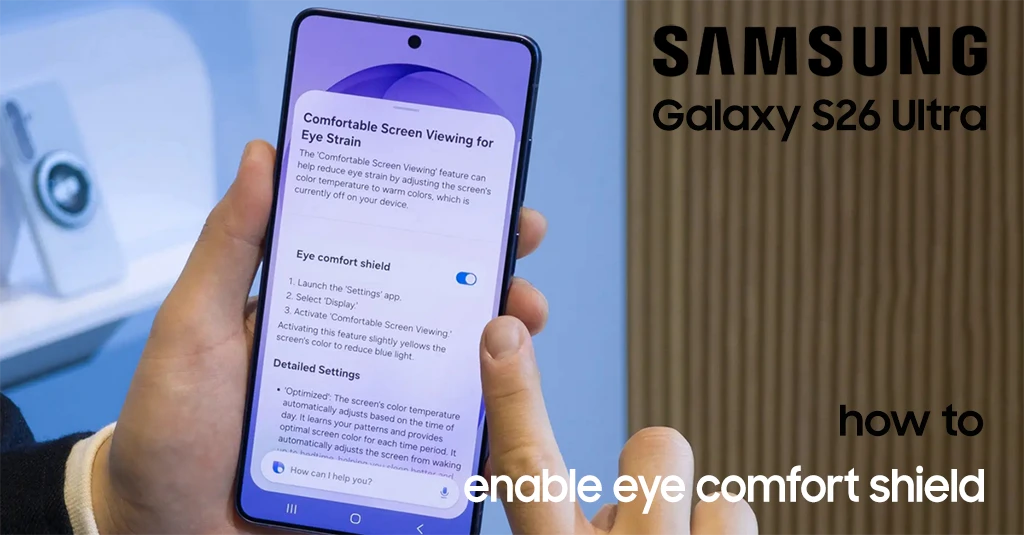
To start, open the Settings app from your home screen or app drawer. Go to the Display section for screen appearance controls. Tap on Eye Comfort Shield to see options.
In this menu, you can turn the feature on or off. This is a direct way to manage your screen preferences. It helps keep your eyes relaxed.
Using the Quick Panel for instant activation
For a quicker method, use the Quick Panel. Swipe down from the top of your screen with two fingers. Look for the Eye Comfort Shield icon to turn it on or off with a tap.
Adding the Eye Comfort Shield toggle to your Quick Panel
If you can’t find the icon, add it to your Quick Panel. Tap the three-dot menu icon in the top right corner. Select Edit buttons, then find and drag the Eye Comfort Shield button to your active panel.
After placing the icon, tap Done to save. Now, you can switch your screen protection easily without deep menus.
Setting up an automated schedule for your filter
For a smoother experience, set up your Galaxy S26 Ultra’s blue light filter to run automatically. In the Eye Comfort Shield menu, choose Adaptive or Custom schedule. The sunset-to-sunrise setting changes your screen’s color temperature based on time.
This automation makes your screen warmer at night. It keeps your eyes comfortable without needing to remember to turn it on. It’s a great way to make healthy viewing habits part of your daily routine.
Customize Blue Light Filter on Galaxy S26 Ultra
Your Samsung Galaxy S26 Ultra has tools to make your screen better for your eyes. You can adjust settings to keep your display comfy, no matter where you are. By customizing the blue light filter, you can make your screen feel natural and easy on the eyes.
Adjusting color temperature for your environment
The display settings menu has a slider to change your screen’s warmth. You can adjust the blue light filter intensity on your Galaxy S26 Ultra by moving the slider. This is great for those who like a certain color tone that matches their surroundings.
If your screen seems too yellow or too blue, small tweaks can help. Trying different levels can find the best mix of color and comfort. Regular adjustments keep your eyes relaxed all day.
Choosing between Adaptive and Custom modes
Samsung offers two ways to manage your screen’s color. You can pick between the automated Adaptive mode or the manual Custom mode. Each has its own use, depending on your daily life and where you are.
Benefits of the Adaptive mode for daily use
The Adaptive mode is for those who want it easy. It changes your screen’s color based on the time of day. This keeps your screen bright in the morning and warm at sunset, helping you stay in sync with nature.
When to use the Custom mode for specific lighting conditions
Custom mode is best for tasks that need a steady color. If you work in a room with fixed lights, you might want a set warmth level. This mode also lets you adjust the blue light filter to fit your needs. Customizing the blue light filter gives you full control over your digital space.
Advanced screen protection and health benefits
Protecting your vision is more than just filters when using your phone at night. By looking into different galaxy s26 ultra screen protection options, you can make your digital space healthier. This supports your natural rhythms.
Reducing melatonin suppression for better sleep
High-intensity blue light in the evening can keep your brain awake. This can lower melatonin, the hormone that helps you sleep.
Display filters can help. They change the color to warmer tones. This helps your body get ready for sleep after screen time.
Combining Eye Comfort Shield with Dark Mode
Pairing your filter with Dark Mode makes viewing better. Dark Mode lowers the screen’s brightness, easing eye strain.
It swaps bright whites for deep grays and blacks. With your comfort settings, it makes viewing in the dark easier.
Additional display settings to improve viewing comfort
Your device lets you control light settings finely. Adjusting these ensures your screen is comfy, no matter where you are.
Adjusting screen brightness and contrast settings
Changing brightness and contrast helps avoid eye fatigue. Lowering brightness in dim places stops glare from hurting your eyes.
Exploring galaxy s26 ultra screen protection options keeps your vision clear and comfortable. Finding the right balance lets you enjoy your screen time while protecting your eyes.
Conclusion
Learning how to adjust your display settings changes how you use your Samsung Galaxy S26 Ultra every day. You now know how to protect your eyes from digital strain while still enjoying bright colors. Using these tools regularly can help you sleep better and keep your eyes healthy in the long run.
It’s not just about screen brightness. You should also make sure your device works well by fixing notification sound issues on Galaxy S26 if you have audio problems. A well-kept phone keeps you connected and helps you stay productive without distractions.
Keeping your software up to date is key to keeping your device safe and apps running smoothly. By staying on top of updates, you help your phone last longer. Share your tips with other Samsung users to help the community grow.
Your feedback is important for making future guides better for everyone. If you have ongoing hardware issues that software can’t fix, contact official support. Enjoy a balanced digital life with your optimized smartphone.