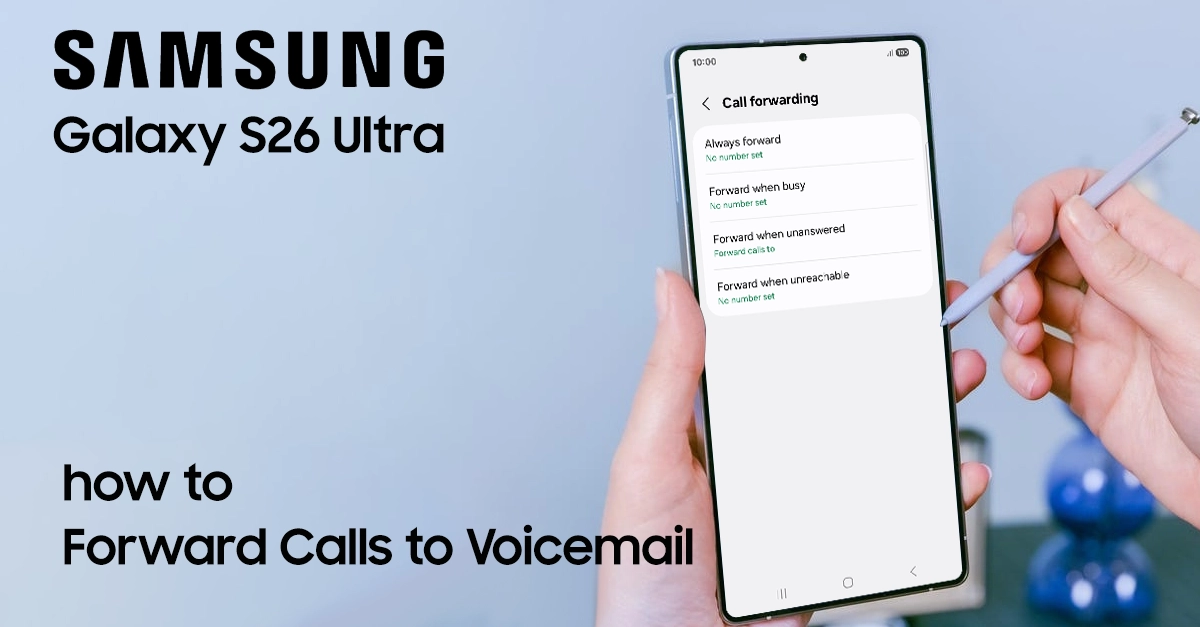
Tired of call interruptions on your Samsung Galaxy S26 Ultra? Forwarding calls straight to voicemail offers a simple way to stay focused while ensuring you never miss important messages. This article will help you to forward calls to voicemail on your Samsung S26 Ultra.
Why Forward Calls to Voicemail on S26 Ultra?
Forwarding routes incoming calls directly to your carrier’s voicemail, silencing your device without blocking numbers permanently. Key benefits include:
- Privacy during meetings or drives: Calls ring once (or not at all) before voicemail kicks in.
- Spam management: Send telemarketers straight to voicemail without silencing everything.
- Battery savings: Reduces screen wakes and vibrations on the 5500mAh battery.
- Flexibility: Choose always forward, no answer, busy, or unreachable scenarios.
Unlike Do Not Disturb (DND), which mutes rings but lets calls through, forwarding truly redirects them. Perfect for S26 Ultra users juggling work and life on One UI 8.
Prerequisites Before Setup
Ensure your S26 Ultra runs the latest One UI 8 based on Android 16 for optimal features. Steps to check:
- Swipe down twice for Quick Settings, and tap the gear icon for Settings.
- Go to Software update > Download and install.
Activate Visual Voicemail if available—dial and hold “1” or check Phone app settings. Know your carrier’s voicemail number (e.g., *86 for many US carriers or +61414121121 for Vodafone AU).
Dual-SIM users: Repeat for each line. Backup settings via Samsung Cloud to avoid data loss.
Some Methods to forward calls to voicemail on Samsung 26 Ultra
Several methods exist to forward calls directly to voicemail on the Samsung Galaxy S26 Ultra, primarily using built-in features like call forwarding and Do Not Disturb.
These approaches work on One UI and help manage incoming calls effectively for users creating tech guides. Carrier voicemail numbers are typically required for forwarding setups.
Method 1: Using Phone App Call Forwarding (Primary Way)
Samsung’s native tool handles most forwarding needs on the S26 Ultra. Follow these detailed steps:
- Phone app from your home screen or app drawer.
- Tap the three-dot menu (More) in the top-right corner.
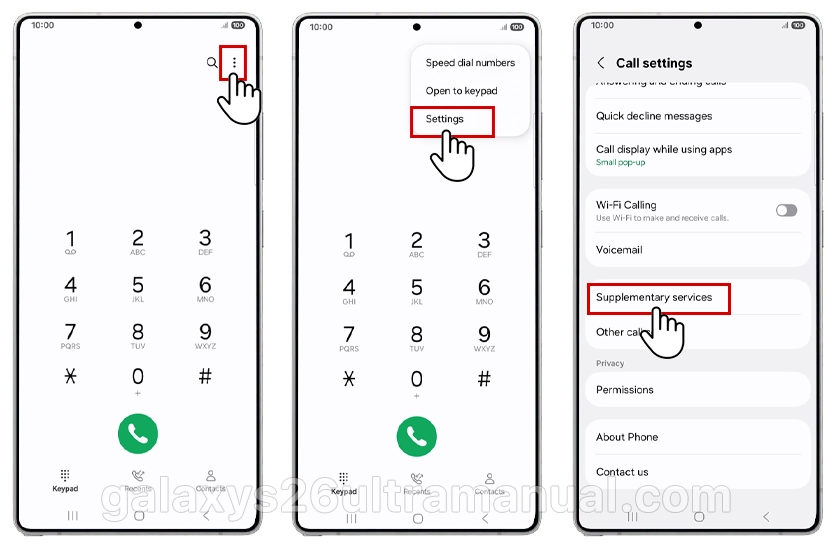
- Select Settings > Supplementary services > Call forwarding.
- Choose Voice call (or Video call if needed).
- Pick a type:
- Always forward: All calls go to voicemail immediately.
- Forward when busy: Redirects if on another call.
- Forward when unanswered: After 15-30 seconds no pickup.
- Forward when unreachable: No signal or off
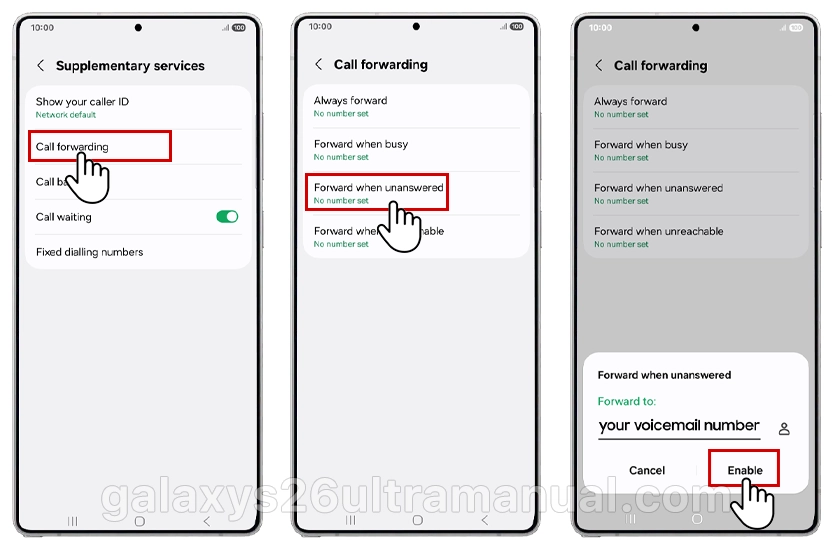
- Enter your voicemail number (dial *#21# to check defaults).
- Tap Enable or Tur on. Confirm with a test call.
To disable: Return and tap Disable. Works across carriers like AT&T or Optus with minor number variations.
Method 2: Do Not Disturb with Voicemail Tweaks
DND silences calls but pairs well with forwarding for voicemail priority. Setup:
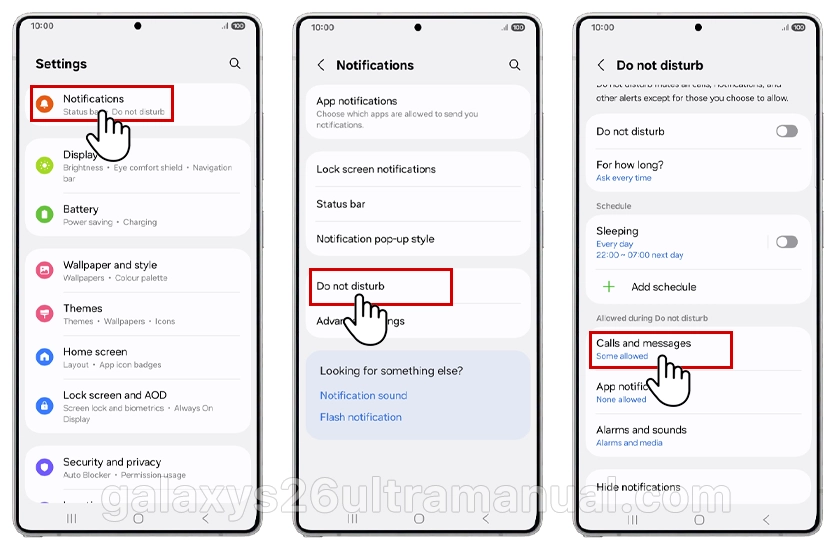
- Swipe down for Quick Settings > Tap Do Not Disturb (crescent moon).
- In Settings > Notifications > Do Not Disturb > Calls and messages.
- Allow exceptions (e.g., favorites) and set duration.
- Combine with forwarding for true voicemail routing.
New in One UI 8: Direct Voicemail auto-forwards after 5-20 seconds.
Visual Voicemail Setup on S26 Ultra
Visual Voicemail on the Samsung Galaxy S26 Ultra integrates into the Phone app’s settings menu for configuration. Guide to set up here.
- Phone app > Voicemail tab (or hold 1).
- Follow prompts: Set PIN, record greeting.
- Enable notifications in voicemail settings.
- Access visuals: Swipe left in the Phone app.
Supports AI summaries on Galaxy AI-enabled S26 Ultra.
Troubleshooting Common Issues
Calls not forwarding? Fixes for S26 Ultra:
- No service error: Verify voicemail number with carrier app or ##4636##.
- Stuck on ring: Disable DND, restart the Phone app.
- Dual SIM mixup: Set per SIM in supplementary services.
- After update: Clear Phone app cache (Settings > Apps > Phone > Storage).
- Spam persists: Block via Recent calls > three dots > Block.
Test: Call from another phone. If there are issues, reset network settings (Settings > General management > Reset).
Advanced Tips for S26 Ultra Owners
- Automate with Bixby Routines: Forward during schedules (e.g., work hours).
- Per-contact: Edit contact > All calls to voicemail (limited carriers).
- S Pen integration: Quick note voicemails via Air Actions.
- Battery impact: Minimal; monitor via Device care.
Mastering how to forward calls to voicemail on the Samsung Galaxy S26 Ultra empowers you to control communications effortlessly on this flagship beast. These methods ensure quick fixes for any scenario, boosting your device’s productivity.
1 thought on “How to Forward Calls to Voicemail on Samsung Galaxy S26 Ultra”