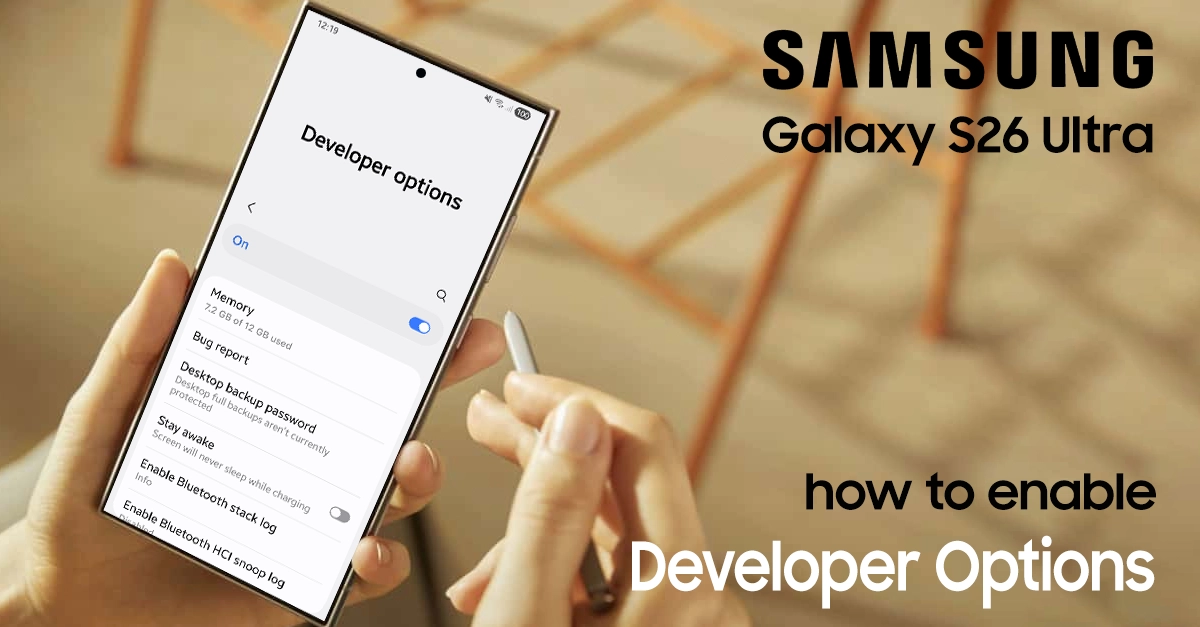
Developer mode on the Samsung S26 Ultra unlocks advanced tools that are useful for testing apps, USB debugging, and other in-depth Android features. Developer mode (also called Developer Options) is that secret gateway Samsung hides by default, but it’s easier to unlock than you think. This guide walks you through every step to enable Developer mode on your Samsung S26 Ultra.
What Developer Mode does
Developer options provide additional settings such as debugging, animation scales, logging, and other controls intended mainly for app developers.
These options can influence performance and behavior, so Samsung recommends that only users who understand the impact should change them.
Step-by-step to enable Developer Mode on Samsung S26 Ultra
Follow these simple steps on your Galaxy S26 Ultra. The process mirrors Samsung’s standard One UI method, unchanged for the S26 series.
Open settings
- Unlock your Samsung S26 Ultra.
- Open the Settings app from your app drawer or Quick Settings shortcut.
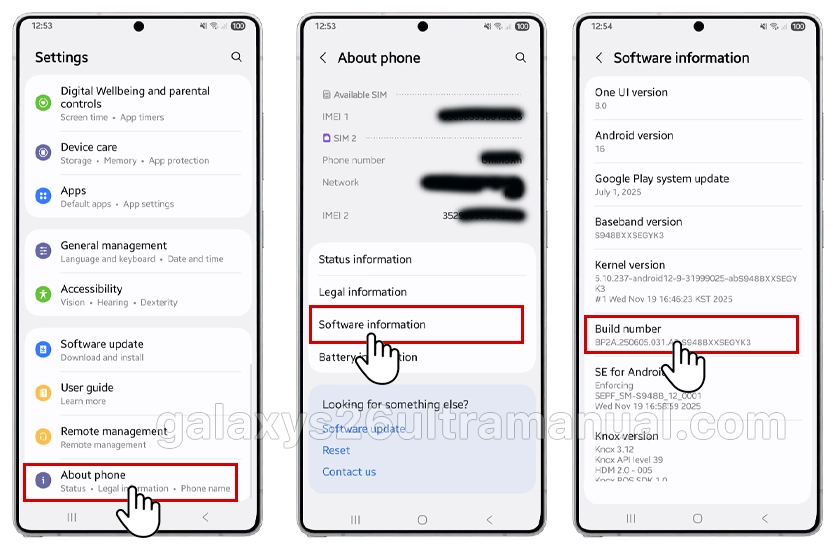
Go to about phone
- Scroll down to the bottom of the Settings menu.
- Tap About phone.
Open software information
- Inside About phone, locate and tap Software information.
- This section shows details like One UI version, Android version, and Build number.
Tap build number seven times
- Find Build number on the Software information screen.
- Tap Build number quickly seven times in a row.
- As you tap, you will see a small message indicating how many steps remain before Developer mode is enabled.
Confirm with your screen lock
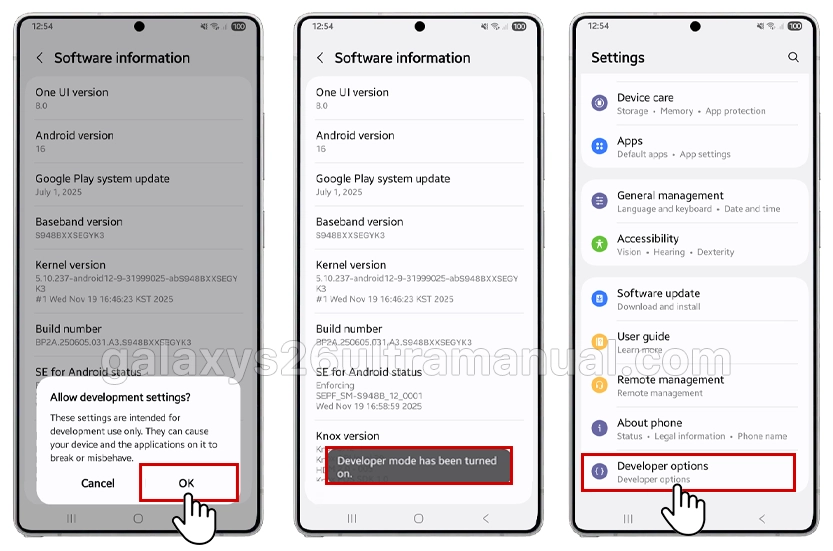
- If you use a lock screen, you will be prompted to enter your PIN, pattern, or password.
- Enter the credentials correctly to confirm you want to turn on Developer options.
Find Developer Options in settings
- After confirmation, a message such as “Developer mode has been turned on” appears.
- Go back to the main Settings screen.
- Scroll down; you will now see Developer options near the bottom of the list.
How to turn Developer Mode off again
If you only needed developer mode temporarily, you can disable it at any time.
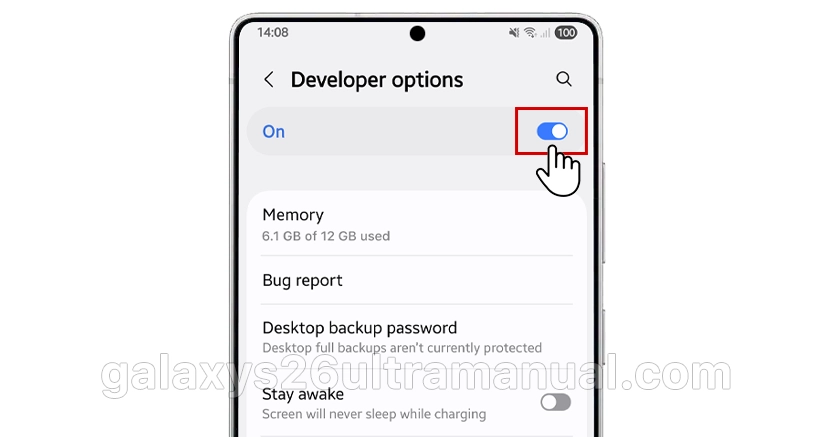
- Open Settings.
- Scroll down and tap Developer options.
- Turn off the switch at the top of the Developer options screen.
- The menu will be hidden again on many devices, helping protect the phone from accidental changes.
Exploring key developer Options
Once activated, dive into treasures like these on your S26 Ultra:
- USB debugging: Essential for app testing or connecting to a PC for advanced rooting—great for your Samsung tutorials.
- Animation scales: Set to 0.5x or off for snappier navigation (Window/Transition/Animator duration scales).
- OEM unlocking: Preps for bootloader tweaks, though One UI 8 stable versions might limit this—check your build.
- Stay awake: Keeps the screen on while charging, ideal for long content creation sessions.
- USB Configuration: Change USB confirguration for file transfer or other functions each time.
- Mock location: Handy for testing geo-based apps in your guides.
Samsung tailors these for One UI, adding Galaxy-specific tweaks like pointer location for touch visualization. Experiment safely—many reset to default on reboot.
Troubleshooting common issues
Stuck? No worries—here are quick fixes:
- No Developer options? Double-check seven taps; use two fingers if the screen lags on your 120 Hz display.
- PIN prompt fails? Ensure it’s your lock screen credential, not biometric.
- Options grayed out? Toggle the main Developer switch on at the top.
If issues persist, restart or update via Settings > Software update—Samsung pushes fixes fast for flagships like yours.
Conclusion
Enabling developer mode on the Samsung S26 Ultra is simple: open Settings, go to About phone, tap Software information, and hit Build number seven times to reveal Developer options. Once the menu is visible, you gain access to powerful tools, but you should adjust these settings carefully and disable Developer options when you no longer need them.
1 thought on “How to Enable Developer Mode on Samsung S26 Ultra (Step-by-Step Guide)”