Many Samsung Galaxy S26 Ultra owners get frustrated when the phone always defaults to charging only over USB. Changing the default USB configuration makes file transfers, tethering, or other tasks faster and more reliable every time you plug into a PC. This guide explains what the default USB configuration does and shows clear steps to change it on your Samsung S26 Ultra.

What default USB Configuration means
The default USB configuration decides what your Galaxy S26 Ultra does the moment you connect it to a computer or other device. By default, many phones choose charging only for security, so data transfer stays blocked unless you manually allow it.
Common USB modes you may see include:
- Transferring files (MTP) for copying photos, videos, and documents between phone and PC.
- USB tethering to share your mobile data with a computer through the cable.
- MIDI for connecting to musical instruments or audio tools.
- Transferring images (PTP) for camera-style photo import.
- Charging phone only for safe power without data.
Before you start: enable Developer Options
Samsung hides the default USB configuration behind Developer options, a special menu for advanced settings. You must enable this menu once, and then you can change USB behavior anytime.
Follow these steps on your Samsung Galaxy S26 Ultra:
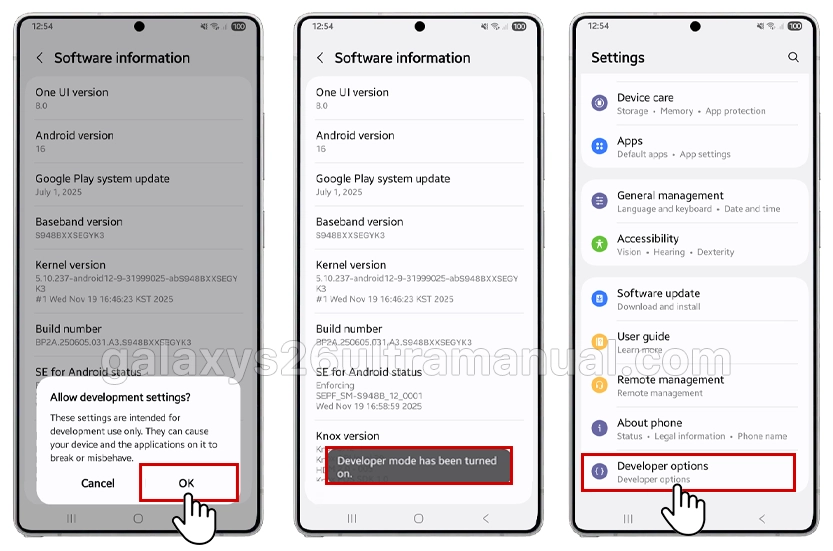
- Open Settings from the home screen or app drawer.
- Scroll down and tap About phone.
- Tap Software information.
- Find the build number and tap it quickly seven times.
- Enter your PIN or password if asked, then wait for the message “Developer mode has been turned on.”
After this, Developer options will appear as a new menu near the bottom of the main Settings list.
How to change default USB configuration on Samsung S26 Ultra
Once Developer options are active, you can set the USB mode that your S26 Ultra uses by default. The steps are similar to the Galaxy S24 and S25 but applied here for the Samsung Galaxy S26 Ultra.

Do the following:
- Open Settings.
- Scroll down and tap Developer options.
- Scroll and Tap Default USB configuration.
- Choose your preferred option, such as:
-
- Transferring files for full file access between phone and PC.
- Transferring images if you mainly import photos and videos.
- USB tethering if you often share mobile data with your computer.
- MIDI for music hardware and apps.
- Charging phone only to block data and using USB just for power.
From now on, when you connect your Samsung S26 Ultra to a compatible device, it will automatically use the USB mode you selected. This saves time because you no longer need to change USB preferences each time you plug in.
Best default USB configuration for most users
Many S‑series owners pick transferring files as their default, because it allows fast copying of photos, videos, and documents without extra taps.
This mode still shows prompts on the computer side if security tools are in place, but it removes friction on the phone.
However, if you often charge your phone from public USB ports, a safer choice is charging the phone only. This keeps data access blocked by default and reduces the risk of unwanted file access from unknown devices.
USB not working? Simple troubleshooting tips
Sometimes the default USB configuration works correctly, but the computer still does not detect the phone. In those cases, a few quick checks usually solve the problem.
Try these steps:
- Use an original or high‑quality data cable, not a charge‑only cable.
- Test a different USB port or another computer to rule out PC issues.
- Restart both your Samsung S26 Ultra and the computer, then reconnect.
- Update or install the proper Samsung drivers on your PC if file transfer still fails.
- Go back to Developer options > Default USB configuration and switch briefly to another mode, then back to your desired one.
If none of these steps work, Samsung’s official support pages provide extra checks for cables, ports, and software updates.
Important security and safety notes
Setting the default USB configuration to transferring files or USB tethering is very convenient, but it also means the phone exposes more data by default when plugged in.
For safety, only connect your Galaxy S26 Ultra to computers and chargers you trust.
If you plan to charge from unknown USB ports in airports, cafés, or cars, change the default back to “Charging phone only” before you travel.
This simple habit keeps your data safer while still letting you enjoy fast file transfers at home or at work.
Conclusion
Changing the default USB configuration on Samsung S26 Ultra gives you more control over how the phone behaves every time you connect it to a computer. By enabling developer options and choosing the USB mode that matches your daily workflow, you remove repetitive prompts and make file transfers or tethering much smoother.
1 thought on “How to Change Default USB Configuration on Samsung Galaxy S26 Ultra”